
IBM Sterling B2B Integrator
|
|
|
- Aldemir Luiz da Silva
- 10 Há anos
- Visualizações:
Transcrição
1 IBM Sterling B2B Integrator IBM Sterling Connect:Direct Interoperability Version 5.2
2 This edition applies to the 5.2 Version of IBM Sterling B2B Integrator and to all subsequent releases and modifications until otherwise indicated in new editions. Before using this information and the product it supports, read the information in Notices on page 191. Licensed Materials - Property of IBM IBM Sterling B2B Integrator Copyright IBM Corp. 2010, All Rights Reserved US Government Users Restricted Rights - Use, duplication or disclosure restricted by GSA ADP Schedule Contract with IBM Corp CDSAI1107

3 Contents Chapter 1 What s New with the Interface between Sterling B2B Integrator and Sterling Connect:Direct 9 What s New with the Interface between Sterling B2B Integrator and Sterling Connect:Direct 9 General Enhancements Improvements to Documentation New Documentation on the Sterling Connect:Direct Process Website Sterling Connect:Direct Process Examples Enhancements to Sterling Connect:Direct Server Adapter Documentation. 13 Sterling B2B Integrator Business Process Examples Contact Us Chapter 2 About Sterling Connect:Direct and Sterling B2B Integrator Interoperability 15 About Sterling Connect:Direct and Sterling B2B Integrator Interoperability Sterling Connect:Direct and Sterling B2B Integrator Processes Business Processes and Mailboxes Using Sterling Connect:Direct Server Adapter Services in a Business Process Purpose of the IBM Sterling B2B Integrator - Connect:Direct Server Adapter User Guide 17 Requirements Supported Sterling Connect:Direct Versions Supported Sterling B2B Integrator Versions Chapter 3 Setup Procedures 19 Setup Procedures Create Sterling Connect:Direct and Sterling B2B Integrator User IDs Configure a Sterling B2B Integrator Netmap Entry Connect:Direct Nodes Connect:Direct Netmaps Connect:Direct Netmap Cross-References Configure a Sterling Connect:Direct Server Adapter Add Connect:Direct Server Adapter Node to Sterling Connect:Direct Netmap Create a Sterling B2B Integrator Mailbox IBM Sterling Connect:Direct Interoperability 3
4 Contents Using Virtual Roots in a Mailbox Hierarchy Setting Up a Mailbox Chapter 4 Use Sterling Connect:Direct to Copy a File to a Sterling B2B Integrator Mailbox 31 Use Sterling Connect:Direct to Copy a File to a Sterling B2B Integrator Mailbox Create Your Sterling Connect:Direct Process Submit and Monitor Your Sterling Connect:Direct Process Monitor with Sterling Connect:Direct View the Mailbox Document in Sterling B2B Integrator Chapter 5 Use Sterling Connect:Direct to Copy a File to a Sterling B2B Integrator Business Process 35 Use Sterling Connect:Direct to Copy a File to a Sterling B2B Integrator Business Process 35 Create a Sterling B2B Integrator Business Process Check Your Business Process into Sterling B2B Integrator Create Your Sterling Connect:Direct Process Submit and Monitor Your Sterling Connect:Direct Process Monitor with Sterling Connect:Direct Monitor with Sterling B2B Integrator Chapter 6 Use Sterling Connect:Direct to Pull a File from Sterling B2B Integrator 43 Use Sterling Connect:Direct to Pull a File from Sterling B2B Integrator Configure a File System Adapter Create a Sterling B2B Integrator Business Process Check Your Business Process into Sterling B2B Integrator Create Your Sterling Connect:Direct Process Submit and Monitor Your Sterling Connect:Direct Process Monitor with Sterling Connect:Direct Monitor with Sterling B2B Integrator Chapter 7 Use Sterling B2B Integrator to Copy a File to Sterling Connect:Direct53 Use Sterling B2B Integrator to Copy a File to Sterling Connect:Direct Create a Sterling B2B Integrator Business Process Check Your Business Process into Sterling B2B Integrator Submit and Monitor Your Sterling B2B Integrator Business Process Monitor with Sterling B2B Integrator Monitor with Sterling Connect:Direct IBM Sterling Connect:Direct Interoperability
5 Contents Chapter 8 Use Sterling B2B Integrator to Copy a File from Sterling Connect:Direct 63 Use Sterling B2B Integrator to Copy a File from Sterling Connect:Direct Create a Sterling B2B Integrator Business Process Check Your Business Process into Sterling B2B Integrator Submit and Monitor Your Sterling B2B Integrator Business Process Monitor with Sterling B2B Integrator Monitor with Sterling Connect:Direct Chapter 9 Add Error Handling to a Sterling B2B Integrator Business Process 71 Add Error Handling to a Sterling B2B Integrator Business Process Business Process Version Management Check Out the Business Process Edit the Business Process Check In Your Business Process Submit and Monitor Your Sterling B2B Integrator Business Process Monitor with Sterling B2B Integrator Monitor with Sterling Connect:Direct Chapter 10 Add Sterling Connect:Direct Secure Plus 79 Add Sterling Connect:Direct Secure Plus Configure Sterling Connect:Direct Secure Plus in Sterling B2B Integrator Modify the Connect:Direct Server Adapter Configuration to Use Sterling Connect:Direct Secure Plus Modify the Netmap Node Configuration to Override Sterling Connect:Direct Secure Plus Configuration (Optional) Copy a File Using Sterling Connect:Direct Secure Plus Copy a File Using Your Sterling B2B Integrator Business Process Chapter 11 Use Sterling B2B Integrator to Submit a Sterling Connect:Direct Process 85 Use Sterling B2B Integrator to Submit a Sterling Connect:Direct Process Create Sterling Connect:Direct Process Check Out the Business Process Edit the Business Process Check In Your Business Process Submit and Monitor Your Sterling B2B Integrator Business Process Monitor with Sterling B2B Integrator Monitor with Sterling Connect:Direct Chapter 12 Use Sterling B2B Integrator to Start a Sterling Connect:Direct Run Job 93 Use Sterling B2B Integrator to Start a Sterling Connect:Direct Run Job IBM Sterling Connect:Direct Interoperability 5
6 Contents Check Out the Business Process Edit the Business Process Check In Your Business Process Submit and Monitor Your Sterling B2B Integrator Business Process Monitor with Sterling B2B Integrator Monitor with Sterling Connect:Direct Chapter 13 Use Sterling B2B Integrator to Start a Sterling Connect:Direct Run Task 101 Use Sterling B2B Integrator to Start a Sterling Connect:Direct Run Task Check Out the Business Process Edit the Business Process Check In Your Business Process Submit and Monitor Your Sterling B2B Integrator Business Process Monitor with Sterling B2B Integrator Monitor with Sterling Connect:Direct Chapter 14 Hide the Sterling Connect:Direct Password in the Business Process 109 Hide the Sterling Connect:Direct Password in the Business Process Configure the Obscure Data - Process Data Values Service Check Out the Business Process Edit the Business Process Check In Your Business Process Submit and Monitor Your Sterling B2B Integrator Business Process Monitor with Sterling B2B Integrator Monitor with Sterling Connect:Direct Appendix A Sample Business Processes 117 Sample Business Processes Use Sterling Connect:Direct to Copy a File to Sterling B2B Integrator Use Sterling Connect:Direct to Retrieve a File from Sterling B2B Integrator Use Sterling B2B Integrator to Copy a File to a Sterling Connect:Direct for z/os Node 121 Use Sterling B2B Integrator to Copy a File to a Sterling Connect:Direct for Microsoft Windows Node Use Sterling B2B Integrator to Copy a File to a Sterling Connect:Direct for UNIX Node 125 Use Sterling B2B Integrator to Copy a File to a Sterling Connect:Direct for HP NonStop Node Use Sterling B2B Integrator to Copy a File to a Sterling Connect:Direct for i5/os Node 130 Use Sterling B2B Integrator to Copy a File from Sterling Connect:Direct Add Error Handling to the Business Process Use Sterling B2B Integrator to Submit a Sterling Connect:Direct Process Use Sterling B2B Integrator to Start a Sterling Connect:Direct Run Job Use Sterling B2B Integrator to Start a Sterling Connect:Direct Run Task IBM Sterling Connect:Direct Interoperability

7 Contents Hide the Sterling Connect:Direct Password in the Business Process Use Sterling B2B Integrator to Copy a File to Sterling Connect:Direct for z/os (Advanced) 145 Appendix B Copy Options 151 Copy Options Settings for Connect:Direct Server CopyTo Service Settings for Connect:Direct Server CopyFrom Service Appendix C Clustering Considerations 163 Connect:Direct Server Adapter Configuration Appendix D Monitoring Business Processes and Documents 165 Tracking and Search Functions Business Process Detail Current Process Monitor Current Activities Monitor Correlation Search Appendix E Session Establishment and Process Recovery 169 Session Establishment and Process Recovery How Sessions for Business Processes Are Established Sample Scenario of Workflow Suspension Processing and Session Counts 170 Example Example How Checkpoint Restart and Retry Processing Works Purging Checkpoint Data How File Allocation Retry Processing Works Appendix F Troubleshooting 175 Troubleshooting Verifying Connectivity Exchange Process IDs Business Process Permissions Using the Graphical Process Modeler Logging Files Customizing the Connect:Direct Server Adapter Log Settings Configuration Settings Turning on Logging IBM Sterling Connect:Direct Interoperability 7

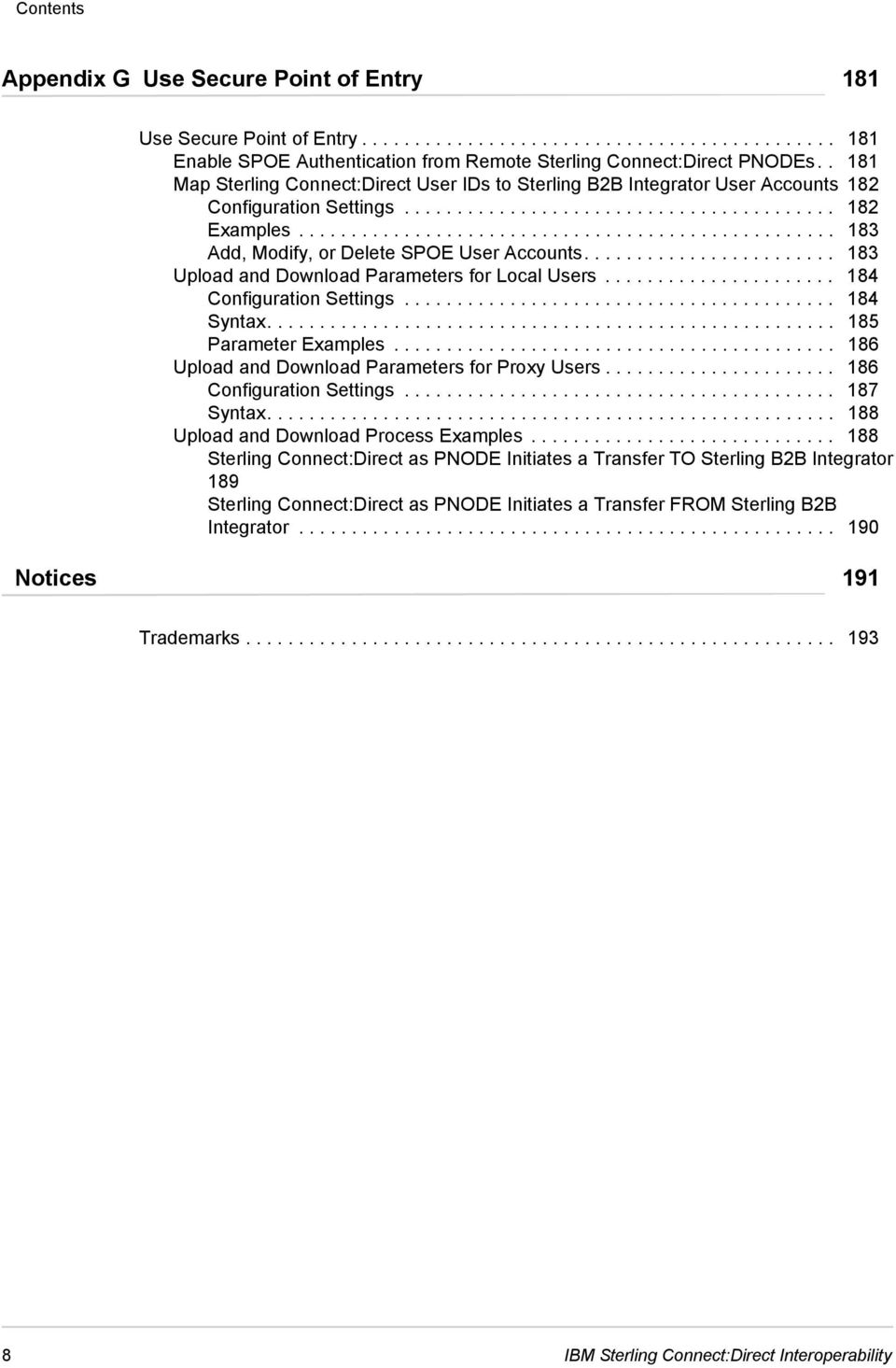
8 Contents Appendix G Use Secure Point of Entry 181 Use Secure Point of Entry Enable SPOE Authentication from Remote Sterling Connect:Direct PNODEs Map Sterling Connect:Direct User IDs to Sterling B2B Integrator User Accounts 182 Configuration Settings Examples Add, Modify, or Delete SPOE User Accounts Upload and Download Parameters for Local Users Configuration Settings Syntax Parameter Examples Upload and Download Parameters for Proxy Users Configuration Settings Syntax Upload and Download Process Examples Sterling Connect:Direct as PNODE Initiates a Transfer TO Sterling B2B Integrator 189 Sterling Connect:Direct as PNODE Initiates a Transfer FROM Sterling B2B Integrator Notices 191 Trademarks IBM Sterling Connect:Direct Interoperability
9 Chapter 1 What s New with the Interface between Sterling B2B Integrator and Sterling Connect:Direct What s New with the Interface between Sterling B2B Integrator and Sterling Connect:Direct If your company uses both IBM Sterling B2B Integrator and IBM Sterling Connect:Direct to perform business activities, route data, and transfer files, you can configure the IBM Sterling B2B Integrator - Connect:Direct Server Adapter to act as the primary node, that is, the node on which the process is being submitted or the secondary node that interacts with the primary node during process execution. In Sterling B2B Integrator version 5.2, you will find the following updates to the product and documentation: General Enhancements on page 9 Improvements to Documentation on page 11 New Documentation on the Sterling Connect:Direct Process Website on page 12 Sterling Connect:Direct Process Examples on page 12 Enhancements to Sterling Connect:Direct Server Adapter Documentation on page 13 Sterling B2B Integrator Business Process Examples on page 14 General Enhancements In Sterling B2B Integrator version 5.2, several enhancements are focused on making it easier to use the Sterling Connect:Direct Server Adapter and other related Sterling Connect:Direct Server services, such as the CopyTo service used to transfer files between a Sterling Connect:Direct Server Adapter node and other Sterling Connect:Direct server nodes. Here s a summary of the general enhancements: Sterling Connect:Direct Server Adapter upgrade now allows you to make changes to an existing netmap, which take effect immediately without disabling and re-enabling the adapter. Simply edit the configuration of the Sterling Connect:Direct Server Adapter that uses the modified netmap, click Next until you reach the Confirm page, and then click Finish for the system to immediately recognize your netmap changes. Sterling B2B Integrator version 5.1 and later supports the most common set of parameters available in the Sterling Connect:Direct for z/os Process Copy statement To clause to provide more functionality, such as enhanced file allocation and disposition options for the destination file on the remote Sterling Connect:Direct for z/os node. To ensure that business processes created in earlier versions of Sterling B2B Integrator continue to execute properly, parameters existing in versions 5.0 and earlier will still be IBM Sterling Connect:Direct Interoperability 9
10 What s New with the Interface between Sterling B2B Integrator and Sterling Connect:Direct supported. However, these old parameters cannot be mixed with new parameters in the same CopyTo service. It is recommended that you use the new parameters when you create a new business process and that when you make changes to an existing CopyTo service that you upgrade and use the new parameters, as well. For more information, see Sterling Connect:Direct Server CopyTo Service on the Working with Sterling Connect:Direct page of the Sterling B2B Integrator Library. To reduce the number of instances business processes that terminate with an error because of PNODE session limits, Sterling B2B Integrator now places business processes in a suspend queue to await session availability. When a session count frees up, it is assigned to the oldest suspended business process which can use the newly available session. The business process then resumes and is allowed to try to establish a session. For more information on this workflow suspension processing feature, see How Sessions for Business Processes Are Established on page 169. Sterling Connect:Direct Server Adapter upgrade now allows you to take advantage of the checkpoint restart feature. This feature allows the automatic restarting of copy operations that fail in certain ways, for example, due to network errors. The copy operation is resumed from a previously checkpointed location rather than having to start over from the beginning of the file transfer. To implement this feature, you must enable retry processing. For more information, see How Checkpoint Restart and Retry Processing Works on page 172. In earlier versions of Sterling B2B Integrator, you had to specify a retry in the business process itself. In addition, in Sterling B2B Integrator version 5.1 and later, when a session is established the current retry counts are reset to zero so that if the session subsequently fails, the system starts counting retries from zero, which represents a departure from the earlier behavior. The copy checkpoint retry feature is now governed by the same short-term and long-term retries parameters that control retries for initial session establishment. Prior to Sterling B2B Integrator version 5.1, there were three sets of parameters related to session establishment and retry processing: Session establishment parameters that were used only for initial session establishment. These two fields, Number of Retry attempts for establishing a session and Interval between session establishment attempts, were configurable in both the Sterling Connect:Direct Server Adapter and Sterling Connect:Direct Server Begin Session Service. These parameters did not affect session re-establishment after a session failure during COPY processing. Short-term session retry parameters that were only used when the adapter attempted to establish a session but there was no PNODE session available. These two fields, Number of short-term session retry attempts and Interval between short-term session retry attempts, were configurable in both the Sterling Connect:Direct Server Adapter and Sterling Connect:Direct Server Begin Session Service. The server in that scenario would perform a series of delays and retries to try to acquire a free session count. These parameters controlled the retrying of the acquisition of a session count but had nothing to do with establishing sessions. This functionality has been made obsolete by the workflow suspension processing feature described above. With that feature, a business process is put in a suspend queue when there are no available sessions to await for the next free session count. Checkpoint-based copy-restart parameters that were used only in CopyTo and CopyFrom processing. These two fields, Number of Retry attempts for checkpoint-based copy-restart and Interval between Retry attempts, were configurable in only the Sterling Connect:Direct Server Adapter.When a COPY operation failed with a 'restartable' error such as a session failure, these parameters controlled the number of retries performed and the interval between retry attempts. This retry count was a hard limit on the number of retries that could be done during a given communications session regardless of whether sessions were re-established and then subsequently 10 IBM Sterling Connect:Direct Interoperability
11 What s New with the Interface between Sterling B2B Integrator and Sterling Connect:Direct lost or whether a session failed and then could not be re-established. This set of parameters is now obsolete as a result of the enhanced copy checkpoint retry feature. Session establishment and retry processing has been both simplified and enhanced in Sterling B2B Integrator version 5.1. There are now two sets of parameters (short-term and long-term) instead of three and the two sets apply throughout the session both to initial session establishment and also to re-establishment after a failure. These two sets of parameters are configured in the Sterling Connect:Direct Server Adapter and can be overridden in the Sterling Connect:Direct Server Begin Session service: Session establishment parameters, which are now the long-term session retry settings and apply both to initial session establishment as well as to COPY steps when a session must be re-established. When the default settings defined in the adapter configuration are overridden in the Begin Session service, the new values are retained for the duration of the session and also apply to any subsequent COPY steps. Short-term session retry parameters, which now work in conjunction with the long-term session retry parameters. The values for the short-term parameters are used first if defined, and if a session has still not been established (or re-established) when they are exhausted, the long-term retry values are used, if configured. If the short-term values are overridden in the Begin Session service, the new values are retained for the duration of the session and also apply to any subsequent COPY steps. File Allocation Retry (FAR) processing allows the Sterling Connect:Direct Server Adapter to retry a Copy operation when one of a set of certain file allocation errors occurs in combination with a non-zero return code. This is most useful when the Sterling Connect:Direct Server Adapter initiates a file transfer with a remote Sterling Connect:Direct for z/os system. This feature only affects locally initiated (PNODE) sessions that use the Sterling Connect:Direct Server CopyTo service or CopyFrom service. For more information, see How File Allocation Retry Processing Works on page 173. For interoperability with other Sterling Connect:Direct nodes in high-availability environmnents, the Alternate Comm Info parameter in the Sterling Connect:Direct Server Adapter Netmap allows you to specify a list of alternate hostnames and IP addresses that are used for Netmap checking of inbound connection requests to the adapter. For more information, see Alternate Comm Info on page 22. Improvements to Documentation Throughout information related to the Sterling Connect:Direct Server Adapter and services, links to the following information have been added to make information more accessible so you can find related information quickly: Working with Sterling Connect:Direct page of the Sterling B2B Integrator Library (to access the main webpage listing Sterling Connect:Direct Server Adapter-related information) Sterling B2B Integrator documentation library (to access information about the general Sterling B2B Integrator product that the Sterling Connect:Direct Server Adapter and related services are part of) Sterling Connect:Direct Process Language Web Site (to access the MFT website for information on Sterling Connect:Direct processes and how to write them to communicate with Sterling B2B Integrator) IBM Sterling Connect:Direct Interoperability 11
12 What s New with the Interface between Sterling B2B Integrator and Sterling Connect:Direct New Documentation on the Sterling Connect:Direct Process Website Information about the syntax to use when creating Sterling Connect:Direct Processes to communicate with Sterling B2B Integrator has been provided on the Sterling Connect:Direct Process Guide web site. Refer to the following topics on the Sterling Connect:Direct Process Language Web Site: Transmitting Files between Sterling Connect:Direct and Sterling B2B Integrator COPY Statement Keywords for Communicating with Sterling B2B Integrator Sending to a Sterling B2B Integrator Mailbox Sending to a Sterling B2B Integrator Business Process Retrieving from a Sterling B2B Integrator Business Process Retrieving from a Sterling B2B Integrator Mailbox Specifying File Formats using SYSOPTS Submitting a Sterling B2B Integrator Business Process from Sterling Connect:Direct Sterling Connect:Direct Parameters for Communicating with Sterling B2B Integrator Sterling Connect:Direct Process Examples Several Sterling Connect:Direct Process examples have been provided to illustrate the syntax for the various platforms supported by Sterling Connect:Direct. Refer to the following topics on the Sterling Connect:Direct Process Language Web Site: Copying a File from Sterling Connect:Direct for z/os to a Sterling B2B Integrator Mailbox Copying a File from Sterling Connect:Direct for UNIX to a Sterling B2B Integrator Mailbox Copying a File from Sterling Connect:Direct for Microsoft Windows to a Sterling B2B Integrator Mailbox Copying a File from Sterling Connect:Direct for HP NonStop to a Sterling B2B Integrator Mailbox Copying a File from Sterling Connect:Direct for i5/os to a Sterling B2B Integrator Mailbox Copying a File from Sterling Connect:Direct for z/os to a Sterling B2B Integrator Business Process Copying a File from Sterling Connect:Direct for UNIX to a Sterling B2B Integrator Business Process Copying a File from Sterling Connect:Direct for Microsoft Windows to a Sterling B2B Integrator Business Process Copying a File from Sterling Connect:Direct for HP NonStop to a Sterling B2B Integrator Business Process Copying a File from Sterling Connect:Direct for i5/os to a Sterling B2B Integrator Business Process Retrieving a File from a Sterling B2B Integrator Business Process to Sterling Connect:Direct for z/os Retrieving a File from a Sterling B2B Integrator Business Process to Sterling Connect:Direct for Microsoft Windows Retrieving a File from a Sterling B2B Integrator Business Process to Sterling Connect:Direct for UNIX Retrieving a File from a Sterling B2B Integrator Business Process to Sterling Connect:Direct for HP NonStop Retrieving a File from a Sterling B2B Integrator Business Process to Sterling Connect:Direct for i5/os 12 IBM Sterling Connect:Direct Interoperability

13 What s New with the Interface between Sterling B2B Integrator and Sterling Connect:Direct Retrieving a File from a Sterling B2B Integrator Mailbox to Sterling Connect:Direct for z/os Retrieving a File from a Sterling B2B Integrator Mailbox to Sterling Connect:Direct for Microsoft Windows Retrieving a File from a Sterling B2B Integrator Mailbox to Sterling Connect:Direct for UNIX Retrieving a File from a Sterling B2B Integrator Mailbox to Sterling Connect:Direct for HP NonStop Retrieving a File from a Sterling B2B Integrator Mailbox to Sterling Connect:Direct for i5/os Submitting a Sterling B2B Integrator Business Process from Sterling Connect:Direct for z/os Submitting a Sterling B2B Integrator Business Process from Sterling Connect:Direct for UNIX Submitting a Sterling B2B Integrator Business Process from Sterling Connect:Direct for Microsoft Windows Submitting a Sterling B2B Integrator Business Process from Sterling Connect:Direct for HP NonStop Submitting a Sterling B2B Integrator Business Process from Sterling Connect:Direct for i5/os Enhancements to Sterling Connect:Direct Server Adapter Documentation The IBM Sterling B2B Integrator - Connect:Direct Server Adapter Interoperability Guide was introduced in June With the release of Sterling B2B Integrator version 5.1, this basic documentation has been enhanced by adding the following information: A procedure on setting up a Sterling B2B Integrator mailbox and the advantages of using virtual roots. See Create a Sterling B2B Integrator Mailbox on page 28. Detailed information on checkpoint restart and retry processing and how sessions for business processes are established. After reading this information, you may want to adjust your configuration settings to fit your environment. See Session Establishment and Process Recovery on page 169. Five new Sterling B2B Integrator business process examples in Sample Business Processes on page 117. Existing sample business processes involving both Sterling Connect:Direct and Sterling B2B Integrator processing, have been enhanced by adding the Sterling Connect:Direct Process which precedes the activity on the Sterling B2B Integrator side. Explanations for examples have been sharpened by adding platform-specific information, and more details about operations, nodes, and files being transferred. See Sample Business Processes on page 117. In addition, the documentation for the following Sterling Connect:Direct Server services has been updated: Sterling Connect:Direct Server Begin Session Service Note: In Sterling Connect:Direct Server Begin Session Service, the Using Obscured Password field was added and the related business process example was enhanced. Sterling Connect:Direct Server CopyFrom Service Sterling Connect:Direct Server CopyTo Service Sterling Connect:Direct Server End Session Service Sterling Connect:Direct Server Run Job Service Sterling Connect:Direct Server Run Task Service Sterling Connect:Direct Server Submit Service IBM Sterling Connect:Direct Interoperability 13
14 What s New with the Interface between Sterling B2B Integrator and Sterling Connect:Direct As noted in General Enhancements on page 9, several enhancements in Sterling B2B Integrator version 5.2 are focused on making it easier to use the Sterling Connect:Direct Server Adapter and other related Sterling Connect:Direct Server services. To use these products most efficiently, it is recommended that you use the information on the Working with Sterling Connect:Direct page of the Sterling B2B Integrator Library as the best practice. If you need to refer to information related to earlier versions of Sterling B2B Integrator, refer to the adapter and services information Sterling B2B Integrator documentation library. Sterling B2B Integrator Business Process Examples Several Sterling B2B Integrator business process examples have been provided to illustrate the syntax for the various platforms supported by Sterling B2B Integrator and Sterling Connect:Direct. Refer to the following topics on the Working with Sterling Connect:Direct page of the Sterling B2B Integrator Library: Use Sterling Connect:Direct to Copy a File to Sterling B2B Integrator on page 118 Use Sterling Connect:Direct to Retrieve a File from Sterling B2B Integrator on page 119 Use Sterling B2B Integrator to Copy a File to a Sterling Connect:Direct for z/os Node on page 121 Use Sterling B2B Integrator to Copy a File to a Sterling Connect:Direct for Microsoft Windows Node on page 123 Use Sterling B2B Integrator to Copy a File to a Sterling Connect:Direct for UNIX Node on page 125 Use Sterling B2B Integrator to Copy a File to a Sterling Connect:Direct for HP NonStop Node on page 127 Use Sterling B2B Integrator to Copy a File to a Sterling Connect:Direct for i5/os Node on page 130 Use Sterling B2B Integrator to Copy a File from Sterling Connect:Direct on page 132 Add Error Handling to the Business Process on page 134 Use Sterling B2B Integrator to Submit a Sterling Connect:Direct Process on page 136 Use Sterling B2B Integrator to Start a Sterling Connect:Direct Run Job on page 138 Use Sterling B2B Integrator to Start a Sterling Connect:Direct Run Task on page 140 Hide the Sterling Connect:Direct Password in the Business Process on page 142 Use Sterling B2B Integrator to Copy a File to Sterling Connect:Direct for z/os (Advanced) on page 145 Contact Us IBM welcomes your comments and suggestions for improvements to our product documentation. You can submit suggestions for improvements to [email protected]. 14 IBM Sterling Connect:Direct Interoperability
15 Chapter 2 About Sterling Connect:Direct and Sterling B2B Integrator Interoperability About Sterling Connect:Direct and Sterling B2B Integrator Interoperability Sterling B2B Integrator (formerly known as Gentran Integration Suite) enables a business to define business processes in a software application and route data between enterprise systems using different protocols and formats. Sterling Connect:Direct is a peer-to-peer data transfer application that uses a proprietary protocol to exchange data between Sterling Connect:Direct servers. The Sterling Connect:Direct Server Adapter is a component of Sterling B2B Integrator that allows Sterling B2B Integrator to act like a Sterling Connect:Direct server, sending and receiving data using the Sterling Connect:Direct protocol. The Sterling Connect:Direct Server Adapter enables you to use files from a Sterling Connect:Direct server in a Sterling B2B Integrator business process and to create business processes that exchange files with a Sterling Connect:Direct server. Sterling Connect:Direct and Sterling B2B Integrator Processes Sterling Connect:Direct and Sterling B2B Integrator each have their own version of a process. Sterling Connect:Direct uses a Process statement to initiate a session with another Sterling Connect:Direct node and then uses specific statements to perform tasks and make requests on that node. Sterling B2B Integrator uses business process services to initiate a session with another Sterling Connect:Direct node to perform tasks and make requests on that node. It is possible to use Sterling B2B Integrator business processes to handle complex processes such as order fulfillment, invoicing, inventory, and other processes that require data exchange and business integration. These business processes enable you to transfer your files, or business documents, to internal processing activities and to trading partners, exchanges, and customers. IBM Sterling Connect:Direct Interoperability 15
16 Chapter 2 About Sterling Connect:Direct and Sterling B2B Integrator Interoperability Business Processes and Mailboxes You can copy files from a Sterling Connect:Direct node directly to a Sterling B2B Integrator business process or mailbox. Sterling B2B Integrator business processes utilize services and adapters, such as the Sterling Connect:Direct Server Adapter and related services, in a sequence of steps to achieve business goals. The Sterling B2B Integrator Mailbox is a business document repository that enables you to organize, store, and manage trading partner documents and transactions. Although staging and scheduling of data transmission is present to varying degrees in numerous applications and infrastructure components, it is beneficial to centralize the definition, operation, management, and control of this staging and scheduling. In Sterling B2B Integrator, these capabilities are centralized in the Mailbox. You can set up mailboxes within Sterling B2B Integrator so that files copied over to Sterling B2B Integrator are stored and retrieved later. When the files are stored in a mailbox, they are referred to as messages. You can also use mailbox routing rules to initiate business processes in Sterling B2B Integrator based on messages that are stored in a mailbox. For more information on setting up mailboxes, see Create a Sterling B2B Integrator Mailbox on page 28. After you have set up a Sterling B2B Integrator mailbox or business process to which you want to send a file, you can create the Sterling Connect:Direct Process to perform the file transfer. For more information about the Sterling Connect:Direct Process language and how to tailor it to communicate with Sterling B2B Integrator, refer to Sterling B2B Integrator Connect:Direct Server Adapter Syntax and Sterling B2B Integrator-Connect:Direct Server Adapter Examples on the Sterling Connect:Direct Process Language Web Site in the MFT Sterling Connect:Direct documentation library. Using Sterling Connect:Direct Server Adapter Services in a Business Process The Sterling Connect:Direct Server Adapter provides a suite of B2B services to establish communication between Sterling B2B Integrator and Sterling Connect:Direct. Using these services, you can create business processes to perform the same tasks performed with Sterling Connect:Direct Processes and with Sterling Connect:Direct commands. The Sterling Connect:Direct Server services correspond to the Sterling Connect:Direct Process Language. These services work with the Sterling Connect:Direct Server Adapter. All services (except for Sterling Connect:Direct Server BP Response Service) are used when the Sterling Connect:Direct Server Adapter is the PNODE. The Sterling Connect:Direct Server BP Response Service is used when the Sterling Connect:Direct Server Adapter is the SNODE and Sterling Connect:Direct is retrieving a file from Sterling B2B Integrator. The services created specifically for use with Sterling Connect:Direct are described in sample workflows in this user guide. These workflows demonstrate how each service is used within a business process. 16 IBM Sterling Connect:Direct Interoperability
17 Purpose of the IBM Sterling B2B Integrator - Connect:Direct Server Adapter User Guide The Sterling Connect:Direct Server Adapter supports the following services: Sterling Connect:Direct Server Begin Session Service Sterling Connect:Direct Server BP Response Service Sterling Connect:Direct Server CopyFrom Service Sterling Connect:Direct Server CopyTo Service Sterling Connect:Direct Server End Session Service Sterling Connect:Direct Server Run Job Service Sterling Connect:Direct Server Run Task Service Sterling Connect:Direct Server Submit Service Purpose of the IBM Sterling B2B Integrator - Connect:Direct Server Adapter User Guide The IBM Sterling B2B Integrator - Connect:Direct Server Adapter Interoperability Guide describes how to perform common user tasks with the Sterling B2B Integrator Connect:Direct Server Adapter and remote Sterling Connect:Direct servers. These tasks include: Use Sterling Connect:Direct to Copy a File to a Sterling B2B Integrator Mailbox on page 31 Use Sterling Connect:Direct to Copy a File to a Sterling B2B Integrator Business Process on page 35 Use Sterling Connect:Direct to Pull a File from Sterling B2B Integrator on page 43 Use Sterling B2B Integrator to Copy a File to Sterling Connect:Direct on page 53 Use Sterling B2B Integrator to Copy a File from Sterling Connect:Direct on page 63 Add Error Handling to a Sterling B2B Integrator Business Process on page 71 Add Sterling Connect:Direct Secure Plus on page 79 Use Sterling B2B Integrator to Submit a Sterling Connect:Direct Process on page 85 Use Sterling B2B Integrator to Start a Sterling Connect:Direct Run Job on page 93 Use Sterling B2B Integrator to Start a Sterling Connect:Direct Run Task on page 101 Hide the Sterling Connect:Direct Password in the Business Process on page 109 Requirements Interoperability between Sterling B2B Integrator and Sterling Connect:Direct has the following system requirements: IBM Sterling Connect:Direct Interoperability 17
18 Chapter 2 About Sterling Connect:Direct and Sterling B2B Integrator Interoperability Supported Sterling Connect:Direct Versions The following versions of Sterling Connect:Direct support interoperability with Sterling B2B Integrator: Sterling Connect:Direct for z/os 4.6 or later Sterling Connect:Direct for Microsoft Windows 4.4 or later Sterling Connect:Direct for UNIX 3.8 or later Sterling Connect:Direct for HP NonStop 3.4 or later Sterling Connect:Direct for i5/os 3.6 or later Supported Sterling B2B Integrator Versions Sterling B2B Integrator versions 4.2 or later support interoperability with Sterling Connect:Direct. 18 IBM Sterling Connect:Direct Interoperability
19 Chapter 3 Setup Procedures Setup Procedures Before you can transfer files or initiate processes between Sterling Connect:Direct servers and the Sterling Connect:Direct Server Adapter, perform the following: Create Sterling Connect:Direct and Sterling B2B Integrator User IDs on page 19 Configure a Sterling B2B Integrator Netmap Entry on page 20 Configure a Sterling Connect:Direct Server Adapter on page 24 Add Connect:Direct Server Adapter Node to Sterling Connect:Direct Netmap on page 28 In addition, if you will be transferring files from Sterling Connect:Direct nodes to Sterling B2B Integrator mailboxes, follow the instructions in the procedure, Create a Sterling B2B Integrator Mailbox on page 28. Create Sterling Connect:Direct and Sterling B2B Integrator User IDs Your Sterling B2B Integrator administrator must create a Sterling B2B Integrator User ID for you. The administrator must give this User ID permission to execute Sterling B2B Integrator business processes that you copy files to or from. When you create your Sterling Connect:Direct processes, use this Sterling B2B Integrator User ID as the SNODEID of the Process statement. Your Sterling Connect:Direct administrator must create a Sterling Connect:Direct user account and give this account permission to copy files, submit processes, perform Run Jobs, and perform Run Tasks on the Sterling Connect:Direct node. When you create your Sterling B2B Integrator business processes, use this Sterling Connect:Direct user account as the remote Sterling Connect:Direct User ID. IBM Sterling Connect:Direct Interoperability 19
20 Chapter 3 Setup Procedures Configure a Sterling B2B Integrator Netmap Entry A node is a Sterling Connect:Direct server. Two Sterling Connect:Direct servers (local and remote) function together to perform data transfers. Either node can initiate the work by submitting a Process. When a session is established, the node that initiates the session is the PNODE regardless of the direction of information flow. The other node is the SNODE. The Process can specify work destined for either the PNODE or SNODE. Note: The Sterling Connect:Direct Server Adapter can be a Sterling Connect:Direct local or remote node and can function as a PNODE or an SNODE, depending on whether or not it initiates the connection with a remote Sterling Connect:Direct node. The Connect:Direct Server Adapter configuration identifies the remote nodes that it can communicate with through the use of a network map, called a netmap. When you create a Connect:Direct Server Adapter, you must specify a netmap. In Sterling B2B Integrator version 4.3 and earlier, the netmap is integrated with the Connect:Direct Server Adapter configuration. In Sterling B2B Integrator version 5.0 and later, netmaps are configured as separate objects which allows one netmap to be shared by more than one Connect:Direct Server Adapter. In Sterling B2B Integrator version 5.0 and later, you can configure a netmap in Sterling B2B Integrator from the Administration menu by selecting Deployment > Adapter utilities > C:D Netmaps. From this menu, you can configure: Connect:Direct Nodes Connect:Direct Netmaps Connect:Direct Netmap cross-references (X-REF) Note: Updates to the netmap are not done dynamically. If you make changes to an existing netmap, Connect:Direct node, or Connect:Direct netmap cross-reference, you must refresh the configuration of each Connect:Direct Server Adapter that uses the netmap by opening the adapter s configuration and re-saving it. In version 5.2, refreshing a Connect:Direct Server Adapter s configuration does not affect any active sessions. Click Save to go to the Confirm page, and then click Finish to update the configuration. Your configuration changes to netmap members take effect immediately. Connect:Direct Nodes Create a Connect:Direct node definition for each remote Sterling Connect:Direct node that communicates with the Sterling Connect:Direct Server Adapter. This is only required for nodes you plan to connect to and for nodes that connect to the Connect:Direct Server Adapter when you have netmap checking enabled. Use the following procedure to create a new Connect:Direct node: 20 IBM Sterling Connect:Direct Interoperability
21 Configure a Sterling B2B Integrator Netmap Entry 1. From the Administration menu, select Deployment > Adapter Utilities > C:D Netmaps > C:D Nodes. 2. In the Create Nodes pane, click Go!. The Create Nodes page appears. Field Value to Enter Description Connect:Direct Server Node Name Connect:Direct Server Host Connect:Direct Port Max locally initiated (pnode) sessions allowed Type the node name for the Sterling Connect:Direct server. Type the host name or IP address for the Sterling Connect:Direct server. Type the host port number for the Sterling Connect:Direct server. During testing, set this value to 100 so that you do not run out of sessions. After testing, enter the estimated number of sessions you require. Otherwise, accept the default value of 5. Name that will be used to identify the Sterling Connect:Direct server. Required. host name Host name associated with the IP address. For example: host01 (where host01 is a machine on the local domain) host01.proddomain.com (fully-qualified host name) nnn.nnn.nnn.nnn or nnnn:nnnn:nnnn:nnnn:nnnn:nnnn:nnnn:nnnn IP address of a machine running Sterling Connect:Direct. IPV6 is supported for Sterling Connect:Direct for UNIX 4.0 and Sterling Connect:Direct for Microsoft Windows 4.4 or later. Required. TCP/IP port number that Sterling Connect:Direct monitors for requests from remote nodes. Required. Note: If Sterling B2B Integrator is installed on a UNIX operating system, do not select ports in the range These are normally reserved by the operating system. Maximum number of sessions initiated locally by the Connect:Direct Server Adapter that may be active at any time. Optional. If omitted, the value defined by the Connect:Direct Server Adapter is used. This setting overrides the Max locally initiated (pnode) sessions allowed setting in the Connect:Direct Server Adapter configuration. Valid value: Any number up to Minimum value is 1. Default is 5. For more information on session limits, see How Sessions for Business Processes Are Established on page 169. IBM Sterling Connect:Direct Interoperability 21
22 Chapter 3 Setup Procedures Field Value to Enter Description Max remotely initiated (snode) sessions allowed Alternate Comm Info During testing, set this value to 100 so that you do not run out of sessions. After testing, enter the estimated number of sessions you require. Otherwise, accept the default value of 5. Leave this blank unless the inbound Sterling Connect:Direct node has more than one outgoing IP address. If the inbound Sterling Connect:Direct node has more than one outgoing IP address, specify the IP addresses or host names in a comma-delimited list as shown in the Description. Maximum number of sessions initiated by the remote node that may be active at any point of time. If omitted, the value defined by the Connect:Direct Server Adapter is used. This setting overrides the Max remotely initiated (snode) sessions allowed setting in the Connect:Direct Server Adapter configuration. Valid value: Any number up to Minimum value is 1. Default is 5. Provides support for establishing netmap-checked sessions with high-availability (especially load balancing) systems with multiple IP addresses, such as Sterling Connect:Direct/Plex for z/os. Use this parameter to list all IP addresses or host names that are part of the multiple IP address environment. For Sterling Connect:Direct/Plex, this list should include the address of each Sterling Connect:Direct/Server with a different IP address from the Sterling Connect:Direct/Plex Manager. If a remote node has more than one outgoing IP address (as in a load balancing environment), specify all of the remote node s possible outgoing addresses in the Alternate Comm Info field so that those outgoing IP addresses are contained in the local node s netmap entry for that remote node. This configuration allows netmap checking to succeed when the remote node connects to the local node using any of the possible outgoing IP addresses specified. Valid format: hostname1/ip address, hostname2/ip address, hostname3/ip address (maximum length is 2048 characters) host name Host name associated with the IP address. For example: host01 (where host01 is a machine on the local domain) host01.proddomain.com (fully-qualified host name) nnn.nnn.nnn.nnn or nnnn:nnnn:nnnn:nnnn:nnnn:nnnn:nnnn:nnnn IP address of a machine running Sterling Connect:Direct IPV6 is supported for Sterling Connect:Direct for UNIX 4.0 and Sterling Connect:Direct for Microsoft Windows 4.4 or later. 22 IBM Sterling Connect:Direct Interoperability
23 Configure a Sterling B2B Integrator Netmap Entry Field Value to Enter Description Secure+ Option Accept the default setting (Disabled) until you start using Sterling Connect:Direct Secure Plus. Files are not encrypted during copy operations. Valid if Netmap Override=Yes at the Connect:Direct Server Adapter. Indicate if you want to disable or enable encryption. Required. Valid values are: Disabled (default) Enabled 3. Click Next. The Confirm page appears. 4. Review your configuration settings and click Finish. Connect:Direct Netmaps Once you have defined at least one Connect:Direct node you want to use, you can create a netmap. When you configure a Connect:Direct Server Adapter, you must specify the netmap you want to use rather than the individual Connect:Direct nodes you want to communicate with. The individual Connect:Direct nodes are associated with netmaps with cross references. This arrangement is very flexible and allows you to: Define each Connect:Direct node one time no matter how many Connect:Direct Server Adapters you have. Use the same netmap for multiple Connect:Direct Server Adapters. Create specialized netmaps for different Connect:Direct Server Adapters. Use the following procedure to create a new Connect:Direct netmap: 1. From the C:D Netmaps menu, select C:D Netmaps. The C:D Netmaps page appears. 2. In the Create New Netmap pane, click Go!. The Create Netmap page appears. Field Value to Enter Description Netmap Name Netmap Description Type the Connect:Direct netmap name. Type the netmap description. Netmap names consist of alphanumeric, dollar ($), dot (.), underscore (_), and dash ( ) characters. The maximum length is 64 characters. Required. Note: If you maintain multiple Connect:Direct Server Adapters, you can use the same name for the netmap and Connect:Direct Server Adapter for easier administration. Required. 3. Click Next. The Confirm Page appears. 4. Review your configuration settings and click Finish. IBM Sterling Connect:Direct Interoperability 23
24 Chapter 3 Setup Procedures Connect:Direct Netmap Cross-References You can reuse nodes for a netmap or several netmaps by setting up a cross reference so you don t have to create a new node for each Connect:Direct Server Adapter. Use the following procedure to create a new netmap cross reference: 1. From the C:D Netmaps menu, select C:D Netmap X-REF. 2. In the Create or Modify Netmap Cross Reference pane, click Go!. The Create Cross Reference page appears. Field Value to Enter Description C:D Netmap Name Add Node Select the Connect:Direct netmap name that you created in Connect:Direct Netmaps on page 23. Click the plus sign to add a Node Name to the cross-reference. A new window appears, allowing you to select the Connect:Direct Node Name(s). Select the node name that you created Connect:Direct Netmaps on page 23. Select the Connect:Direct Netmap name. Required. 3. Click Next. The Confirm page appears. 4. Review your configuration settings and click Finish. Configure a Sterling Connect:Direct Server Adapter The Sterling Connect:Direct Server Adapter can function as either the PNODE, SNODE, or both, in the Sterling Connect:Direct network, initiating and responding to Sterling Connect:Direct transfer requests. Configuring a Connect:Direct Server Adapter is similar to configuring a Sterling Connect:Direct server. Use the following procedure to configure a Connect:Direct Server Adapter in Sterling B2B Integrator: 1. From the Deployment menu, select Services > Configuration. 2. Click Go in the Create New Service pane. 3. In the Service Type box, type Connect:Direct Server Adapter and click Next. 4. Configure the following fields for this scenario. Accept default values for all other fields. For more information about all Connect:Direct Server Adapter fields, refer to the Sterling B2B Integrator documentation library. 24 IBM Sterling Connect:Direct Interoperability
25 Configure a Sterling Connect:Direct Server Adapter Note: Note: To enable session establishment retry processing, the value specified for either the number of long-term or short-term retry attempts must be greater than 0. Both of these adapter-level settings can be overridden by values specified for in the Connect:Direct Server Begin Session service for a particular business process. To enable copy restart processing, session establishment retry processing must be enabled. You must also configure the Checkpoint Interval in the Connect:Direct Server Adapter CopyTo or CopyFrom service in your business process. For additional information, see How Checkpoint Restart and Retry Processing Works on page 172. Caution: When you configure how you want retry processing to work, note that the short-term retry interval is configured in seconds rather than in minutes used for the long-term retry interval. For additional information, see How Checkpoint Restart and Retry Processing Works on page 172. Field Value to Enter Description Name Description Connect:Direct Server Node Name Connect:Direct Server Port Type a unique name for the Connect:Direct Server Adapter configuration. Type a description for the Connect:Direct Server Adapter configuration. Type the node name to use to identify this Connect:Direct Server Adapter. Best practice is to use the same value as the Name field. Type the listening port number for the Connect:Direct Server Adapter. Make sure you select a port number that is not in use by another application. Required. Note: Name is the adapter name, not the node name. However, in Sterling B2B Integrator business processes, Name is the CDLocalNodeName. To avoid confusion, use the same value for both Name and Connect:Direct Server Node Name in your Connect:Direct Server Adapter configuration. Required Maximum 16 characters. This node name must match the Connect:Direct netmap entry for the Connect:Direct Server Adapter. Required. TCP/IP port number that Connect:Direct Server Adapter monitors for requests from remote nodes. Required. Note: If your application is installed on a UNIX operating system, do not select ports in the range These are normally reserved by the operating system. IBM Sterling Connect:Direct Interoperability 25
26 Chapter 3 Setup Procedures Field Value to Enter Description Max locally initiated (pnode) sessions allowed Max remotely initiated (snode) sessions allowed NetMap Check During testing, you may want to set this value to a high number, such as 100, so that you do not run out of sessions. After testing, enter the estimated number of sessions you require. Otherwise, accept the default value of 5. If you need to specify session limits for each node, set this value at the highest anticipated number of total, locally initiated sessions and then specify node limits in the netmap. During testing, you may want to set this value to a high number, such as 100, so that you do not run out of sessions. After testing, enter the estimated number of sessions you required. Otherwise, accept the default value of 5. If you need to specify session limits for each node, set this value at the highest anticipated number of total, remotely initiated sessions and then specify node limits in the netmap. For testing purposes, you may find it convenient to select the default (No). After testing, select the value that best serves your network security requirements. Maximum number of sessions initiated locally by the Connect:Direct Server Adapter that may be active at any point in time. Required. May be overridden at the node level. If a node-level value is configured, the effective session limit is the smaller of two values: the limit for the adapter and the session limit for the remote node. Valid value: Any number through Minimum value is 1. Default is 5. For more information on session limits, see How Sessions for Business Processes Are Established on page 169. Maximum number of sessions initiated by all remote nodes that may be active at any point in time. Required. May be overridden at the node level. If a node-level value is configured, the effective session limit is the smaller of two values: the limit for the adapter and the session limit for the remote node. Valid value: Any number through Minimum value is 1. Default is 5. Whether the node netmap should be checked to authorize sessions. Required values are: Check both node name and IP address Searches the Connect:Direct Server Adapter network map for an entry corresponding to the node name of the remote client. If one exists, the IP address is obtained and compared to the IP address of the remote node making the request. Check node name only Searches the Connect:Direct Server Adapter network map for an entry corresponding to the node name of the remote client. No (default) Disables netmap validation. 26 IBM Sterling Connect:Direct Interoperability
27 Configure a Sterling Connect:Direct Server Adapter Field Value to Enter Description Number of short-term session retry attempts Interval between short-term session attempts (seconds) Number of long-term session retry attempts Interval between long-term session attempts (minutes) Encryption using Secure+ C:D Netmap Name Valid value: Any number up through Default is 0. Required. Retry activity is logged (if logging enabled). For more information on retry processing, see Session Establishment and Process Recovery. Valid value: Any number through Default is 5. Required. Valid value: Any number up to Default is 0. Required. Retry activity is logged (if logging enabled). Any number through Required. Default is 1. Select the default setting (Disabled) until you start using Sterling Connect:Direct Secure Plus. Select the netmap name you created in Connect:Direct Netmaps on page 23. Specifies the maximum number of short-term attempts for creating a session with a Sterling Connect:Direct node or for re-establishing a session after a session failure during COPY processing (both CopyTo and CopyFrom). This setting can be overridden by the value specified for ShortTermMaxRetries in the Connect:Direct Server Begin Session service. Note: The counter for the number of short-term session retry attempts is reset to zero when a session is successfully reestablished. Specifies the amount of time, in seconds, to wait between short-term session establishment and re-establishment attempts. This setting can be overridden by the value specified for ShortTermRetryInterval in the Connect Direct Server Begin Session service. This parameter performs successive retries within a shorter period of time than is available with the Interval between session establishment attempts (minutes) settings. Specifies the maximum number of long-term attempts for creating a session with a Sterling Connect:Direct node or for re-establishing a session after a session failure during COPY processing (both CopyTo and CopyFrom). This setting can be overridden by the value specified for BeginSessionMaxRetries in the Connect:Direct Server Begin Session service. Note: The counter for the number of long-term session retry attempts is reset to zero when a session is successfully reestablished. Specifies the time, in minutes, to wait between long-term session establishment and re-establishment attempts. This setting can be overridden by the value specified for BeginSessionRetryInterval in the Connect Direct Server Begin Session service. Whether Sterling Connect:Direct Secure Plus is enabled. Required. Valid values are Enabled and Disabled. Default is Disabled. Sterling Connect:Direct Secure Plus must be installed on your system. In addition, you must have the required certificates for implementing Sterling Connect:Direct Secure Plus. For information, see the Sterling Connect:Direct documentation for the platform you are using. IBM Sterling Connect:Direct Interoperability 27
28 Chapter 3 Setup Procedures 5. On the Confirm page, review your configuration settings, select Enable Service for Business Processes and click Finish. This will complete the Connect:Direct Server Adapter configuration and start the adapter. Add Connect:Direct Server Adapter Node to Sterling Connect:Direct Netmap On your Sterling Connect:Direct server, add the Sterling Connect:Direct Server Adapter node information to your Sterling Connect:Direct netmap with the following settings. Other settings may be required, and will vary according to the type of Sterling Connect:Direct environment. For more information on the values valid for your Sterling Connect:Direct platform, refer to your Sterling Connect:Direct documentation. Parameter Node Name Operating System Host/IP Address Port/Service Value The node name of the Sterling Connect:Direct Server Adapter. The operating system for your Sterling B2B Integrator system. Specify UNIX. Host or IP address of your Sterling B2B Integrator system Port/Service of your Sterling Connect:Direct Server Adapter Create a Sterling B2B Integrator Mailbox When you copy a file from Sterling Connect:Direct to Sterling B2B Integrator, you can copy to a Sterling B2B Integrator mailbox. Mailboxes allow you to organize, store, and manage trading partner documents and transactions, by providing business document repositories. In addition, setting up mailboxes within Sterling B2B Integrator can also facilitate how you stage and schedule data transmissions, making the storage and retrieval of files more transparent to all parties senders and recipients alike. After you have set up your mailboxes, see Use Sterling Connect:Direct to Copy a File to a Sterling B2B Integrator Mailbox on page 31, for more information on how to write a Sterling Connect:Direct process to send information to a Sterling B2B Integrator mailbox. To see examples involving copying files from a variety of Sterling Connect:Direct platforms to a Sterling B2B Integrator mailbox, refer to Sterling B2B Integrator-Connect:Direct Server Adapter Examples on the Sterling Connect:Direct Process Language Web Site. To see examples for retrieving and storing primary documents in a Sterling B2B Integrator mailbox system, see Use Sterling B2B Integrator 28 IBM Sterling Connect:Direct Interoperability
29 Create a Sterling B2B Integrator Mailbox to Copy a File to a Sterling Connect:Direct for i5/os Node on page 130 and Use Sterling B2B Integrator to Copy a File from Sterling Connect:Direct on page 132. Using Virtual Roots in a Mailbox Hierarchy As in most operating systems, such as Microsoft Windows or UNIX, Sterling B2B Integrator mailboxes support the concept of a root directory acting as the first or top-most directory in your mailbox hierarchy. In Sterling B2B Integrator, mailboxes are visible to users as a relative path, while administrators see the mailbox as an absolute or full path. Virtual roots can be useful for maintaining and reorganizing a mailbox hierarchy without impacting users. By limiting visibility into the mailbox hierarchy, virtual roots can enhance the general security of your system. When a virtual root is defined for a user account, Sterling B2B Integrator automatically inserts the virtual root component into the target filename specification. For example, if the JohnSmith user account used JohnSmith as its virtual root (for example, /JohnSmith), Sterling B2B Integrator would automatically insert /JohnSmith into the target filename. Then, if the document, sample.txt, was being sent to JohnSmith, the Connect:Direct Server Adapter would process /mailbox/sample.txt as if it were specified /mailbox/johnsmith/sample.txt. Conversely, if you do not define a virtual root for a user account, documents sent to the user account are stored in the one and only mailbox directory, provided the user has adequate permission. For example, if the JohnSmith user account did not have a virtual root defined for it, the sample.txt document would be stored in the root of the mailbox as /mailbox/sample.txt. Setting Up a Mailbox Note: You do not create a virtual root for your mailbox in this simple procedure. To set up a mailbox hierarchy using virtual roots, refer to the Sterling B2B Integrator online documentation. Use the following procedure to create and configure the Sterling B2B Integrator mailbox: 1. Log in to Sterling B2B Integrator. 2. From the Deployment menu, select Mailboxes > Configuration. 3. On the Mailbox Configuration page, click Go! in the Create a new Mailbox pane. 4. On the Mailbox Name page, highlight the forward-slash in the Select pane. Note: If you are required to specify a virtual root for your mailbox, highlight the mailbox or mailbox path in the Select pane for your virtual root. 5. In the Name box, type the name of your mailbox. 6. In the Description box, type a short description for your mailbox and click Next. 7. On the Assign Groups page, click Next. 8. On the Assign Users page, select your Sterling B2B Integrator User ID in the Available Users pane and click the right-arrow to move your User ID to the Selected Users pane. 9. Click Next. IBM Sterling Connect:Direct Interoperability 29
30 Chapter 3 Setup Procedures 10. On the Confirm page, click Finish to create your mailbox. 30 IBM Sterling Connect:Direct Interoperability
31 Chapter 4 Use Sterling Connect:Direct to Copy a File to a Sterling B2B Integrator Mailbox Use Sterling Connect:Direct to Copy a File to a Sterling B2B Integrator Mailbox This chapter describes how to copy a file from a Sterling Connect:Direct server (PNODE) to a Sterling Connect:Direct Server Adapter (SNODE). The Connect:Direct Server Adapter passes this file to a Sterling B2B Integrator Mailbox. Optionally, you can set up a mailbox rule so that a document copied to a mailbox triggers a Sterling B2B Integrator business process. For more information about mailbox rules, refer to the Sterling B2B Integrator documentation library. Sterling Connect:Direct Server source file Connect:Direct Server Adapter (SNODE) destination file Mailbox (PNODE) Sterling B2B Integrator Use the following workflow to copy a file from a Sterling Connect:Direct server to a Sterling B2B Integrator mailbox: Create Your Sterling Connect:Direct Process on page 32 Submit and Monitor Your Sterling Connect:Direct Process on page 32 IBM Sterling Connect:Direct Interoperability 31
32 Chapter 4 Use Sterling Connect:Direct to Copy a File to a Sterling B2B Integrator Mailbox Create Your Sterling Connect:Direct Process Create a Process for your Sterling Connect:Direct platform similar to the following example. : Note: It is assumed that you have already set up the Sterling B2B Integrator mailbox to which the destination file is being copied. For more information, see Create a Sterling B2B Integrator Mailbox on page 28. COPY2MB PROCESS SNODE=yourCDSANode SNODEID=(yourUserID,yourPassword) STEP1 COPY FROM ( FILE=yourSourceFile ) TO ( FILE=/mailbox/yourMailbox/targetdocName DISP=RPL ) PEND This Sterling Connect:Direct process copies yoursourcefile from your Sterling Connect:Direct server to the Sterling Connect:Direct Server Adapter, yourcdsanode, which passes the file in the Sterling B2B Integrator mailbox, yourmailbox. The SNODEID, youruserid, is your Sterling B2B Integrator User ID. There are three parts to the destination FILE name in this Copy step: /mailbox/ is a reserved word and signals to Sterling B2B Integrator that you are copying to a Mailbox. yourmailbox includes the name of your Sterling B2B Integrator Mailbox. targetdocname is the document that is passed to your mailbox by the Connect:Direct Server Adapter. This document is stored in the mailbox. This document can be retrieved by an FTP client, business process or another Sterling Connect:Direct process. Note: Refer to Sterling B2B Integrator-Connect:Direct Server Adapter Examples on the Sterling Connect:Direct Process Language Web Site to see several examples involving transferring files from a variety of Sterling Connect:Direct platforms to a Sterling B2B Integrator mailbox. Submit and Monitor Your Sterling Connect:Direct Process Submit the Sterling Connect:Direct process. Monitor with Sterling Connect:Direct You can use Sterling Connect:Direct Select Statistics to monitor your Sterling Connect:Direct to Sterling B2B Integrator processes. 32 IBM Sterling Connect:Direct Interoperability
33 Use Sterling Connect:Direct to Copy a File to a Sterling B2B Integrator Mailbox If the Sterling Connect:Direct process is successful, the Select Statistics detail will report the following: Attribute Message ID Message Text Destination File Value SCPA000I Copy operation successful /mailbox/yourmailbox/targetdocname If the Sterling Connect:Direct process is not successful, refer to Troubleshooting on page 175. View the Mailbox Document in Sterling B2B Integrator You can view targetdocname in your mailbox with Sterling B2B Integrator. Use the following procedure to view your mailbox document with Sterling B2B Integrator: 1. From the Deployment menu, select Mailboxes > Messages. 2. On the Message Management page, select Filter by Name to display the Available Mailboxes pane. 3. In the Available Mailboxes pane, scroll down and highlight /yourmailbox and click the down-arrow to move /yourmailbox to the Selected Mailboxes pane. 4. Click Go! to display the search results. Information about the targetdocname document is displayed, including Document ID, Created date, Size, Mailbox, Extract Policy, Policy Value, and whether this document is locked by a business process. In this example, targetdocname has an Extraction Policy of Extractable. This means that users can extract this document from /yourmailbox an unlimited number of times with no expiration date and time. You can change the extraction policy for targetdocname by clicking on the Edit link. If you need to change the extraction policy for documents you copy to mailboxes using Sterling Connect:Direct, edit your Connect:Direct Server Adapter configuration for Extractability. Note: You can also monitor your Sterling Connect:Direct process from the Business Process menu by navigating to Monitor > Advanced Search > Documents or Monitor > Advanced Search > Communication Sessions. IBM Sterling Connect:Direct Interoperability 33
34 Chapter 4 Use Sterling Connect:Direct to Copy a File to a Sterling B2B Integrator Mailbox 34 IBM Sterling Connect:Direct Interoperability
35 Chapter 5 Use Sterling Connect:Direct to Copy a File to a Sterling B2B Integrator Business Process Use Sterling Connect:Direct to Copy a File to a Sterling B2B Integrator Business Process This chapter describes how to use Sterling Connect:Direct to copy a file to Sterling B2B Integrator. In this scenario, the Sterling Connect:Direct server is the PNODE and the Sterling Connect:Direct Server Adapter is the SNODE. The Connect:Direct Server Adapter receives the file and passes it to a business process. Sterling Connect:Direct Server source file Connect:Direct Server Adapter (SNODE) destination file Business Process (PNODE) Sterling B2B Integrator Use the following workflow to copy a file from Sterling Connect:Direct to a Sterling B2B Integrator business process: Create a Sterling B2B Integrator Business Process on page 36 Check Your Business Process into Sterling B2B Integrator on page 37 Create Your Sterling Connect:Direct Process on page 38 Submit and Monitor Your Sterling Connect:Direct Process on page 39 IBM Sterling Connect:Direct Interoperability 35
36 Chapter 5 Use Sterling Connect:Direct to Copy a File to a Sterling B2B Integrator Business Process Create a Sterling B2B Integrator Business Process When you copy a file from Sterling Connect:Direct to Sterling B2B Integrator, you must copy to a Sterling B2B Integrator business process or mailbox. In this scenario, you are copying a document to a business process. This business process contains a service that provides information about the source file. Use the Sterling B2B Integrator Graphical Process Modeler to create and modify business processes. Individual services and adapters are represented by icons in the Modeler. Use the following procedure to create the Sterling B2B Integrator business process: 1. Log in to Sterling B2B Integrator and launch the Graphical Process Modeler from the Home screen. 2. Enter your Sterling B2B Integrator User ID and password in the Log In dialog box. 3. From the View menu, select Stencil > BPML. This will add the BPML stencil to the GPM. The BPML stencil contains BPML icons to use in your business processes. 4. From the View menu, select Stencil > Sync Mode. This will add the Sync Mode stencil to the GPM. The Sync Mode stencil contains an icon you will need in your business processes. 5. From the File menu, select New to open a new business process. 6. Drag and drop the following icons from the BPML and Sync Mode stencils into the Business Process window in the following order, from left to right: Start Get Document Information Service End 7. To link the icons: a. Click the arrow on the right side of the Start icon and drag it to the arrow on the left side of the Get Document Information Service icon. b. Click the arrow on the right side of the Get Document Information Service icon and drag it to the arrow on the left side of the End icon. All business processes begin with a Start icon and end with an End icon. In this business process, the Get Documentation Information Service provides information about the primary document. 36 IBM Sterling Connect:Direct Interoperability
37 Use Sterling Connect:Direct to Copy a File to a Sterling B2B Integrator Business Process 8. Configure the Get Document Information Service using the following procedure: a. Double-click the Get Document Information Service icon. This opens the Service Editor window. b. In the Service Editor-Get Documentation Information Service window, select GetDocumentInfoService from the Config drop-down list. In this step you specify the pre-defined GetDocumentInfoService configuration for the Get Document Information Service. You can override configuration values in the Service Editor. 9. From the File menu, select Save. In the Validate dialog box, click Yes to validate the business process. 10. On the Save dialog box, type the business process file name in the File Name box and click Save. Remember where you save this file. Note: To see a sample business process, refer to Use Sterling Connect:Direct to Copy a File to Sterling B2B Integrator on page 118. Check Your Business Process into Sterling B2B Integrator Use the following procedure to check the business process into Sterling B2B Integrator: 1. Log in to Sterling B2B Integrator. 2. From the Business Process menu, select Manager. 3. On the Business Process Manager page, in the Create Process Definition pane, click Go!. IBM Sterling Connect:Direct Interoperability 37
38 Chapter 5 Use Sterling Connect:Direct to Copy a File to a Sterling B2B Integrator Business Process 4. Type the name of your business process in the Name box. 5. Under Select an input mode for defining the new process, select Check in Business Process created by the graphical modeling tool and click Next. 6. On the Check-in page, click Browse and navigate to the business process file name that you saved in step 10 of the previous procedure. 7. Type a short description for your business process in the Description box and click Next. 8. On the Process Levels page, select the Set onfault processing check box. 9. Set the Persistence Level to Full. 10. Set the Event Reporting Level to Full and click Next. 11. On the Deadline Settings page, click Next. 12. On the Life Span page, click Next. 13. On the Confirm page, select the Enable Business Process box. 14. Select the Create Permission box. This adds the business process to the list of Sterling B2B Integrator security permissions. This makes it possible to assign permission for this business process to the user account. 15. Click Finish. Note: The Sterling B2B Integrator administrator must assign your Sterling B2B Integrator User ID permission to run this business process. Create Your Sterling Connect:Direct Process Create a Process for your Sterling Connect:Direct platform similar to the following example. COPY2SI PROCESS SNODE=yourCDSANode SNODEID=(yourUserID,yourPassword) STEP1 COPY FROM ( FILE=yourSourceFile ) TO ( FILE=/businessprocess/yourBusinessProcess/targetdocName DISP=RPL ) PEND This Sterling Connect:Direct process copies yoursourcefile from your Sterling Connect:Direct server to the Sterling Connect:Direct Server Adapter, yourcdsanode, which invokes the business process, yourbusinessprocess. The SNODEID, youruserid, is your Sterling B2B Integrator User ID. There are three parts to the destination FILE name in this Copy step: 38 IBM Sterling Connect:Direct Interoperability
39 Use Sterling Connect:Direct to Copy a File to a Sterling B2B Integrator Business Process /businessprocess/ is a reserved word and signals to Sterling B2B Integrator that you are copying to a business process. yourbusinessprocess is the name of the Sterling B2B Integrator business process that the Connect:Direct Server Adapter invokes. targetdocname is the name of the document that is passed to the business process by the Connect:Direct Server Adapter. This document becomes the Primary Document in the yourbusinessprocess business process. The primary document is the document that the services in a business process act on or in relation to; this is usually the document passed to a business process by the initiating adapter. Sterling B2B Integrator uses a unique document ID to reference and track documents as they flow through the application. The document ID is assigned by Sterling B2B Integrator. The business process may reference a document by the document name or the document ID, depending on the design of the business process. Submit and Monitor Your Sterling Connect:Direct Process Submit the Sterling Connect:Direct process. Monitor with Sterling Connect:Direct You can use the Sterling Connect:Direct Select Statistics to monitor your Sterling Connect:Direct to Sterling B2B Integrator processes. If the Sterling Connect:Direct process is successful, the Select Statistics detail will report the following: Attribute Message ID Message Text Destination File Value SCPA000I Copy operation successful /businessprocess/yourbusinessprocess/targetdocname If the Sterling Connect:Direct process is not successful, refer to Troubleshooting on page 175. Monitor with Sterling B2B Integrator You can also use Sterling B2B Integrator to monitor your Sterling Connect:Direct to Sterling B2B Integrator processes. Use the following procedure to monitor your Sterling Connect:Direct process with Sterling B2B Integrator: 1. From the Business Process menu, select Monitor > Advanced Search > Business Processes. IBM Sterling Connect:Direct Interoperability 39
40 Chapter 5 Use Sterling Connect:Direct to Copy a File to a Sterling B2B Integrator Business Process 2. In the Search Using Business Process Name pane, select yourbusinessprocess in the Business Processes list and click Go!. The Monitor page displays the following information: Label Status ID Name State Description Status of the business process a green traffic light signals a successful execution The business process ID number The business process name The current state of the business process If the Status indicates unsuccessful execution, refer to Troubleshooting on page IBM Sterling Connect:Direct Interoperability
41 Use Sterling Connect:Direct to Copy a File to a Sterling B2B Integrator Business Process 3. Click the ID number to see details about the business process execution. The Business Process Detail page displays the following information: Label Step Service Status Advanced Status Started Ended Status Report Document Instance Data Description The business process step number The Sterling B2B Integrator service name used in the step The status of the step Additional status information The time and date the step started The time and date the step ended A link to the status report for the step A link to documents in use by the step A link to process data for the step 4. Click the Document info link for Step 1, GetDocumentInfo service. The PrimaryDocument page displays the contents of the Primary Document, targetdocname. 5. Close the PrimaryDocument page. 6. From the Business Process Detail page, click the Instance Data info link for Step 1, GetDocumentInfo service. IBM Sterling Connect:Direct Interoperability 41
42 Chapter 5 Use Sterling Connect:Direct to Copy a File to a Sterling B2B Integrator Business Process The Process Data page displays process data for the business process. The data is presented in XML format as shown: <?xml version="1.0" encoding="utf-8"?> <ProcessData> <PrimaryDocument SCIObjectID="oxnard:node1:11efefe9db6: "/> <CDServerNodeData> <RemoteFileName>C:\source.txt</RemoteFileName> <PnodeName>CDWIN</PnodeName> <LocalFileName>/businessprocess/ReceiveFromCD/dest.txt</LocalFileName> <SnodeName>SI51CD</SnodeName> </CDServerNodeData> <BodyName>dest.txt</BodyName> <BodyLength>5</BodyLength> <DocumentBodyLength>5</DocumentBodyLength> <DocumentLength>5</DocumentLength> <DocumentName>dest.txt</DocumentName> <DocumentId>oxnard:node1:11efefe9db6: </DocumentId>... </ProcessData> In this example, the Get Document Information Service puts information about the Primary Document, such as the BodyName and BodyLength, into process data. Note: You can also monitor your business processes from the Business Process menu by navigating to Monitor > Advanced Search > Documents or Monitor > Advanced Search > Communication Sessions. 42 IBM Sterling Connect:Direct Interoperability
43 Chapter 6 Use Sterling Connect:Direct to Pull a File from Sterling B2B Integrator Use Sterling Connect:Direct to Pull a File from Sterling B2B Integrator This chapter describes how to pull a file from a Sterling Connect:Direct Server Adapter (SNODE) using the Sterling Connect:Direct node (PNODE). The Sterling Connect:Direct node connects to the Sterling Connect:Direct Server Adapter which invokes a business process. This business process passes a document back to the Connect:Direct Server Adapter which sends the file back to the Sterling Connect:Direct node. Sterling Connect:Direct Server (PNODE) 1. Connect to CDSA 4. Copy file Connect:Direct Server Adapter (SNODE) 2. Invoke BP 3. Send file Sterling B2B Integrator Business Process Use the following workflow to pull a file from Sterling B2B Integrator to a Sterling Connect:Direct server: Configure a File System Adapter on page 44 Create a Sterling B2B Integrator Business Process on page 46 Check Your Business Process into Sterling B2B Integrator on page 48 Create Your Sterling Connect:Direct Process on page 49 Submit and Monitor Your Sterling Connect:Direct Process on page 49 IBM Sterling Connect:Direct Interoperability 43
44 Chapter 6 Use Sterling Connect:Direct to Pull a File from Sterling B2B Integrator Configure a File System Adapter Use the File System Adapter within a Sterling B2B Integrator business process to collect a file from the Sterling B2B Integrator file system. Use the following procedure to create the directory and file for the File System Adapter: 1. Create a collection directory on the Sterling B2B Integrator file system. 2. Create a source file in the collection directory. 3. Add the some text to the file so that you can verify that Sterling Connect:Direct pulls the correct file. 4. Create an extraction directory on the Sterling B2B Integrator file system. An extraction directory is required to configure a File System Adapter configuration, but it is not used to extract files in this example. Before you can use the File System Adapter in a business process, create a configuration of the adapter in Sterling B2B Integrator. Use the following procedure to configure a File System Adapter: 1. Log in to Sterling B2B Integrator and navigate to Deployment > Services > Configuration. 2. On the Services Configuration page, click Go! in the Create New Service pane. 3. In the Service Type box, type File System Adapter and click Next. Field Value to Enter Description Name Description Collection folder Type a unique name for the File System Adapter service configuration. Type a meaningful description for the File System Adapter service configuration. Specify the collection folder you created above. Required. Required. The name of the folder or subfolder on the same computer where Application is installed and where it collects (or picks up) files as part of a business process. If the path of the folder is not included as part of the name, the folder is assumed to be in the Application working directory. 44 IBM Sterling Connect:Direct Interoperability
45 Use Sterling Connect:Direct to Pull a File from Sterling B2B Integrator Field Value to Enter Description Filename filter Collect files from subfolders within and including the collection folder? User absolute file path name for the document name? Start a business process once files are collected? Extraction folder Specify the filter to match the file you created in the collection folder above. Select No for this scenario so that the File System Adapter does not collect files from subfolders of the collection folder. Select No for this scenario so that the document name does not include the path name. Select No for this scenario. Since you use the File System Adapter within a business process, there is no need to start another business process. Select No for this scenario. The File System Adapter collects a file, but does not write (extract) a file in this scenario. Collect only files that match a specified filter within the collection folder. Optional. Examples include: *.txt (collects only.txt files) *.dat (collects only.dat files) EDI.* (collects only files named EDI with any file extension) EDI.txt (collects only files named EDI with a file extension of.txt) Note: If there are multiple files in the collection folder and you leave this field blank, one of the following occurs: If the adapter is configured to start a business process, it processes all files in the collection folder. If the adapter is within a business process, it collects only the first file in the folder. Whether to scan for files in subfolders of the collection folder. Required. Valid values: Yes Collects files in the specified folder and all subfolders. No Collects files in the specified folder only. Whether to keep the absolute path name of the files collected when assigning the document name. Required. Valid values: Yes The absolute file path name is kept with the document in the business process. Choose this value if your business process requires the path information to precede the file name. No Only the file name is kept with the document in the business process. Whether to start a business process using the File System adapter after files are collected. Required. Valid values: Yes Starts the business process specified from the business process drop-down list. No No business process will be started. The name of the folder or subfolder on the same computer where Application is installed and where it installs (or writes) data from the primary document as part of a business process. If you do not include the file path for the folder as part of the name, the folder is assumed to be in the Application working directory. Required. 4. Click Finish to save the configuration. IBM Sterling Connect:Direct Interoperability 45
46 Chapter 6 Use Sterling Connect:Direct to Pull a File from Sterling B2B Integrator Create a Sterling B2B Integrator Business Process When you use Sterling Connect:Direct to pull a file from Sterling B2B Integrator, you invoke a Sterling B2B Integrator business process. This business process contains a Connect:Direct Server BP Response Service that sends the primary document back to Sterling Connect:Direct. In this example, the business process uses a File System adapter to collect a file from the Sterling B2B Integrator file System. This file becomes the primary document in the business process. The Connect:Direct Server BP Response Service then sends the primary document to the Sterling Connect:Direct node via the Connect:Direct Server Adapter. Use the following procedure to create the Sterling B2B Integrator business process: 1. Log in to Sterling B2B Integrator and launch the Graphical Process Modeler from the Home screen. 2. Enter your Sterling B2B Integrator User ID and password in the Log In dialog box. 3. If the BPML stencil is not visible in the GPM, navigate to the View menu and select Stencil > BPML. This will add the BPML stencil to the GPM. 4. If the Sync Mode stencil is not visible in the GPM, navigate to the View menu and select Stencil > Sync Mode. This will add the Sync Mode stencil to the GPM. 5. From the View menu, select Stencil > Applications > Sterling Commerce > Connect:Direct. This will add the Connect:Direct stencil to the GPM. The Connect:Direct stencil contains an icon you will need in your business processes. 6. From the File menu, select New to open a new business process. 7. Drag and drop the following icons from the BPML, Sync Mode, and Connect:Direct stencils into the Business Process window in the following order, from left to right: Start File System Adapter CD Server BP Response Service End 8. To link the icons: a. Click the arrow on the right side of the Start icon and drag it to the arrow on the left side of the File System Adapter icon. b. Click the arrow on the right side of the File System Adapter icon and drag it to the arrow on the left side of the CD Server BP Response Service icon. 46 IBM Sterling Connect:Direct Interoperability
47 Use Sterling Connect:Direct to Pull a File from Sterling B2B Integrator c. Click the arrow on the right side of the CD Server BP Response Service icon and drag it to the arrow on the left side of the End icon. 9. Configure the File System Adapter using the following procedure: a. Double-click the File System Adapter icon. b. In the Service Editor-File System Adapter window, select your File System Adapter configuration from the Config drop-down list. The Message To Service tab is displayed. In this step you specify the configuration that you created for the File System Adapter. You can override configuration values in the Service Editor. c. On the Message to Service tab, select Collection as the Value for Action. This causes the File System Adapter to collect files from the collection folder. d. Select No as the Value for deleteaftercollect. If deleteaftercollect is set to Yes, the File System Adapter deletes the files in the collection folder after it collects them. When you are testing this business process, keep this value set to No so that you don t have to replace the source file after each test run. IBM Sterling Connect:Direct Interoperability 47
48 Chapter 6 Use Sterling Connect:Direct to Pull a File from Sterling B2B Integrator 10. Configure the CD Server BP Response Service using the following procedure: a. Double-click the CD Server BP Response Service icon. This opens the Service Editor window. b. In the Service Editor-CD Server BP Response Service window, select CDServerBPResponse from the Config drop-down list. In this step you specify the pre-defined CDServerBPResponse configuration for the CD Server BP Response Service. You can override configuration values in the Service Editor. 11. From the File menu, select Save. In the Validate dialog box, click Yes to validate the business process. 12. On the Save dialog box, type the name of your business process in the File Name box and click Save. Remember where you save this file. Note: To see a sample business process, refer to Use Sterling Connect:Direct to Retrieve a File from Sterling B2B Integrator on page 119. Check Your Business Process into Sterling B2B Integrator Use the following procedure to check the business process into Sterling B2B Integrator: 1. Log in to Sterling B2B Integrator. 2. From the Business Process menu, select Manager. 3. On the Business Process Manager page, in the Create Process Definition pane, click Go!. 4. Type your business process name in the Name box. 5. Under Select an input mode for defining the new process, select Check in Business Process created by the graphical modeling tool and click Next. 6. On the Check-in page, click Browse and navigate to the business process file that you saved in step 12 of the previous procedure. 7. Type a short description of the business process in the Description box and click Next. 8. On the Process Levels page, select the Set onfault processing check box. 9. Set the Persistence Level to Full. 10. Set the Event Reporting Level to Full and click Next. 11. On the Deadline Settings page, click Next. 12. On the Life Span page, click Next. 13. On the Confirm page, select the Enable Business Process box. 14. Select the Create Permission box. This adds the business process to the list of Sterling B2B Integrator security permissions. This makes it possible to assign permission for this business process to the user account. 15. Click Finish. 48 IBM Sterling Connect:Direct Interoperability
49 Use Sterling Connect:Direct to Pull a File from Sterling B2B Integrator Create Your Sterling Connect:Direct Process Create a Process for your Sterling Connect:Direct platform similar to the following example. PULLFILE PROCESS SNODE=yourCDSANode SNODEID=(yourUserID,yourPassword) STEP1 COPY FROM ( FILE=/businessprocess/yourBusinessProcess/yourSourceFile SNODE ) TO ( FILE=targetdocName PNODE DISP=RPL ) PEND This Sterling Connect:Direct process retrieves yoursourcefile from the Sterling Connect:Direct Server Adapter which receives the file from your business process. There are three parts to the FROM FILE name in the Copy step: /businessprocess/ is a reserved word and signals to Sterling B2B Integrator that you are invoking a business process. yourbusinessprocess is the name of the Sterling B2B Integrator business process that the Connect:Direct Server Adapter invokes. targetdocname is the name of the document that is passed from the Sterling Connect:Direct Server Adapter to your Sterling Connect:Direct node. This document is the Primary Document in your business process. Submit and Monitor Your Sterling Connect:Direct Process Submit the Sterling Connect:Direct process. Monitor with Sterling Connect:Direct You can use the Sterling Connect:Direct Select Statistics to monitor your Sterling Connect:Direct to Sterling B2B Integrator processes. If the Sterling Connect:Direct process is successful, the Select Statistics detail will report the following: Attribute Message ID Message Text Source File Value SCPA000I Copy operation successful /businessprocess/yourbusinessprocess/yoursourcefile IBM Sterling Connect:Direct Interoperability 49
50 Chapter 6 Use Sterling Connect:Direct to Pull a File from Sterling B2B Integrator Attribute Destination File Value <default download directory>\targetdocname If the Sterling Connect:Direct process is not successful, refer to Troubleshooting on page 175. Monitor with Sterling B2B Integrator Use the following procedure to monitor your Sterling Connect:Direct process with Sterling B2B Integrator: 1. From the Business Process menu, select Monitor > Advanced Search > Business Processes. 2. In the Search Using Business Process Name pane, select your business process in the Business Processes list and click Go!. The Monitor page displays the following information: Label Status ID Name State Description Status of the business process a green traffic light signals a successful execution The business process ID number The business process name The current state of the business process If the Status indicates unsuccessful execution, refer to Troubleshooting on page Click the ID number to see details about the business process execution. The Business Process Detail page displays the following information: Label Step Service Status Advanced Status Started Ended Status Report Document Instance Data Description The business process step number The Sterling B2B Integrator service name used in the step The status of the step Additional status information The time and date the step started The time and date the step ended A link to the status report for the step A link to documents in use by the step A link to process data for the step 50 IBM Sterling Connect:Direct Interoperability
51 Use Sterling Connect:Direct to Pull a File from Sterling B2B Integrator 4. Click the Document info link for the Connect:Direct Server Response Service. The PrimaryDocument page displays the contents of the primary document. 5. Close the PrimaryDocument page. Note: You can also monitor your business processes from the Business Process menu by navigating to Monitor > Advanced Search > Documents or Monitor > Advanced Search > Communication Sessions. IBM Sterling Connect:Direct Interoperability 51
52 Chapter 6 Use Sterling Connect:Direct to Pull a File from Sterling B2B Integrator 52 IBM Sterling Connect:Direct Interoperability
53 Chapter 7 Use Sterling B2B Integrator to Copy a File to Sterling Connect:Direct Use Sterling B2B Integrator to Copy a File to Sterling Connect:Direct This chapter describes how to copy a file from Sterling B2B Integrator to Sterling Connect:Direct. The Sterling B2B Integrator business process passes a document to the Connect:Direct Server Adapter (PNODE) which copies the file to the Sterling Connect:Direct node (SNODE). The business process functions much like a Sterling Connect:Direct process. Sterling Connect:Direct Server destination file Connect:Direct Server Adapter (PNODE) source file Business Process (SNODE) Sterling B2B Integrator Use the following workflow to copy a file from Sterling B2B Integrator to a Sterling Connect:Direct server: Create a Sterling B2B Integrator Business Process on page 54 Check Your Business Process into Sterling B2B Integrator on page 57 Submit and Monitor Your Sterling B2B Integrator Business Process on page 58 IBM Sterling Connect:Direct Interoperability 53
54 Chapter 7 Use Sterling B2B Integrator to Copy a File to Sterling Connect:Direct Create a Sterling B2B Integrator Business Process When you use Sterling B2B Integrator to copy a file to Sterling Connect:Direct, you execute a Sterling B2B Integrator business process that contains Connect:Direct Server Adapter services to send the primary document to Sterling Connect:Direct. Use the following procedure to create the Sterling B2B Integrator business process: 1. Log in to Sterling B2B Integrator and launch the Graphical Process Modeler from the Home screen. 2. Enter your Sterling B2B Integrator User ID and password in the Log In dialog box. 3. If the BPML stencil is not visible in the GPM, navigate to the View menu and select Stencil > BPML. This will add the BPML stencil to the GPM. 4. From the View menu, select Stencil > Applications > Sterling Commerce > Connect:Direct. This will add the Connect:Direct stencil to the GPM. 5. From the File menu, select New to open a new business process. 6. Drag and drop the following icons from the BPML and Connect:Direct stencils into the Business Process window in the following order, from left to right: Start CD Server Begin Session Service CD Server CopyTo Service CD Server End Session Service End 7. To link the icons: a. Click the arrow on the right side of the Start icon and drag it to the arrow on the left side of the CD Server Begin Session Service icon. b. Click the arrow on the right side of the CD Server Begin Session Service icon and drag it to the arrow on the left side of the CD Server CopyTo Service icon. c. Click the arrow on the right side of the CD Server CopyTo Service icon and drag it to the arrow on the left side of the CD Server End Session Service icon. d. Click the arrow on the right side of the CD Server End Session Service icon and drag it to the arrow on the left side of the End icon. 54 IBM Sterling Connect:Direct Interoperability
55 Use Sterling B2B Integrator to Copy a File to Sterling Connect:Direct 8. Configure the CD Server Begin Session Service using the following procedure: a. Double-click the CD Server Begin Session Service icon. The Connect:Direct Server Begin Session Service functions like the Sterling Connect:Direct Process statement. It initiates a session on a specified remote Sterling Connect:Direct node. b. In the Service Editor-CD Server Begin Session Service window, select CDServerBeginSession from the Config drop-down list. The Message To Service tab is displayed. In this step you specify the pre-defined CDServerBeginSession configuration for the CD Server Begin Session Service. You can override configuration values in the Service Editor. c. Select your Connect:Direct Server Adapter node name as the Value for LocalCDNodeName. d. Type the remote Sterling Connect:Direct node name as the Value for RemoteCDNodeName. e. Type the Sterling Connect:Direct User ID as the Value for RemoteUserId. Note: You must add the Sterling Connect:Direct User ID to your Sterling Connect:Direct User Authorities. f. Type the password for the Sterling Connect:Direct User ID as the Value for RemotePasswd. g. Select No as the Value for UsingObscuredPasswd. 9. Click the Message From Service tab. 10. Select Allow message write for Input Msg. IBM Sterling Connect:Direct Interoperability 55
56 Chapter 7 Use Sterling B2B Integrator to Copy a File to Sterling Connect:Direct 11. Click Add and add the following information to the new record: In the Name box, type BeginSessionResults. In the Value field, type *. Select the Use XPATH? check box. 12. Configure the CD Server CopyTo Service using the following procedure: a. Double-click the CD Server CopyTo Service icon. This opens the Service Editor window. The Connect:Direct Server CopyTo Service functions like the Sterling Connect:Direct Copy statement. It copies a file from the PNODE to the SNODE. b. In the Service Editor-CD Server CopyTo Service window, select CDServerCopyTo from the Config drop-down list. In this step you specify the pre-defined CDServerCopyTo configuration to use for the CD Server CopyTo Service. You can override configuration values in the Service Editor. Note: To see all parameters available in the CopyTo service, see Settings for Connect:Direct Server CopyTo Service on page 151. c. Type rpl as the Value for RemoteDISP. This is equivalent to DISP=RPL in a Sterling Connect:Direct Copy statement. d. Type the destination file name as the Value for RemoteFileName. e. Type //BeginSessionResults/SessionToken/node() as the Value for SessionToken and select the Use XPATH? box. The Session Token is created by the CD Server Begin Session Service and identifies the session that is established with the remote Sterling Connect:Direct node. The SessionToken value in the CD Server CopyTo Service ensures that this service copies the file using the session initiated by the CD Server Begin Session Service. 56 IBM Sterling Connect:Direct Interoperability
57 Use Sterling B2B Integrator to Copy a File to Sterling Connect:Direct 13. Configure the CD Server End Session Service using the following procedure: a. Double-click the CD Server End Session Service icon. The Connect:Direct Server End Session Service functions like the Sterling Connect:Direct End statement. It terminates the session with the remote Sterling Connect:Direct node. If the Connect:Direct Server End Session does not execute, the session remains open. b. In the Service Editor-CD Server End Session Service window, select CDServerEndSession from the Config drop-down list. In this step you specify the pre-defined CDServerEndSession configuration to use for the CD Server End Session Service. You can override configuration values in the Service Editor. c. Type //BeginSessionResults/SessionToken/node() as the Value for SessionToken and select the Use XPATH? box. The SessionToken value in the CD Server End Session Service ensures that this service closes the session initiated by the Connect:Direct Server Begin Session Service. 14. From the File menu, select Save. In the Validate dialog box, click Yes to validate the business process. 15. On the Save dialog box, type your business process file name in the File Name box and click Save. Remember where you save this file. Note: Sample Business Processes on page 117, contains the following examples involving the basic scenario of copying a file to a remote Sterling Connect:Direct server from Sterling B2B Integrator: Use Sterling B2B Integrator to Copy a File to a Sterling Connect:Direct for z/os Node on page 121 Use Sterling B2B Integrator to Copy a File to a Sterling Connect:Direct for Microsoft Windows Node on page 123 Use Sterling B2B Integrator to Copy a File to a Sterling Connect:Direct for UNIX Node on page 125 Use Sterling B2B Integrator to Copy a File to a Sterling Connect:Direct for HP NonStop Node on page 127 Use Sterling B2B Integrator to Copy a File to a Sterling Connect:Direct for i5/os Node on page 130 Use Sterling B2B Integrator to Copy a File to Sterling Connect:Direct for z/os (Advanced) on page 145 Check Your Business Process into Sterling B2B Integrator Use the following procedure to check your business process into Sterling B2B Integrator: 1. Log in to Sterling B2B Integrator. 2. From the Business Process menu, select Manager. 3. On the Business Process Manager page, in the Create Process Definition pane, click Go!. 4. Type your business process name in the Name box. IBM Sterling Connect:Direct Interoperability 57
58 Chapter 7 Use Sterling B2B Integrator to Copy a File to Sterling Connect:Direct 5. Under Select an input mode for defining the new process, select Check in Business Process created by the graphical modeling tool and click Next. 6. On the Check-in page, click Browse and navigate to your business process file that you saved in step 15 of the previous procedure. 7. Type a short description of your business process in the Description box and click Next. 8. On the Process Levels page, select the Set onfault processing check box. 9. Set the Persistence Level to Full. 10. Set the Event Reporting Level to Full. 11. Set the Recovery Level to Auto Resume and click Next. If Sterling B2B Integrator stops responding during a copy transaction and the recovery level is set to Auto Resume, the business process resumes automatically at the next Sterling B2B Integrator start up. 12. On the Deadline Settings page, click Next. 13. On the Life Span page, click Next. 14. On the Confirm page, select the Enable Business Process box. 15. Click Finish. Submit and Monitor Your Sterling B2B Integrator Business Process Use the following procedure to submit your Sterling B2B Integrator business process: 1. Log in to Sterling B2B Integrator. 2. From the Business Process menu, select Manager. 3. In the Search pane, type your business process name in the Process Name box and click Go!. 4. On the Business Process Manager page, click Execution Manager. 5. On the Execution Manager page, click Execute to launch the Execute Business Process Input dialog box. 6. Click Browse and navigate to your source file on your local system and click Open. 58 IBM Sterling Connect:Direct Interoperability
59 Use Sterling B2B Integrator to Copy a File to Sterling Connect:Direct This is the file that the business process will copy to the Sterling Connect:Direct server. 7. Click Go! to submit the business process. The Execute Business Process page is displayed. 8. Close the Execute Business Process page. Monitor with Sterling B2B Integrator Use the following procedure to monitor your business process with Sterling B2B Integrator: 1. From the Business Process menu, select Monitor > Advanced Search > Business Processes. 2. In the Search Using Business Process Name pane, select your business process name in the Business Processes list and click Go!. The Monitor page displays the following information: Label Status ID Name State Description Status of the business process a green traffic light signals a successful execution The business process ID number The business process name The current state of the business process If the Status indicates unsuccessful execution, refer to Troubleshooting on page 175. IBM Sterling Connect:Direct Interoperability 59
60 Chapter 7 Use Sterling B2B Integrator to Copy a File to Sterling Connect:Direct 3. Click the ID number to see details about the business process execution. The Business Process Detail page displays the following information for each step: Label Step Service Status Advanced Status Started Ended Status Report Document Instance Data Description The business process step number The Sterling B2B Integrator service name used in the step The status of the step Additional status information The time and date the step started The time and date the step ended A link to the status report for the step A link to documents in use by the step A link to process data for the step 4. Click the Status Report link for the Connect:Direct Server Primitive CopyTo Service. The Status Report displays a short summary of the CopyTo operation including the destination file name and number of bytes copied. 5. Click the Document info link for the Connect:Direct Server Primitive CopyTo Service. The PrimaryDocument page displays the contents of the Primary Document. 6. Close the PrimaryDocument page. 7. From the Business Process Detail page, click the Instance Data info link for the Connect:Direct Server Primitive CopyTo Service. The Process Data page displays process data for the business process. The data is presented in XML format and contains several fields and values, such as: Remote Node node name of the remote Sterling Connect:Direct server Remote User Sterling Connect:Direct User ID Remote File Name your destination file 8. The last step in the Business process Detail page is the CD Server End Session Service. The Status indicates that it successfully terminates the Sterling Connect:Direct session. Note: You can also monitor your business processes from the Business Processes menu by navigating to Monitor > Advanced Search > Documents or Monitor > Advanced Search > Communication Sessions. 60 IBM Sterling Connect:Direct Interoperability
61 Use Sterling B2B Integrator to Copy a File to Sterling Connect:Direct Monitor with Sterling Connect:Direct You can use the Sterling Connect:Direct Select Statistics to monitor your Sterling B2B Integrator to Sterling Connect:Direct business process. If the Sterling Connect:Direct process is successful, the Select Statistics detail will report the following: Attribute Message ID Message Text Destination File Value SCPA000I Copy operation successful <default download directory>\<your destination file> If the Sterling Connect:Direct process is not successful, refer to Troubleshooting on page 175. IBM Sterling Connect:Direct Interoperability 61
62 Chapter 7 Use Sterling B2B Integrator to Copy a File to Sterling Connect:Direct 62 IBM Sterling Connect:Direct Interoperability
63 Chapter 8 Use Sterling B2B Integrator to Copy a File from Sterling Connect:Direct Use Sterling B2B Integrator to Copy a File from Sterling Connect:Direct This chapter describes how to use Sterling B2B Integrator to copy a file from Sterling Connect:Direct. The Sterling B2B Integrator business process invokes the Connect:Direct Server Adapter (PNODE) which copies the file from the Sterling Connect:Direct node (SNODE) and passes it back to the business process. The business process functions much like a Sterling Connect:Direct process. Sterling Connect:Direct Server connects file Connect:Direct Server Adapter PNODE invokes file Business Process SNODE Sterling B2B Integrator Use the following workflow to copy a file from Sterling B2B Integrator to a Sterling Connect:Direct server: Create a Sterling B2B Integrator Business Process on page 64 Check Your Business Process into Sterling B2B Integrator on page 67 Submit and Monitor Your Sterling B2B Integrator Business Process on page 68 IBM Sterling Connect:Direct Interoperability 63
64 Chapter 8 Use Sterling B2B Integrator to Copy a File from Sterling Connect:Direct Create a Sterling B2B Integrator Business Process When you use Sterling B2B Integrator to copy a file from Sterling Connect:Direct, you execute a Sterling B2B Integrator business process that contains Connect:Direct Server Adapter services to copy the file from Sterling Connect:Direct. Use the following procedure to create the Sterling B2B Integrator business process: 1. Log in to Sterling B2B Integrator and launch the Graphical Process Modeler from the Home screen. 2. Enter your Sterling B2B Integrator User ID and password in the Log In dialog box. 3. If the BPML stencil is not visible in the GPM, navigate to the View menu and select Stencil > BPML. This will add the BPML stencil to the GPM. 4. From the View menu, select Stencil > Applications > Sterling Commerce > Connect:Direct. This will add the Connect:Direct stencil to the GPM. 5. From the File menu, select New to open a new business process. 6. Drag and drop the following icons from the BPML and Connect:Direct stencils into the Business Process window in the following order, from left to right: Start CD Server Begin Session Service CD Server CopyFrom Service CD Server End Session Service End 7. To link the icons: a. Click the arrow on the right side of the Start icon and drag it to the arrow on the left side of the CD Server Begin Session Service icon. b. Click the arrow on the right side of the CD Server Begin Session Service icon and drag it to the arrow on the left side of the CD Server CopyFrom Service icon. c. Click the arrow on the right side of the CD Server CopyFrom Service icon and drag it to the arrow on the left side of the CD Server End Session Service icon. d. Click the arrow on the right side of the CD Server End Session Service icon and drag it to the arrow on the left side of the End icon. 64 IBM Sterling Connect:Direct Interoperability
65 Use Sterling B2B Integrator to Copy a File from Sterling Connect:Direct Note: 8. Configure the Connect:Direct Server Begin Session Service using the following procedure: a. Double-click the CD Server Begin Session Service icon. The Connect:Direct Server Begin Session Service functions like the Sterling Connect:Direct Process statement. It initiates a session on a specified remote Sterling Connect:Direct node. b. In the Service Editor-CD Server Begin Session Service window, select CDServerBeginSession from the Config drop-down list. The Message To Service tab is displayed. In this step you specify the pre-defined CDServerBeginSession configuration for the CD Server Begin Session Service. You can override configuration values in the Service Editor. To see all parameters available in the CopyFrom service, see Settings for Connect:Direct Server CopyFrom Service on page 158. c. Select your Connect:Direct Server Adapter node name as the Value for LocalCDNodeName. d. Type the remote Sterling Connect:Direct node name as the Value for RemoteCDNodeName. e. Type the Sterling Connect:Direct User ID as the Value for RemoteUserId. Note: You must add the Sterling Connect:Direct User ID to your Sterling Connect:Direct User Authorities. f. Type the password for the Sterling Connect:Direct User ID as the Value for RemotePasswd. g. Select No as the Value for UsingObscuredPasswd. 9. Click the Message From Service tab. IBM Sterling Connect:Direct Interoperability 65
66 Chapter 8 Use Sterling B2B Integrator to Copy a File from Sterling Connect:Direct 10. Select Allow message write for Input Msg. 11. Click Add and add the following information to the new record: In the Name box, type BeginSessionResults. In the Value field, type *. Select the Use XPATH? check box. 12. Configure the CD Server CopyFrom Service using the following procedure: a. Double-click the CD Server CopyFrom Service icon. This opens the Service Editor window. The Connect:Direct Server CopyFrom Service functions like the Sterling Connect:Direct Copy statement. It copies a file from the SNODE to the PNODE. b. In the Service Editor-CD Server CopyFrom Service window, select CDServerCopyFrom from the Config drop-down list. In this step you specify the pre-defined CDServerCopyFrom configuration to use for the CD Server CopyFrom Service. You can override configuration values in the Service Editor. c. Type the source file name as the Value for RemoteFileName. This file must reside on the file system of the Sterling Connect:Direct node. d. Type //BeginSessionResults/SessionToken/node() as the Value for SessionToken and select the Use XPATH? box. The Session Token is created by the CD Server Begin Session Service and identifies the session that is established with the remote Sterling Connect:Direct node. The SessionToken value in the CD Server CopyFrom Service ensures that this service copies the file using the session initiated by the CD Server Begin Session Service. 13. Configure the CD Server End Session Service using the following procedure: a. Double-click the CD Server End Session Service icon. The CD Server End Session Service functions like the Sterling Connect:Direct Pend statement used on the Microsoft Windows and UNIX platforms. It terminates the session 66 IBM Sterling Connect:Direct Interoperability
67 Use Sterling B2B Integrator to Copy a File from Sterling Connect:Direct with the remote Sterling Connect:Direct node. If the CD Server End Session does not execute, the session remains open. b. In the Service Editor-CD Server End Session Service window, select CDServerEndSession from the Config drop-down list. In this step you specify the pre-defined CDServerEndSession configuration to use for the CD Server End Session Service. You can override configuration values in the Service Editor. c. Type //BeginSessionResults/SessionToken/node() as the Value for SessionToken and select the Use XPATH? box. The SessionToken value in the CD Server End Session Service ensures that this service closes the session initiated by the CD Server Begin Session Service. 14. From the File menu, select Save. In the Validate dialog box, click Yes to validate the business process. 15. On the Save dialog box, type your business process file name in the File Name box and click Save. Remember where you save this file. Note: To see a sample business process, refer to Use Sterling B2B Integrator to Copy a File from Sterling Connect:Direct on page 132. Check Your Business Process into Sterling B2B Integrator Use the following procedure to check your business process into Sterling B2B Integrator: 1. Log in to Sterling B2B Integrator. 2. From the Business Process menu, select Manager. 3. On the Business Process Manager page, in the Create Process Definition pane, click Go!. 4. Type your business process name in the Name box. 5. Under Select an input mode for defining the new process, select Check in Business Process created by the graphical modeling tool and click Next. 6. On the Check-in page, click Browse and navigate to your business process file that you saved in step 15 of the previous procedure. 7. Type a short description of your business process in the Description box and click Next. 8. On the Process Levels page, select the Set onfault processing check box. 9. Set the Persistence Level to Full. 10. Set the Event Reporting Level to Full. 11. Set the Recovery Level to Auto Resume and click Next. If Sterling B2B Integrator stops responding during a copy transaction and the recovery level is set to Auto Resume, the business process resumes automatically at the next Sterling B2B Integrator start up. IBM Sterling Connect:Direct Interoperability 67
68 Chapter 8 Use Sterling B2B Integrator to Copy a File from Sterling Connect:Direct 12. On the Deadline Settings page, click Next. 13. On the Life Span page, click Next. 14. On the Confirm page, select the Enable Business Process box. 15. Click Finish. Submit and Monitor Your Sterling B2B Integrator Business Process Use the following procedure to submit your Sterling B2B Integrator business process: 1. Log in to Sterling B2B Integrator. 2. From the Business Process menu, select Manager. 3. In the Search pane, type your business process name in the Process Name box and click Go!. 4. On the Business Process Manager page, click Execution Manager. 5. On the Execution Manager page, click Execute to launch the Execute Business Process Input dialog box. 6. Click Go! to submit the business process. The Execute Business Process page is displayed. 7. Close the Execute Business Process page. Monitor with Sterling B2B Integrator Use the following procedure to monitor your business process with Sterling B2B Integrator: 1. From the Business Process menu, select Monitor > Advanced Search > Business Processes. 2. In the Search Using Business Process Name pane, select your business process name in the Business Processes list and click Go!. The Monitor page displays the following information: Label Status ID Name State Description Status of the business process a green traffic light signals a successful execution The business process ID number The business process name The current state of the business process If the Status indicates unsuccessful execution, refer to Troubleshooting on page IBM Sterling Connect:Direct Interoperability
69 Use Sterling B2B Integrator to Copy a File from Sterling Connect:Direct 3. Click the ID number to see details about the business process execution. The Business Process Detail page displays the following information for each step: Label Step Service Status Advanced Status Started Ended Status Report Document Instance Data Description The business process step number The Sterling B2B Integrator service name used in the step The status of the step Additional status information The time and date the step started The time and date the step ended A link to the status report for the step A link to documents in use by the step A link to process data for the step 4. Click the Status Report link for the Connect:Direct Server Primitive CopyFrom Service. The Status Report displays a short summary of the CopyFrom operation including the source file name and number of bytes copied. 5. Click the Document info link for the Connect:Direct Server Primitive CopyFrom Service. The PrimaryDocument page displays the contents of the Primary Document. 6. Close the PrimaryDocument page. 7. From the Business Process Detail page, click the Instance Data info link for the Connect:Direct Server Primitive CopyFrom Service. The Process Data page displays process data for the business process. The data is presented in XML format and contains several fields and values, such as: Remote Node node name of the remote Sterling Connect:Direct server Remote User Sterling Connect:Direct User ID Remote File Name your source file 8. The last step in the Business process Detail page is the CD Server End Session Service. The Status indicates that it successfully terminates the Sterling Connect:Direct session. Note: You can also monitor your business processes from the Business Processes menu by navigating to Monitor > Advanced Search > Documents or Monitor > Advanced Search > Communication Sessions. IBM Sterling Connect:Direct Interoperability 69
70 Chapter 8 Use Sterling B2B Integrator to Copy a File from Sterling Connect:Direct Monitor with Sterling Connect:Direct You can use the Sterling Connect:Direct Select Statistics to monitor your Sterling B2B Integrator to Sterling Connect:Direct business process. If the Sterling Connect:Direct process is successful, the Select Statistics detail will report the following: Attribute Message ID Message Text Source File Value SCPA000I Copy operation successful <default upload directory>\<your source file> If the Sterling Connect:Direct process is not successful, refer to Troubleshooting on page IBM Sterling Connect:Direct Interoperability
71 Chapter 9 Add Error Handling to a Sterling B2B Integrator Business Process Add Error Handling to a Sterling B2B Integrator Business Process This chapter describes how to add error handling to an existing Sterling B2B Integrator business process. The business process passes a document to the Connect:Direct Server Adapter (PNODE) which copies the file to the Sterling Connect:Direct node (SNODE). The error handling ensures that the Sterling Connect:Direct session closes if an error is encountered during the session. You can add OnFault Groups to your business processes to capture specific errors and take appropriate actions in the business process based on those errors. OnFault Groups allow you to add business process logic to handle specific and general error conditions. If you do not use OnFault Groups, your business process will quit on the step where the error occurs with no error handling. Business Process Version Management Sterling B2B Integrator uses version management for implementing business process. As you make changes to an existing business process and create variations of that business process, you need to be sure that the business process that runs is the appropriate version. The first time you check in a business process, the data you enter creates a business process definition a uniquely named copy of the process that is stored in Sterling B2B Integrator. The business process stored in Sterling B2B Integrator is independent of any.bp file of the process that you save in a local directory. At any time, you can open an existing business process, modify and save it, and then either check in the new version to Sterling B2B Integrator, or save the modified copy of the process in Sterling B2B Integrator as a new process altogether. All previously checked-in versions of business processes continue to be stored in Sterling B2B Integrator. This enables you to revert to using an older version should the need arise. Use the following workflow to update your business process with error handling: 1. Check Out the Business Process on page Edit the Business Process on page 72 IBM Sterling Connect:Direct Interoperability 71
72 Chapter 9 Add Error Handling to a Sterling B2B Integrator Business Process 3. Check In Your Business Process on page Submit and Monitor Your Sterling B2B Integrator Business Process on page 75 Check Out the Business Process When you check out an existing business process with the Source Manager, you lock the business process and prevent other users from modifying it at the same time. Use the following procedure to check out your existing business process that copies a file from Sterling B2B Integrator to Sterling Connect:Direct: 1. Log in to Sterling B2B Integrator. 2. From the Business Process menu, select Manager. 3. On the Business Process Manager page, in the Search pane, type the existing business process name in the Process Name box and click Go. 4. Click Source Manager for your business process. 5. On the Source Manager page, click check out for the version of the business process you want to check out. 6. Click OK in the dialog box to lock the file for editing. 7. In the File Download dialog box, click Save to save a copy of the business process to your local file system. 8. In the Save As dialog box, navigate to the directory where you want to save the business process, type the business process file name in the File name box, and click Save. Edit the Business Process In this scenario, you add an OnFault Group to handle errors in your business process. Use the following procedure to edit the Sterling B2B Integrator business process: 1. Log in to Sterling B2B Integrator and launch the Graphical Process Modeler from the Home screen. 2. Enter your Sterling B2B Integrator User ID and password in the Log In dialog box. 3. If the BPML stencil is not visible in the GPM, navigate to the View menu and select Stencil > BPML. This will add the BPML stencil to the GPM. 4. If the Connect:Direct stencil is not visible in the GPM, navigate to the View menu and select Stencil > Applications > Sterling Commerce > Connect:Direct. This will add the Connect:Direct stencil to the GPM. 5. From the File menu, select Open, navigate to the existing business process file and click Open. 6. Drag and drop the following icons from the BPML stencil into the Business Process window: Sequence Start OnFault Group Sequence End 72 IBM Sterling Connect:Direct Interoperability
73 Add Error Handling to a Sterling B2B Integrator Business Process 7. To arrange and link the icons: a. Click the link between the CD Server Begin Session Service icon and CD Server CopyTo Service icon and press Delete to remove the link. b. Place the Sequence Start icon between the CD Server Begin Session Service icon and the CD Server CopyTo Service icon. c. Click the arrow on the right side of the CD Server Begin Session Service icon and drag it to the arrow on the left side of the Sequence Start icon. d. Click the arrow on the right side of the Sequence Start icon and drag it to the arrow on the left side of the CD Server CopyTo Service icon. e. Click the link between the CD Server End Session Service icon and End icon and press Delete to remove the link. f. Place the Sequence End icon between the CD Server End Session Service icon and the End icon. g. Click the arrow on the right side of the End Sequence icon and drag it to the arrow on the left side of the End icon. h. Place the OnFault Group icon below and to the right of the Begin Sequence icon. i. Click the arrow on the right side of the Begin Sequence icon and drag it to the arrow on the left side of the OnFault Group. 8. Configure the OnFault Group using the following procedure: a. Double-click the OnFault Group icon. This opens the Property Editor window and Layers window. The OnFault element contains a fault handling activity. If an error occurs between the Sequence Start and Sequence End, the fault handling activity is invoked. In this example, the fault handling activity contains a CD Server End Session Service to ensure that the session ends if there is an error. If the OnFault Group is not included in this business process and an error occurs on the CD Server CopyTo Service, the business process would stop before the CD Server End Service and the session would stay active. b. In the Layers Window, click the Default icon to open the fault handling activity in the business process window. The business process window contains an OnFault Start icon and an OnFault End icon. c. Drag and drop the CD Server End Session icon from the Connect:Direct stencil into the Business Process window and place it between the OnFault Start icon and the OnFault End icon. IBM Sterling Connect:Direct Interoperability 73
74 Chapter 9 Add Error Handling to a Sterling B2B Integrator Business Process d. Click the arrow on the right side of the OnFault Start icon and drag it to the arrow on the left side of the CD Server End Session Service icon. e. Click the arrow on the right side of the CD Server End Session Service icon and drag it to the arrow on the left side of the OnFault End icon. f. Double-click the CD Server End Session Service icon. g. In the Service Editor-CD Server End Session Service window, select CDServerEndSession from the Config drop-down list. In this step you specify the pre-defined CDServerEndSession configuration to use for the CD Server End Session Service. You can override configuration values in the Service Editor. h. Type //BeginSessionResults/SessionToken/node() as the Value for SessionToken and select the Use XPATH? box. The SessionToken value in the CD Server End Session Service ensures that this service closes the session initiated by the CD Server Begin Session Service. 9. From the File menu, select Save. In the Validate dialog box, click Yes to validate the business process. 10. On the Save dialog box, type your business process file name in the File Name box and click Save. Remember where you save this file. Note: To see a sample business process, refer to Add Error Handling to the Business Process on page 134. Check In Your Business Process Use the following procedure to check the revised business process into Sterling B2B Integrator: 1. Log in to Sterling B2B Integrator. 2. From the Business Process menu, select Manager. 3. On the Business Process Manager page, in the Search pane, type your business process name in the Process Name box and click Go!. 4. Click Source Manager for your business process. 5. On the Source Manager page, select Go! to Check in an updated definition for this business process. 6. On the Process Definition Check-in page, click Browse and navigate to the business process file that you saved in step 10 of the previous procedure. 7. Type a short description of the business process changes in the Description box and click Next. 74 IBM Sterling Connect:Direct Interoperability
75 Add Error Handling to a Sterling B2B Integrator Business Process 8. On the Process Levels page, select the Set onfault processing check box. 9. Set the Persistence Level to Full. 10. Set the Event Reporting Level to Full. 11. Set the Recovery Level to Auto Resume and click Next. If Sterling B2B Integrator stops responding during a copy transaction and the recovery level is set to Auto Resume, the business process resumes automatically at the next Sterling B2B Integrator start up. 12. On the Deadline Settings page, click Next. 13. On the Life Span page, click Next. 14. On the Set Default Version page, select the updated version of the business process. 15. On the Confirm page, select the Enable Business Process box. 16. Click Finish. Submit and Monitor Your Sterling B2B Integrator Business Process Submit and monitor your revised Sterling business process to verify that it still works. The OnFault Group should not execute and the execution results should be the same as they were before you modified the business process. In order to test the OnFault logic, you must cause the CD Server CopyTo Service to fail. Use the following procedure to test the revised business process OnFault logic: 1. Modify the Sterling Connect:Direct User ID in Sterling Connect:Direct. In the Functional Authorities, set the Download directory for the account to a nonexistent directory. 2. Submit the revised business process. The CD Server CopyTo Service fails and the business process executes the OnFault logic. The CD Server End Session Service contained in the fault handling logic ends the Sterling Connect:Direct session. Use the following procedure to submit your Sterling B2B Integrator business process: 1. Log in to Sterling B2B Integrator. 2. From the Business Process menu, select Manager. 3. In the Search pane, type your business process name in the Process Name box and click Go!. 4. On the Business Process Manager page, click Execution Manager. 5. On the Execution Manager page, click Execute for the revised business process to launch the Execute Business Process Input dialog box. IBM Sterling Connect:Direct Interoperability 75
76 Chapter 9 Add Error Handling to a Sterling B2B Integrator Business Process 6. Click Browse and navigate to your source file on your local system and click Open. 7. Click Go! to submit your business process. The Execute Business Process page is displayed. 8. Close the Execute Business Process page. Monitor with Sterling B2B Integrator Use the following procedure to monitor your business process with Sterling B2B Integrator: 1. From the Business Process menu, select Monitor > Advanced Search > Business Processes. 2. In the Search Using Business Process Name pane, select your business process name in the Business Processes list and click Go!. The Monitor page displays the following information: Label Status ID Name State Description Status of the business process a green traffic light signals a successful execution The business process ID number The business process name The current state of the business process If the Status indicates unsuccessful execution, refer to Troubleshooting on page IBM Sterling Connect:Direct Interoperability
77 Add Error Handling to a Sterling B2B Integrator Business Process 3. Click the ID number to see details about the business process execution. The Business Process Detail page displays the following information for each step: Label Step Service Status Advanced Status Started Ended Status Report Document Instance Data Description The business process step number The Sterling B2B Integrator service name used in the step The status of the step Additional status information The time and date the step started The time and date the step ended A link to the status report for the step A link to documents in use by the step A link to process data for the step 4. Check the Status and Advanced Status for the Connect:Direct Server CopyTo Service. The Connect:Direct Server CopyTo service generates an error and reports Check the file permissions or path on Remote Connect:Direct. IBM Sterling Connect:Direct Interoperability 77
78 Chapter 9 Add Error Handling to a Sterling B2B Integrator Business Process 5. The next step in the Business Process Detail is the Decision Engine Service. This step is invoked by the error handling of the OnFault Group in the business process. The Status for this step indicates that the Decision Engine Service is successfully able to invoke the OnFault error handling. 6. The last step in the Business Process Detail is the Connect:Direct Server End Session Service. The Status for this step indicates that it successfully closes the Sterling Connect:Direct session. Note: You can also monitor your business processes from the Business Processes menu by navigating to Monitor > Advanced Search > Documents or Monitor > Advanced Search > Communication Sessions. Monitor with Sterling Connect:Direct You can use the Sterling Connect:Direct Select Statistics to monitor your revised Sterling B2B Integrator to Sterling Connect:Direct business process. If the Sterling Connect:Direct process is unsuccessful, the Select Statistics detail will report the error, such as the one shown for a Microsoft Windows system: Attribute Message ID Message Text Destination File Value LSFN001 (if Sterling Connect:Direct is installed on a Microsoft Windows system) Unable to open file <your destination file> - Fdbk=3 <revised download directory>\<your destination file> If the Sterling Connect:Direct process is not successful, refer to Troubleshooting on page IBM Sterling Connect:Direct Interoperability
79 Chapter 10 Add Sterling Connect:Direct Secure Plus Add Sterling Connect:Direct Secure Plus IBM Sterling Connect:Direct Secure Plus provides enhanced security for Sterling Connect:Direct and Sterling Connect:Direct Server Adapter. When you enable Sterling Connect:Direct Secure Plus, the files are encrypted using SSL or TLS during transfer. This chapter describes how to configure the Sterling Connect:Direct Server Adapter to work with Sterling Connect:Direct Secure Plus to enable encrypted file transfers. Sterling Connect:Direct Secure Plus is an optional component. Before configuring the Connect:Direct Server Adapter to work with Sterling Connect:Direct Secure Plus, it is assumed the following conditions are already in place: You have the required certificates for implementing Sterling Connect:Direct Secure Plus. Note: You can use the IBM Sterling Certificate Wizard to generate certificate signing requests, self-signed certificates, key certificate files and certificate chains. The online help in the Sterling Certificate Wizard product will step you through the process. You have configured the local and remote nodes for Sterling Connect:Direct Secure Plus following the instructions specific to the platform you are using. After submitting the parameters file and preparing Sterling Connect:Direct for operation, you have validated and tested connections between you and your business partners to establish secure communications and then tested to make sure you can change your security defaults for a session. Use the following workflow to implement Sterling Connect:Direct Secure Plus: Configure Sterling Connect:Direct Secure Plus in Sterling B2B Integrator on page 80 Copy a File Using Sterling Connect:Direct Secure Plus on page 83 Copy a File Using Your Sterling B2B Integrator Business Process on page 84 IBM Sterling Connect:Direct Interoperability 79
80 Chapter 10 Add Sterling Connect:Direct Secure Plus Configure Sterling Connect:Direct Secure Plus in Sterling B2B Integrator Use the following procedure to check in the Sterling Connect:Direct root CA certificate with Sterling B2B Integrator: 1. From the Trading Partner menu, select Digital Certificates > CA. 2. In the Check in New Certificate pane, click Go!. 3. On the Get Certificate page, click Browse and navigate to the Sterling Connect:Direct CA root certificate. 4. On the Choose File dialog box, click Open. The dialog box closes and returns you to the Get Certificate page. 5. Click Next to advance to the Naming page. 6. Make a note of the Certificate Name and click Next. 7. On the Confirm page, click Finish. Use the following procedure to check in the Key Certificate file for your Connect:Direct Server Adapter: Note: You can use a self-signed certificate that you create in Sterling B2B Integrator or Sterling Certificate Wizard as your system certificate for testing purposes. Self-signed certificates are not recommended for production use. 1. From the Trading Partner menu, select Digital Certificates > System. 2. In the Check in pane, click Go! for Key Certificate. 3. On the Key Certificate Data page, type a descriptive name in the Certificate Name box. 4. In the Private Key Password box, type the passphrase associated with the Sterling Connect:Direct Server Adapter private key. You created this passphrase when you generated your CSR. 5. Click Browse and navigate to the private key file. 6. On the Choose File dialog box, click Open. The dialog box closes and you return to the Key Certificate Data page. 7. Click Next to advance to the Validate When Used page. 8. Click Next to advance to the Confirm Page. 9. Click Finish. Note: If you plan to configure different Sterling Connect:Direct Secure Plus settings for individual nodes, you might need to check in additional CA certificates and Key Certificate files. 80 IBM Sterling Connect:Direct Interoperability
81 Add Sterling Connect:Direct Secure Plus Modify the Connect:Direct Server Adapter Configuration to Use Sterling Connect:Direct Secure Plus Use the following procedure to modify a Connect:Direct Server Adapter in Sterling B2B Integrator to enable it to use Sterling Connect:Direct Secure Plus: 1. From the Deployment menu, select Services > Configuration. 2. To select an existing Connect:Direct Server Adapter, use the Search or List pane to display and select the adapter, and click Go!. 3. Select edit on the Services Configuration page and then click Next until you see Encryption page. 4. Configure the following fields for this scenario. Field Value to Enter Description Encryption using Secure+ Enable Netmap Node Override CA Certificates System Certificate Certificate Common Name Enabled. Select Yes for this scenario. Configure Sterling Connect:Direct Secure Plus at the adapter level and allow node level settings to override the adapter Sterling Connect:Direct Secure Plus settings. Select the CA certificate you checked in above. This is the CA root certificate for the Sterling Connect:Direct server. Select the System certificate you checked in above. This is the certificate for the Connect:Direct Server Adapter node. If you want to verify the Common Name of the Sterling Connect:Direct CA certificate, specify it here. This feature is only available if you use signed certificates. Coordinate this with the remote Sterling Connect:Direct administrator. Whether Sterling Connect:Direct Secure Plus is enabled. Required. Valid values are Enabled and Disabled. Default is Disabled. If Yes, specifies that remote node netmap security settings override the adapter security settings. Required. Valid values are Yes and No. Default is No. Drop-down menu that contains a list of trusted Certificate Authority public certificates. Only displayed if "Encryption using Secure+" is enabled. Required if Encryption using Secure+ is enabled. Valid values are all CA certificates in this installation of your application. List of private keys and public certificates signed by the trading partner trusted certificate authority. This represents the certificate for the local node (this adapter). Only displayed if Encryption using Secure+ is enabled. Required if Encryption using Secure+ is enabled. Valid values are all system certificates in this installation of your application. Value to be compared with the Common Name (CN) field from the remote node's certificate during TLS/SSL handshake in order to enhance certificate authentication. Only displayed if Encryption using Secure+ is enabled. May be overridden at the node level. Note: To see the actual CNs being compared during the handshake, set the Perimeter Services logging level to ALL. IBM Sterling Connect:Direct Interoperability 81
82 Chapter 10 Add Sterling Connect:Direct Secure Plus Field Value to Enter Description Cipher Suites SSL or TLS Require Client Authentication Select which cipher suites you wish to use. Coordinate this list with the remote Sterling Connect:Direct administrator. Best practice is to list cipher suites in strongest to weakest order. Select SSL or TLS. Coordinate this choice with the remote Sterling Connect:Direct administrator. Select Yes or No for client authentication. Coordinate this choice with the Sterling Connect:Direct administrator. Indicates cipher suites available to support varying encryption levels. Multiple selections allowed. Selections can be rank ordered. Only displayed if "Encryption using Secure+" is enabled. Required if "Encryption using Secure+" is enabled. Valid values are all available cipher suites in this installation of your application. Indicates if Sterling Connect:Direct Secure Plus is enabled using SSL or TLS. Only displayed if "Encryption using Secure+" is enabled. Required if "Encryption using Secure+" is enabled. Valid values are SSL and TLS. Default is SSL. Indicates whether authentication occurs at the client level. Valid values are: Yes No Modify the Netmap Node Configuration to Override Sterling Connect:Direct Secure Plus Configuration (Optional) At this point, Sterling Connect:Direct Secure Plus is configured for the Connect:Direct Server Adapter at the adapter level. All remote nodes will use these Sterling Connect:Direct Secure Plus settings. If you want to override any or all of the adapter level Sterling Connect:Direct Secure Plus settings for a remote node, modify the Sterling Connect:Direct Secure Plus node settings for that node using the following procedure: Note: You must select Enable Netmap Node Override for the Connect:Direct Server Adapter to use this option. 1. From the Deployment menu, select Adapter Utilities > C:D Netmaps > C:D Nodes. 2. To select an existing Connect:Direct Node, use the Search or List pane to display and select the Node, and click Go!. 3. Select edit next to the node name on the C:D Nodes page. 4. Do one of the following: To disable Sterling Connect:Direct Secure Plus encryption for this node, select the Secure+ Option Disabled button. To modify Sterling Connect:Direct Secure Plus encryption for this node, select the Secure+ Option Enabled button, and click Next. Edit the fields you want to override using information in the following table: 82 IBM Sterling Connect:Direct Interoperability
83 Add Sterling Connect:Direct Secure Plus Field Value to Enter Description CA Certificates System Certificate Certificate Common Name Cipher Suites SSL or TLS Require Client Authentication Select the CA root certificate you checked in above for the Sterling Connect:Direct server. Select the System certificate you checked in above for the Connect:Direct Server Adapter node. If you want to verify the Common Name of the Sterling Connect:Direct CA certificate, specify it here. This feature is only available if you use signed certificates. Coordinate this with the remote Sterling Connect:Direct administrator. Select which cipher suites you wish to use. Coordinate this list with the remote Sterling Connect:Direct administrator. Best practice is to list cipher suites in strongest to weakest order. Select SSL or TLS. Coordinate this choice with the remote Sterling Connect:Direct administrator. Select Yes or No for client authentication. Coordinate this choice with the Sterling Connect:Direct administrator. Drop-down menu that contains a list of trusted Certificate Authority public certificates. Only displayed if "Encryption using Secure+" is enabled. Required if Encryption using Secure+ is enabled. Valid values are all CA certificates in this installation of your application. List of private keys and public certificates signed by the trading partner trusted certificate authority. This represents the certificate for the local node (this adapter). Only displayed if Encryption using Secure+ is enabled. Required if Encryption using Secure+ is enabled. Valid values are all system certificates in this installation of your application. Value to be compared with the Common Name (CN) field from the remote node's certificate during TLS/SSL handshake in order to enhance certificate authentication. Only displayed if Encryption using Secure+ is enabled. May be overridden at the node level. Note: To see the actual CNs being compared during the handshake, set the Perimeter Services logging level to ALL. Indicates cipher suites available to support varying encryption levels. Multiple selections allowed. Selections can be rank ordered. Only displayed if "Encryption using Secure+" is enabled. Required if "Encryption using Secure+" is enabled. Valid values are all available cipher suites in this installation of your application. Indicates if Sterling Connect:Direct Secure Plus is enabled using SSL or TLS. Only displayed if "Encryption using Secure+" is enabled. Required if "Encryption using Secure+" is enabled. Valid values are SSL and TLS. Default is SSL. Indicates whether authentication occurs at the client level. Valid values are: Yes No Copy a File Using Sterling Connect:Direct Secure Plus Sterling Connect:Direct Secure Plus is configured and enabled on Sterling Connect:Direct and Sterling B2B Integrator. You do not have to modify your Sterling Connect:Direct process to encrypt the file with Sterling Connect:Direct Secure Plus. IBM Sterling Connect:Direct Interoperability 83
84 Chapter 10 Add Sterling Connect:Direct Secure Plus Submit your existing Sterling Connect:Direct process to copy a file to Sterling B2B Integrator. You can monitor the process results from Sterling Connect:Direct or Sterling B2B Integrator as before. Copy a File Using Your Sterling B2B Integrator Business Process You do not have to modify your Sterling B2B Integrator business process to encrypt the file with Sterling Connect:Direct Secure Plus. Submit and monitor your revised Sterling business process that contains the OnFault Group to verify that it still works. The OnFault Group should not execute and the execution results should be the same as they were before you modified the business process. 84 IBM Sterling Connect:Direct Interoperability
85 Chapter 11 Use Sterling B2B Integrator to Submit a Sterling Connect:Direct Process Use Sterling B2B Integrator to Submit a Sterling Connect:Direct Process This chapter describes how to modify the Sterling B2B Integrator business process to submit a process on the Sterling Connect:Direct node after the file is copied. The Sterling Connect:Direct process copies the file received from Sterling B2B Integrator to a z/os system. Use the following workflow to submit a Sterling Connect:Direct process with Sterling B2B Integrator: Create Sterling Connect:Direct Process on page 85 Check Out the Business Process on page 86 Edit the Business Process on page 86 Check In Your Business Process on page 88 Submit and Monitor Your Sterling B2B Integrator Business Process on page 88 Create Sterling Connect:Direct Process Create a Sterling Connect:Direct process that copies the file received from the Sterling B2B Integrator node to a remote Sterling Connect:Direct node similar to the following example. This process is invoked by the Sterling B2B Integrator business process. IBM Sterling Connect:Direct Interoperability 85
86 Chapter 11 Use Sterling B2B Integrator to Submit a Sterling Connect:Direct Process COPY2ZOS PROCESS SNODE=RemoteNode STEP1 COPY FROM ( FILE=sourceFile ) TO ( FILE=destinationFile DISP=RPL ) PEND Check Out the Business Process When you check out an existing business process with the Source Manager, you lock the business process and prevent other users from modifying it at the same time. Use the following procedure to check out your business process that contains the OnFault Group from Sterling B2B Integrator: 1. Log in to Sterling B2B Integrator. 2. From the Business Process menu, select Manager. 3. On the Business Process Manager page, in the Search pane, type your business process name in the Process Name box and click Go!. 4. Click Source Manager for your business process. 5. On the Source Manager page, click check out for the version of the business process you want to check out. 6. Click OK in the dialog box to lock the file for editing. 7. In the File Download dialog box, click Save to save a copy of the business process to your local file system. 8. In the Save As dialog box, navigate to the directory where you want to save the business process, type the business process file name in the File name box, and click Save. Edit the Business Process In this scenario, you add a CD Server Submit Service to the business process. The business process copies a file to the Sterling Connect:Direct server and then submits a process on that same server. Use the following procedure to edit the Sterling B2B Integrator business process: 1. Log in to Sterling B2B Integrator and launch the Graphical Process Modeler from the Home screen. 2. Enter your Sterling B2B Integrator User ID and password in the Log In dialog box. 3. If the Connect:Direct stencil is not visible in the GPM, navigate to the View menu and select Stencil > Applications > Sterling Commerce > Connect:Direct. 86 IBM Sterling Connect:Direct Interoperability
87 Use Sterling B2B Integrator to Submit a Sterling Connect:Direct Process This will add the Connect:Direct stencil to the GPM. 4. From the File menu, select Open, navigate to the CopyToCD.bp file and click Open. 5. Drag and drop the CD Server Submit Service icon from the Connect:Direct stencil into the Business Process window. 6. To arrange and link the icons: a. Click the link between the CD Server CopyTo Service icon and CD Server End Session Service icon and press Delete to remove the link. b. Place the CD Server Submit Service icon between the CD Server CopyTo Service icon and the CD Server End Session Service icon. c. Click the arrow on the right side of the CD Server CopyTo Service icon and drag it to the arrow on the left side of the CD Server Submit Service icon. d. Click the arrow on the right side of the CD Server Submit Service icon and drag it to the arrow on the left side of the CD Server End Session Service icon. 7. Configure the CD Server Submit Service using the following procedure: a. Double-click the CD Server Submit Service icon. This opens the Service Editor window. The Connect:Direct Server Submit Service acts like a Submit statement in a Sterling Connect:Direct process. Use this service to submit a Sterling Connect:Direct process on a remote Sterling Connect:Direct server. b. In the Service Editor-CD Server Submit Service window, select CDServerSubmit from the Config drop-down list. In this step you specify the pre-defined CDServerSubmit configuration to use for the CD Server Submit Service. You can override configuration values in the Service Editor. c. Type the Sterling Connect:Direct process file name as the Value for RemoteProcessFile. d. Type //BeginSessionResults/SessionToken/node() as the Value for SessionToken and select the Use XPATH? box. The SessionToken value in the CD Server Submit Service ensures that this service submits the Sterling Connect:Direct process using the session initiated by the CD Server Begin Session Service. 8. From the File menu, select Save. In the Validate dialog box, click Yes to validate the business process. 9. On the Save dialog box, type the business process name in the File Name box and click Save. Remember where you save this file. IBM Sterling Connect:Direct Interoperability 87
88 Chapter 11 Use Sterling B2B Integrator to Submit a Sterling Connect:Direct Process Note: To see a sample business process, refer to Use Sterling B2B Integrator to Submit a Sterling Connect:Direct Process on page 136. Check In Your Business Process Use the following procedure to check the revised business process into Sterling B2B Integrator: 1. Log in to Sterling B2B Integrator. 2. From the Business Process menu, select Manager. 3. On the Business Process Manager page, in the Search pane, type the business process name in the Process Name box and click Go!. 4. Click Source Manager for the business process. 5. On the Source Manager page, select Go! to Check in an updated definition for this business process. 6. On the Process Definition Check-in page, click Browse and navigate to the business process file that you saved in step 9 of the previous procedure. 7. Type a short description of the updated business process in the Description box and click Next. 8. On the Process Levels page, select the Set onfault processing check box. 9. Set the Persistence Level to Full. 10. Set the Event Reporting Level to Full. 11. Set the Recovery Level to Auto Resume and click Next. If Sterling B2B Integrator stops responding during a copy transaction and the recovery level is set to Auto Resume, the business process resumes automatically at the next Sterling B2B Integrator start up. 12. On the Deadline Settings page, click Next. 13. On the Life Span page, click Next. 14. On the Set Default Version page, select the updated version of the business process. 15. On the Confirm page, select the Enable Business Process box. 16. Click Finish. Submit and Monitor Your Sterling B2B Integrator Business Process Before you submit your revised Sterling business process, modify the Sterling Connect:Direct User ID in Sterling Connect:Direct. In the Functional Authorities, set the Download directory back to its original setting so that the CD Server CopyTo Service does not fail. Use the following procedure to submit your Sterling B2B Integrator business process: 1. Log in to Sterling B2B Integrator. 2. From the Business Process menu, select Manager. 3. In the Search pane, type the business process name in the Process Name box and click Go!. 88 IBM Sterling Connect:Direct Interoperability
89 Use Sterling B2B Integrator to Submit a Sterling Connect:Direct Process 4. On the Business Process Manager page, click Execution Manager. 5. On the Execution Manager page, click Execute for the revised business process to launch the Execute Business Process Input dialog box. 6. Click Browse and navigate to your source file on your local system and click Open. 7. Click Go! to submit the business process. The Execute Business Process page is displayed. 8. Close the Execute Business Process page. Monitor with Sterling B2B Integrator Use the following procedure to monitor your business process with Sterling B2B Integrator: 1. From the Business Process menu, select Monitor > Advanced Search > Business Processes. 2. In the Search Using Business Process Name pane, select your business process in the Business Processes list and click Go!. The Monitor page displays the following information: Label Status ID Name State Description Status of the business process a green traffic light signals a successful execution The business process ID number The business process name The current state of the business process IBM Sterling Connect:Direct Interoperability 89
90 Chapter 11 Use Sterling B2B Integrator to Submit a Sterling Connect:Direct Process If the Status indicates unsuccessful execution, refer to Troubleshooting on page Click the ID number to see details about the business process execution. The Business Process Detail page displays the following information for each step: Label Step Service Status Advanced Status Started Ended Status Report Document Instance Data Description The business process step number The Sterling B2B Integrator service name used in the step The status of the step Additional status information The time and date the step started The time and date the step ended A link to the status report for the step A link to documents in use by the step A link to process data for the step 4. The Status for the Connect:Direct Server Submit Service is Success. This indicates only that the Sterling Connect:Direct process was successfully submitted. It does not provide a completion status for the process. You must use the Sterling Connect:Direct Statistics to verify completion status for the process. 5. The last step in the Business Process Detail is the Connect:Direct Server End Session Service. The Status for this step indicates that it successfully closes the Sterling Connect:Direct session. Note: You can also monitor your business processes from the Business Processes menu by navigating to Monitor > Advanced Search > Documents or Monitor > Advanced Search > Communication Sessions. 90 IBM Sterling Connect:Direct Interoperability
91 Use Sterling B2B Integrator to Submit a Sterling Connect:Direct Process Monitor with Sterling Connect:Direct You can use the Sterling Connect:Direct Select Statistics to monitor your revised Sterling B2B Integrator to Sterling Connect:Direct business process. If the Sterling Connect:Direct process is successfully submitted, the Select Statistics detail will indicate this and show information similar to the following: Attribute Message ID Message Text Source File Value LSMG407I (if Sterling Connect:Direct is installed on a Microsoft Windows system) SUBMIT within a process step completed successfully <default process directory>\<sterling Connect:Direct process file> If the Sterling Connect:Direct process completes successfully, the Select Statistics will indicate this and show information similar to the following: Attribute Message ID Message Text Process Name Value LSMG252I (if Sterling Connect:Direct is installed on a Microsoft Windows system) A user process has completed successfully Sterling Connect:Direct process name If the Sterling Connect:Direct process is not successfully submitted or executed, refer to Troubleshooting on page 175. IBM Sterling Connect:Direct Interoperability 91
92 Chapter 11 Use Sterling B2B Integrator to Submit a Sterling Connect:Direct Process 92 IBM Sterling Connect:Direct Interoperability
93 Chapter 12 Use Sterling B2B Integrator to Start a Sterling Connect:Direct Run Job Use Sterling B2B Integrator to Start a Sterling Connect:Direct Run Job This chapter describes how to modify the Sterling B2B Integrator business process to start a program on the Sterling Connect:Direct server using a Run Job after a file is copied. The Connect:Direct Server Adapter does not verify the validity of the submitted program and does not wait for the submitted job to complete. The program runs as a separate process. Use the following workflow to start a Sterling Connect:Direct Run Job from Sterling B2B Integrator: Check Out the Business Process on page 93 Edit the Business Process on page 94 Check In Your Business Process on page 95 Submit and Monitor Your Sterling B2B Integrator Business Process on page 96 Check Out the Business Process When you check out an existing business process with the Source Manager, you lock the business process and prevent other users from modifying it at the same time. Use the following procedure to check out your business process that contains the CD Server Submit Service from Sterling B2B Integrator: 1. Log in to Sterling B2B Integrator. 2. From the Business Process menu, select Manager. 3. On the Business Process Manager page, in the Search pane, type your business process name in the Process Name box and click Go!. 4. Click Source Manager for your business process. IBM Sterling Connect:Direct Interoperability 93
94 Chapter 12 Use Sterling B2B Integrator to Start a Sterling Connect:Direct Run Job 5. On the Source Manager page, click check out for the version of the business process you want to check out. 6. Click OK in the dialog box to lock the file for editing. 7. In the File Download dialog box, click Save to save a copy of the business process to your local file system. 8. In the Save As dialog box, navigate to the directory where you want to save the business process, type the business process file name in the File name box, and click Save. Edit the Business Process In this scenario, you replace the CD Server Submit Service with the CD Server Run Job Service in your business process. The business process copies a file to the Sterling Connect:Direct server and then starts a Sterling Connect:Direct Run Job on that server. The Run Job in this scenario is for a Sterling Connect:Direct for Microsoft Windows SNODE. If your SNODE is not a Sterling Connect:Direct for Microsoft Windows system, create a Run Job similar to the following example appropriate for your SNODE platform. Use the following procedure to edit the Sterling B2B Integrator business process: 1. Log in to Sterling B2B Integrator and launch the Graphical Process Modeler from the Home screen. 2. Enter your Sterling B2B Integrator User ID and password in the Log In dialog box. 3. If the Connect:Direct stencil is not visible in the GPM, navigate to the View menu and select Stencil > Applications > Sterling Commerce > Connect:Direct. This will add the Connect:Direct stencil to the GPM. 4. From the File menu, select Open, navigate to the business process file and click Open. 5. Drag and drop the CD Server Run Job Service icon from the Connect:Direct stencil into the Business Process window. 6. To arrange and link the icons: a. Click the CD Server Submit Service icon and press Delete to remove it. b. Place the CD Server Run Job Service icon between the CD Server CopyTo Service icon and the CD Server End Session Service icon. c. Click the arrow on the right side of the CD Server CopyTo Service icon and drag it to the arrow on the left side of the CD Server Run Job Service icon. d. Click the arrow on the right side of the CD Server Run Job Service icon and drag it to the arrow on the left side of the CD Server End Session Service icon. 94 IBM Sterling Connect:Direct Interoperability
95 Use Sterling B2B Integrator to Start a Sterling Connect:Direct Run Job 7. Configure the CD Server Run Job Service using the following procedure: a. Double-click the CD Server Run Job Service icon. This opens the Service Editor window. The Connect:Direct Server Run Job Service acts like a Run Job statement in a Sterling Connect:Direct process. Use this service to start a Sterling Connect:Direct Run Job on a remote Sterling Connect:Direct server. b. In the Service Editor-CD Server Run Job Service window, select CDServerRunJob from the Config drop-down list. In this step you specify the pre-defined CDServerRunJob configuration to use for the CD Server Run Job Service. You can override configuration values in the Service Editor. c. Type pgm(path/filename) desktop(yes) as the Value for Sysopts, where path is the full directory path and filename is the file name of the program or script you wish to run in the Run Job. d. Type //BeginSessionResults/SessionToken/node() as the Value for SessionToken and select the Use XPATH? box. The SessionToken value in the CD Server Run Job Service ensures that this service starts the Sterling Connect:Direct Run Job using the session initiated by the CD Server Begin Session Service. 8. From the File menu, select Save. In the Validate dialog box, click Yes to validate the business process. 9. On the Save dialog box, type the business process name in the File Name box and click Save. Remember where you save this file. Note: To see a sample business process, refer to Use Sterling B2B Integrator to Start a Sterling Connect:Direct Run Job on page 138. Check In Your Business Process Use the following procedure to check the revised business process into Sterling B2B Integrator: 1. Log in to Sterling B2B Integrator. 2. From the Business Process menu, select Manager. 3. On the Business Process Manager page, in the Search pane, type the business process name in the Process Name box and click Go!. 4. Click Source Manager for your business process. IBM Sterling Connect:Direct Interoperability 95
96 Chapter 12 Use Sterling B2B Integrator to Start a Sterling Connect:Direct Run Job 5. On the Source Manager page, select Go! to Check in an updated definition for this business process. 6. On the Process Definition Check-in page, click Browse and navigate to the business process file that you saved in step 9 of the previous procedure. 7. Type a short description of your business process in the Description box and click Next. 8. On the Process Levels page, select the Set onfault processing check box. 9. Set the Persistence Level to Full. 10. Set the Event Reporting Level to Full. 11. Set the Recovery Level to Auto Resume and click Next. If Sterling B2B Integrator stops responding during a copy transaction and the recovery level is set to Auto Resume, the business process resumes automatically at the next Sterling B2B Integrator start up. 12. On the Deadline Settings page, click Next. 13. On the Life Span page, click Next. 14. On the Set Default Version page, select the updated version of the business process. 15. On the Confirm page, select the Enable Business Process box. 16. Click Finish. Submit and Monitor Your Sterling B2B Integrator Business Process Use the following procedure to submit your Sterling B2B Integrator business process: 1. Log in to Sterling B2B Integrator. 2. From the Business Process menu, select Manager. 3. In the Search pane, type your business process name in the Process Name box and click Go!. 4. On the Business Process Manager page, click Execution Manager. 5. On the Execution Manager page, click Execute for the revised business process to launch the Execute Business Process Input dialog box. 96 IBM Sterling Connect:Direct Interoperability
97 Use Sterling B2B Integrator to Start a Sterling Connect:Direct Run Job 6. Click Browse and navigate to the source file on your local system and click Open. 7. Click Go! to submit the business process. The Execute Business Process page is displayed. 8. Close the Execute Business Process page. The program, application, or script runs on the Sterling Connect:Direct server. Monitor with Sterling B2B Integrator Use the following procedure to monitor your business process with Sterling B2B Integrator: 1. From the Business Process menu, select Monitor > Advanced Search > Business Processes. 2. In the Search Using Business Process Name pane, select your business process name in the Business Processes list and click Go!. The Monitor page displays the following information: Label Status ID Name State Description Status of the business process a green traffic light signals a successful execution The business process ID number The business process name The current state of the business process If the Status indicates unsuccessful execution, refer to Troubleshooting on page 175. IBM Sterling Connect:Direct Interoperability 97
98 Chapter 12 Use Sterling B2B Integrator to Start a Sterling Connect:Direct Run Job 3. Click the ID number to see details about the business process execution. The Business Process Detail page displays the following information for each step: Label Step Service Status Advanced Status Started Ended Status Report Document Instance Data Description The business process step number The Sterling B2B Integrator service name used in the step The status of the step Additional status information The time and date the step started The time and date the step ended A link to the status report for the step A link to documents in use by the step A link to process data for the step 4. The Status for the Connect:Direct Server Run Job Service is Success. This indicates only that the Sterling Connect:Direct Run Job successfully started. It does not provide a completion status for the application invoked by the Run Job. 5. The last step in the Business Process Detail is the Connect:Direct Server End Session Service. The Status for this step indicates that it successfully closes the Sterling Connect:Direct session. Note: You can also monitor your business processes from the Business Processes menu by navigating to Monitor > Advanced Search > Documents or Monitor > Advanced Search > Communication Sessions. Monitor with Sterling Connect:Direct You can use the Sterling Connect:Direct Select Statistics to monitor your revised Sterling B2B Integrator to Sterling Connect:Direct business process. 98 IBM Sterling Connect:Direct Interoperability
99 Use Sterling B2B Integrator to Start a Sterling Connect:Direct Run Job If the Sterling Connect:Direct Run Job starts successfully, the Select Statistics detail will indicate this and show information similar to the following: Attribute Message ID Message Text Source File Value LSMG400I (if Sterling Connect:Direct is installed on a Microsoft Windows system) A user RUNJOB step completed successfully pgm(path/filename) desktop(yes) If the Sterling Connect:Direct process is not successful, refer to Troubleshooting on page 175. IBM Sterling Connect:Direct Interoperability 99
100 Chapter 12 Use Sterling B2B Integrator to Start a Sterling Connect:Direct Run Job 100 IBM Sterling Connect:Direct Interoperability
101 Chapter 13 Use Sterling B2B Integrator to Start a Sterling Connect:Direct Run Task Use Sterling B2B Integrator to Start a Sterling Connect:Direct Run Task This chapter describes how to modify your Sterling B2B Integrator business process to start and wait on a program on the Sterling Connect:Direct server via a Run Task after the source file is copied. The program may be a program or script. The Connect:Direct Server Adapter does not verify the validity of the submitted program, but it does wait for the submitted job to complete before moving to the next service in the business process. The program or script runs as a separate process. Use the following workflow to start a Sterling Connect:Direct Run Task from Sterling B2B Integrator: Check Out the Business Process on page 101 Edit the Business Process on page 102 Check In Your Business Process on page 103 Submit and Monitor Your Sterling B2B Integrator Business Process on page 104 Check Out the Business Process When you check out an existing business process with the Source Manager, you lock the business process and prevent other users from modifying it at the same time. Use the following procedure to check out your business process that contains the CD Server Run Job Service from Sterling B2B Integrator: 1. Log in to Sterling B2B Integrator. 2. From the Business Process menu, select Manager. 3. On the Business Process Manager page, in the Search pane, type your business process name in the Process Name box and click Go!. 4. Click Source Manager for your business process. IBM Sterling Connect:Direct Interoperability 101
102 Chapter 13 Use Sterling B2B Integrator to Start a Sterling Connect:Direct Run Task 5. On the Source Manager page, click check out for the version of the business process you want to check out. 6. Click OK in the dialog box to lock the file for editing. 7. In the File Download dialog box, click Save to save a copy of the business process to your local file system. 8. In the Save As dialog box, navigate to the directory where you want to save the business process, type the business process file name in the File name box, and click Save. Edit the Business Process In this scenario, you replace the CD Server Run Job Service with the CD Server Run Task Service in your business process. The business process copies a file to the Sterling Connect:Direct server and then starts a Sterling Connect:Direct Run Task on that server. The business process waits for the Run Task to complete before the CD Server End Session Service terminates the Sterling Connect:Direct session. The Run Task in this scenario is for a Sterling Connect:Direct for Microsoft Windows SNODE. If your SNODE is not a Sterling Connect:Direct for Microsoft Windows system, create a Run Task similar to the following example appropriate for your SNODE platform. Use the following procedure to edit the Sterling B2B Integrator business process: 1. Log in to Sterling B2B Integrator and launch the Graphical Process Modeler from the Home screen. 2. Enter your Sterling B2B Integrator User ID and password in the Log In dialog box. 3. If the Connect:Direct stencil is not visible in the GPM, navigate to the View menu and select Stencil > Applications > Sterling Commerce > Connect:Direct. This will add the Connect:Direct stencil to the GPM. 4. From the File menu, select Open, navigate to the business process file and click Open. 5. Drag and drop the CD Server Run Task Service icon from the Connect:Direct stencil into the Business Process window. 6. To arrange and link the icons: a. Click the CD Server Run Job Service icon and press Delete to remove it. b. Place the CD Server Run Task Service icon between the CD Server CopyTo Service icon and the CD Server End Session Service icon. c. Click the arrow on the right side of the CD Server CopyTo Service icon and drag it to the arrow on the left side of the CD Server Run Task Service icon. d. Click the arrow on the right side of the CD Server Run Task Service icon and drag it to the arrow on the left side of the CD Server End Session Service icon. 102 IBM Sterling Connect:Direct Interoperability
103 Use Sterling B2B Integrator to Start a Sterling Connect:Direct Run Task 7. Configure the CD Server Run Task Service using the following procedure: a. Double-click the CD Server Run Task Service icon. This opens the Service Editor window. The Connect:Direct Server Run Task Service acts like a Run Task statement in a Sterling Connect:Direct process. Use this service to start a Sterling Connect:Direct Run Task on a remote Sterling Connect:Direct server and wait for it to complete before executing the next service in a business process. b. In the Service Editor-CD Server Run Task Service window, select CDServerRunTask from the Config drop-down list. In this step you specify the pre-defined CDServerRunTask configuration to use for the CD Server Run Task Service. You can override configuration values in the Service Editor. c. Type pgm(path/filename) desktop(yes) as the Value for SystemOpts, where path is the full directory path and filename is the file name of the program or script you wish to run in the Run Task. (SystemOpts is the equivalent of Sysopts.) Note: Do not enclose the value specified for SystemOpts in double quotes. d. Type //BeginSessionResults/SessionToken/node() as the Value for SessionToken and select the Use XPATH? box. The SessionToken value in the CD Server Run Task Service ensures that this service starts the Sterling Connect:Direct Run Task using the session initiated by the CD Server Begin Session Service. 8. From the File menu, select Save. In the Validate dialog box, click Yes to validate the business process. 9. On the Save dialog box, type the business process file name in the File Name box and click Save. Remember where you save this file. Note: To see a sample business process, refer to Use Sterling B2B Integrator to Start a Sterling Connect:Direct Run Task on page 140. To see a more complex example involving Sterling Connect:Direct for z/os, see Use Sterling B2B Integrator to Copy a File to Sterling Connect:Direct for z/os (Advanced) on page 145. Check In Your Business Process Use the following procedure to check the revised business process into Sterling B2B Integrator: IBM Sterling Connect:Direct Interoperability 103
104 Chapter 13 Use Sterling B2B Integrator to Start a Sterling Connect:Direct Run Task 1. Log in to Sterling B2B Integrator. 2. From the Business Process menu, select Manager. 3. On the Business Process Manager page, in the Search pane, type the business process name in the Process Name box and click Go!. 4. Click Source Manager for your business process. 5. On the Source Manager page, select Go! to Check in an updated definition for this business process. 6. On the Process Definition Check-in page, click Browse and navigate to the business process file that you saved in step 9 of the previous procedure. 7. Type a short description of your business process in the Description box and click Next. 8. On the Process Levels page, select the Set onfault processing check box. 9. Set the Persistence Level to Full. 10. Set the Event Reporting Level to Full. 11. Set the Recovery Level to Auto Resume and click Next. If Sterling B2B Integrator stops responding during a copy transaction and the recovery level is set to Auto Resume, the business process resumes automatically at the next Sterling B2B Integrator start up. 12. On the Deadline Settings page, click Next. 13. On the Life Span page, click Next. 14. On the Set Default Version page, select the updated version of the business process. 15. On the Confirm page, select the Enable Business Process box. 16. Click Finish. Submit and Monitor Your Sterling B2B Integrator Business Process Use the following procedure to submit your Sterling B2B Integrator business process: 1. Log in to Sterling B2B Integrator. 2. From the Business Process menu, select Manager. 3. In the Search pane, type your business process name in the Process Name box and click Go!. 4. On the Business Process Manager page, click Execution Manager. 5. On the Execution Manager page, click Execute for the revised business process to launch the Execute Business Process Input dialog box. 104 IBM Sterling Connect:Direct Interoperability
105 Use Sterling B2B Integrator to Start a Sterling Connect:Direct Run Task 6. Click Browse and navigate to the source file on your local system and click Open. 7. Click Go! to submit the business process. The Execute Business Process page is displayed. 8. Close the Execute Business Process page. Monitor with Sterling B2B Integrator Use the following procedure to monitor your business process with Sterling B2B Integrator: 1. From the Business Process menu, select Monitor > Advanced Search > Business Processes. 2. In the Search Using Business Process Name pane, select your business process in the Business Processes list and click Go!. The Monitor page displays the following information: Label Status ID Name State Description Status of the business process a green traffic light signals a successful execution The business process ID number The business process name The current state of the business process If the Status indicates unsuccessful execution, refer to Troubleshooting on page 175. IBM Sterling Connect:Direct Interoperability 105
106 Chapter 13 Use Sterling B2B Integrator to Start a Sterling Connect:Direct Run Task 3. Click the ID number to see details about the business process execution. The Business Process Detail page displays the following information for each step: Label Step Service Status Advanced Status Started Ended Status Report Document Instance Data Description The business process step number The Sterling B2B Integrator service name used in the step The status of the step Additional status information The time and date the step started The time and date the step ended A link to the status report for the step A link to documents in use by the step A link to process data for the step The Status for the Connect:Direct Server Run Task Service is not reported until the application or script completes. The Business Process Detail screen shows that the Connect:Direct Server Run Task Service is In progress When you close the application or script, The Connect:Direct Server Run Task Service completes and the last step in the business process, the Connect:Direct Server End Session Service, terminates the Sterling Connect:Direct session. Note: You can also monitor your business processes from the Business Processes menu by navigating to Monitor > Advanced Search > Documents or Monitor > Advanced Search > Communication Sessions. Monitor with Sterling Connect:Direct You can use the Sterling Connect:Direct Select Statistics to monitor your revised Sterling B2B Integrator to Sterling Connect:Direct business process. 106 IBM Sterling Connect:Direct Interoperability
107 Use Sterling B2B Integrator to Start a Sterling Connect:Direct Run Task If the Sterling Connect:Direct Run Task completes successfully, the Select Statistics detail will indicate this and show information similar to the following: Attribute Message ID Value LSMG402 (if Sterling Connect:Direct is installed on a Microsoft Windows system) Message Text A user RUNTASK step completed. Exit code = 0 Source File pgm(path/filename) desktop(yes) If the Sterling Connect:Direct process is not successful, refer to Troubleshooting on page 175. IBM Sterling Connect:Direct Interoperability 107
108 Chapter 13 Use Sterling B2B Integrator to Start a Sterling Connect:Direct Run Task 108 IBM Sterling Connect:Direct Interoperability
109 Chapter 14 Hide the Sterling Connect:Direct Password in the Business Process Hide the Sterling Connect:Direct Password in the Business Process This chapter describes how to hide the value of the user password in your business process. Modify your Sterling B2B Integrator business process by adding an Obscure Data - Process Data Values Service before the CD Server Begin Session Service. Use the following workflow to hide the Sterling Connect:Direct password in the business process: Configure the Obscure Data - Process Data Values Service on page 109 Check Out the Business Process on page 110 Edit the Business Process on page 110 Check In Your Business Process on page 112 Submit and Monitor Your Sterling B2B Integrator Business Process on page 112 Configure the Obscure Data - Process Data Values Service Use the following procedure to configure the Obscure Data - Process Data Values Service: 1. Log in to Sterling B2B Integrator. 2. From the Deployment menu, select Services > Configuration. 3. On the Services Configuration page, click Go! in the Create New Service pane. 4. In the Service Type box, type Obscure Data - Process Data Values and click Next. Note: Alternately, you can navigate to Obscure Data - Process Data Values by clicking one of the navigation buttons next to the Service Type box. 5. On the Name page, in the Name box, type CDClientObscureParameter. 6. In the Description box, type a short description of what you are obscuring and click Next. IBM Sterling Connect:Direct Interoperability 109
110 Chapter 14 Hide the Sterling Connect:Direct Password in the Business Process 7. On the Parameters page, in the first Parameter Name box, type the Sterling Connect:Direct User ID. 8. In the first Parameter Value box, type the password for the Sterling Connect:Direct User ID and click Next. 9. On the Confirm page, click Finish. Check Out the Business Process When you check out an existing business process with the Source Manager, you lock the business process and prevent other users from modifying it at the same time. Use the following procedure to check out your business process that contains the CD Server Run Task Service from Sterling B2B Integrator: 1. Log in to Sterling B2B Integrator. 2. From the Business Process menu, select Manager. 3. On the Business Process Manager page, in the Search pane, type your business process name in the Process Name box and click Go!. 4. Click Source Manager for your business process. 5. On the Source Manager page, click check out for the version of the business process you want to check out. 6. Click OK in the dialog box to lock the file for editing. 7. In the File Download dialog box, click Save to save a copy of the business process to your local file system. 8. In the Save As dialog box, navigate to the directory where you want to save the business process, type the business process file name in the File name box, and click Save. Edit the Business Process In this scenario, add the Obscure Data - Process Data Values to your business process. The Obscure Data - Process Data Values retrieves the remote password from the CDClientObscureParameter configuration. The CD Server Begin Session Service gets the remote password from the Obscure Data - Process Data Value. The remote password is not revealed in the business process. Use the following procedure to edit the Sterling B2B Integrator business process: 1. Log in to Sterling B2B Integrator and launch the Graphical Process Modeler from the Home screen. 2. Enter your Sterling B2B Integrator User ID and password in the Log In dialog box. 3. If the All Services stencil is not visible in the GPM, navigate to the View menu and select Stencil > All Services. This will add the All Services stencil to the GPM. 4. From the File menu, select Open, navigate to your business process file and click Open. 110 IBM Sterling Connect:Direct Interoperability
111 Hide the Sterling Connect:Direct Password in the Business Process 5. Drag and drop the Obscure Data - Process Data Values icon from the Connect:Direct stencil into the Business Process window. 6. To arrange and link the icons: a. Click the arrow between the start icon and the CD Server Begin Session Service icon and press Delete to remove it. b. Place the Obscure Data - Process Data Values icon between the start icon and the CD Server Begin Session Service icon. c. Click the arrow on the right side of the start icon and drag it to the arrow on the left side of the Obscure Data - Process Data Values icon. d. Click the arrow on the right side of the Obscure Data - Process Data Values icon and drag it to the arrow on the left side of the CD Server Begin Session Service icon. 7. Configure the Obscure Data - Process Data Values using the following procedure: a. Double-click the Obscure Data - Process Data Values icon. This opens the Service Editor window. b. In the Service Editor-Obscure Data - Process Data Values window, select CDClientObscureParameter from the Config drop-down list. In this step you specify the CDClientObscureParameter configuration to use for the Obscure Data - Process Data Values. You can override configuration values in the Service Editor. 8. Edit the CD Server Begin Session Service using the following procedure: a. Double-click the CD Server Begin Session Service icon. b. Select Yes as the Value for UsingObscuredPasswd. c. Type CDUserID/text( ) as the Value for the RemotePasswd and select the Use XPATH? box. CDUserID is the Sterling Connect:Direct User ID. 9. From the File menu, select Save. In the Validate dialog box, click Yes to validate the business process. 10. On the Save dialog box, type your business process file name in the File Name box and click Save. Remember where you save this file. Note: To see a sample business process, refer to Hide the Sterling Connect:Direct Password in the Business Process on page 142. IBM Sterling Connect:Direct Interoperability 111
112 Chapter 14 Hide the Sterling Connect:Direct Password in the Business Process Check In Your Business Process Use the following procedure to check the revised business process into Sterling B2B Integrator: 1. Log in to Sterling B2B Integrator. 2. From the Business Process menu, select Manager. 3. On the Business Process Manager page, in the Search pane, type your business process name in the Process Name box and click Go!. 4. Click Source Manager for your business process. 5. On the Source Manager page, select Go! to Check in an updated definition for this business process. 6. On the Process Definition Check-in page, click Browse and navigate to your business process file that you saved in step 10 of the previous procedure. 7. Type Added Obscure Data - Process Data Values to hide password in the Description box and click Next. 8. On the Process Levels page, select the Set onfault processing check box. 9. Set the Persistence Level to Full. 10. Set the Event Reporting Level to Full. 11. Set the Recovery Level to Auto Resume and click Next. If Sterling B2B Integrator stops responding during a copy transaction and the recovery level is set to Auto Resume, the business process resumes automatically at the next Sterling B2B Integrator start up. 12. On the Deadline Settings page, click Next. 13. On the Life Span page, click Next. 14. On the Set Default Version page, select the updated version of the business process. 15. On the Confirm page, select the Enable Business Process box. 16. Click Finish. Submit and Monitor Your Sterling B2B Integrator Business Process Use the following procedure to submit your Sterling B2B Integrator business process: 1. Log in to Sterling B2B Integrator. 2. From the Business Process menu, select Manager. 3. In the Search pane, type your business process in the Process Name box and click Go!. 4. On the Business Process Manager page, click Execution Manager. 5. On the Execution Manager page, click Execute for the revised business process to launch the Execute Business Process Input dialog box. 112 IBM Sterling Connect:Direct Interoperability
113 Hide the Sterling Connect:Direct Password in the Business Process 6. Click Browse and navigate to the source file on your local system and click Open. 7. Click Go! to submit your business process. The Execute Business Process page is displayed. 8. Close the Execute Business Process page. The application or script runs on the Sterling Connect:Direct server. Monitor with Sterling B2B Integrator If you modify your business process with the Obscure Data - Process Data Values correctly, the business process execution results will be unchanged. Use the following procedure to monitor your business process with Sterling B2B Integrator: 1. From the Business Process menu, select Monitor > Advanced Search > Business Processes. 2. In the Search Using Business Process Name pane, select your business process in the Business Processes list and click Go!. The Monitor page displays the following information: Label Status ID Name State Description Status of the business process a green traffic light signals a successful execution The business process ID number The business process name The current state of the business process IBM Sterling Connect:Direct Interoperability 113
114 Chapter 14 Hide the Sterling Connect:Direct Password in the Business Process If the Status indicates unsuccessful execution, refer to Troubleshooting on page Click the ID number to see details about the business process execution. The Business Process Detail page displays the following information for each step: Label Step Service Status Advanced Status Started Ended Status Report Document Instance Data Description The business process step number The Sterling B2B Integrator service name used in the step The status of the step Additional status information The time and date the step started The time and date the step ended A link to the status report for the step A link to documents in use by the step A link to process data for the step 4. The Status for the Connect:Direct Server Run Task Service is not reported until the application or script completes. The Business Process Detail screen shows that the Connect:Direct Server Run Task Service is In progress When you close the application or script, The Connect:Direct Server Run Task Service completes and the last step in the business process, the Connect:Direct Server End Session Service, terminates the Sterling Connect:Direct session. Note: You can also monitor your business processes from the Business Processes menu by navigating to Monitor > Advanced Search > Documents or Monitor > Advanced Search > Communication Sessions. Monitor with Sterling Connect:Direct You can use the Sterling Connect:Direct Select Statistics to monitor your revised Sterling B2B Integrator to Sterling Connect:Direct business process. 114 IBM Sterling Connect:Direct Interoperability
115 Hide the Sterling Connect:Direct Password in the Business Process If the Sterling Connect:Direct Run Task completes successfully, the Select Statistics detail will indicate this and show information similar to the following: Attribute Message ID Value LSMG402I (if Sterling Connect:Direct is installed on a Microsoft Windows system) Message Text A user RUNTASK step completed. Exit code = 0 Source File pgm(path/filename) desktop(yes) If the Sterling Connect:Direct process is not successful, refer to Troubleshooting on page 175. IBM Sterling Connect:Direct Interoperability 115
116 Chapter 14 Hide the Sterling Connect:Direct Password in the Business Process 116 IBM Sterling Connect:Direct Interoperability
117 Appendix A Sample Business Processes Sample Business Processes Here are the examples that focus on the Sterling B2B Integrator side: Use Sterling Connect:Direct to Copy a File to Sterling B2B Integrator on page 118 Use Sterling Connect:Direct to Retrieve a File from Sterling B2B Integrator on page 119 Use Sterling B2B Integrator to Copy a File to a Sterling Connect:Direct for z/os Node on page 121 Use Sterling B2B Integrator to Copy a File to a Sterling Connect:Direct for Microsoft Windows Node on page 123 Use Sterling B2B Integrator to Copy a File to a Sterling Connect:Direct for UNIX Node on page 125 Use Sterling B2B Integrator to Copy a File to a Sterling Connect:Direct for HP NonStop Node on page 127 Use Sterling B2B Integrator to Copy a File to a Sterling Connect:Direct for i5/os Node on page 130 Use Sterling B2B Integrator to Copy a File from Sterling Connect:Direct on page 132 Add Error Handling to the Business Process on page 134 Use Sterling B2B Integrator to Submit a Sterling Connect:Direct Process on page 136 Use Sterling B2B Integrator to Start a Sterling Connect:Direct Run Job on page 138 Use Sterling B2B Integrator to Start a Sterling Connect:Direct Run Task on page 140 Hide the Sterling Connect:Direct Password in the Business Process on page 142 Use Sterling B2B Integrator to Copy a File to Sterling Connect:Direct for z/os (Advanced) on page 145 For more information about the Sterling Connect:Direct side, particularly on the Sterling Connect:Direct Process language and how to tailor it to communicate with Sterling B2B Integrator, refer to Sterling Connect:Direct Server Adapter Syntax and Sterling B2B Integrator-Connect:Direct Server Adapter Examples on the Sterling Connect:Direct Process Language Web Site in the MFT Sterling Connect:Direct documentation library. IBM Sterling Connect:Direct Interoperability 117
118 Appendix A Sample Business Processes Use Sterling Connect:Direct to Copy a File to Sterling B2B Integrator In the Sterling Connect:Direct for Microsoft Windows process, the Sterling Connect:Direct server (PNODE) copies the orders.txt file to the Sterling Connect:Direct Server Adapter (SNODE) which invokes the ReceiveFromCD business process and passes the file to the business process. The Connect:Direct Server Adapter node name is SI50. The destination filename on Sterling B2B Integrator is daily.txt. CDSAMPLE PROCESS SNODE=SI50 SNODEID=(myUserID,myPassword) STEP1 COPY FROM ( FILE=C:\orders.txt ) TO ( FILE=/businessprocess/ReceiveFromCD/daily.txt DISP=RPL ) PEND Note: In the Sterling B2B Integrator ReceiveFromCD business process, shown in BPML, the Get Document Information Service obtains file information about the primary document and places it into process data. You can add additional services to this business process to perform operations such as translating the file or copying the file to another server using FTP. The Sterling B2B Integrator Graphical Process Modeler (GPM) is used as the primary means to perform most of the common user tasks described in the IBM Sterling B2B Integrator - Connect:Direct Server Adapter User Guide. To see BPML source code like the example shown below, select View > Source while using the GPM. To see the business process as depicted in the GPM user interface, select View > Graph. <process name = "ReceiveFromCD"> <operation name="get Document Information Service"> <participant name="getdocumentinfoservice"/> <output message="getdocumentinfoservicetypeinputmessage"> </output> <input message="inmsg"> </input> </operation> </process> 118 IBM Sterling Connect:Direct Interoperability
119 Use Sterling Connect:Direct to Retrieve a File from Sterling B2B Integrator Use Sterling Connect:Direct to Retrieve a File from Sterling B2B Integrator In the Sterling Connect:Direct for Microsoft Windows process, the Sterling Connect:Direct server (PNODE) pulls a file from a Sterling Connect:Direct Server Adapter (SNODE). The Sterling Connect:Direct node connects to the Sterling Connect:Direct Server Adapter which invokes the RespondToCD business process which sends the sample.txt file back to Sterling Connect:Direct. The Connect:Direct Server Adapter node name is SI50. The destination file name on the Sterling Connect:Direct server is orders.txt. CDSAMPLE PROCESS SNODE=SI50 SNODEID=(myUserID,myPassword) STEP1 COPY FROM ( FILE=/businessprocess/RespondToCD/sample.txt ) TO ( FILE=C:\orders.txt DISP=RPL ) PEND Note: In the RespondToCD business process, shown in BPML, the business process retrieves a file, passes this file to the Connect:Direct Server Adapter, and sends the file back to the Sterling Connect:Direct node. The business process functions much like a Sterling Connect:Direct process. In the first operation of the RespondToCD business process, the File System Adapter collects (reads) the daily.txt file from the Sterling B2B Integrator local file system. This file becomes the primary document of the business process. In the next operation of the business process, the CD Server BP Response Service passes the primary document back to the Sterling Connect:Direct node (PNODE). The Sterling B2B Integrator Graphical Process Modeler (GPM) is used as the primary means to perform most of the common user tasks described in the IBM Sterling B2B Integrator - Connect:Direct Server Adapter User Guide. To see BPML source code like the example shown below, select View > Source while using the GPM. To see the business process as depicted in the GPM user interface, select View > Graph. IBM Sterling Connect:Direct Interoperability 119
120 Appendix A Sample Business Processes <process name = "RespondToCD"> <sequence> <operation name="file System Adapter"> <participant name="collectforcd"/> <output message="filesysteminputmessage"> <assign to="action">fs_collect</assign> <assign to="filter">daily.txt</assign> <assign to="collectionfolder">c:\collection</assign> <assign to="deleteaftercollect">false</assign> </output> <input message="inmsg"> </input> </operation> <operation name="cd Server BP Response Service"> <participant name="cdserverbpresponse"/> <output message="cdserverbpresponseservicetypeinputmessage"> </output> <input message="inmsg"> </input> </operation> </sequence> </process> 120 IBM Sterling Connect:Direct Interoperability
121 Use Sterling B2B Integrator to Copy a File to a Sterling Connect:Direct for z/os Node Use Sterling B2B Integrator to Copy a File to a Sterling Connect:Direct for z/os Node Note: In this sample, shown in BPML, the Sterling B2B Integrator CopyToCDMainframeNode business process passes a document to the Connect:Direct Server Adapter (PNODE) which copies the file to the Sterling Connect:Direct for z/os node (SNODE). The business process functions much like a Sterling Connect:Direct process. In the first operation of the CopyToCDMainframeNode business process, the File System Adapter collects (reads) the daily.txt file from the Sterling B2B Integrator local file system. This file becomes the primary document of the business process. The second operation uses the CD Server Begin Session Service to establish a connection to the remote Sterling Connect:Direct node, CDZOS. The local node name of the Connect:Direct Server Adapter is Dal1CDSA. The Begin Session Service uses the remote user ID of cduser to authenticate to the Sterling Connect:Direct server. The Session Token created by the CD Server Begin Session Service identifies the session that is established with the remote Sterling Connect:Direct node. The SessionToken value in the CD Server CopyTo Service ensures that this service copies the file using the session initiated by the CD Server Begin Session Service. The third operation uses the CD Server CopyTo Service to copy the primary document to a specific unit (3380) and volume (serial number is SYS009) on the Sterling Connect:Direct for z/os server. SPACE information is also provided (4096, (200,40)...ROUND). The destination file name is SAMPLE.ZOS.FILE. The last operation uses the CD Server End Session Service to terminate the session with the Sterling Connect:Direct server. The Sterling B2B Integrator Graphical Process Modeler (GPM) is used as the primary means to perform most of the common user tasks described in the IBM Sterling B2B Integrator - Connect:Direct Server Adapter User Guide. To see BPML source code like the example shown below, select View > Source while using the GPM. To see the business process as depicted in the GPM user interface, select View > Graph. <process name="copytocdmainframenode"> <sequence> <operation name="file System Adapter"> <participant name="collectforcd"/> <output message="filesysteminputmessage"> <assign to="action">fs_collect</assign> <assign to="filter">daily.txt</assign> <assign to="collectionfolder">c:\collection</assign> <assign to="deleteaftercollect">false</assign> </output> <input message="inmsg"> </input> </operation> IBM Sterling Connect:Direct Interoperability 121
122 Appendix A Sample Business Processes <operation name="cd Server Begin Session Service"> <participant name="cdserverbeginsession"/> <output message="cdserverbeginsessionservicetypeinputmessage"> <assign to="remoteuserid">cduser</assign> <assign to="processname">copyto</assign> <assign to="localcdnodename">dal1cdsa</assign> <assign to="remotecdnodename">cdzos</assign> <assign to="remotepasswd">xxxxxxxx/assign> <assign to="usingobscuredpasswd">no</assign> </output> <input message="inmsg"> <assign to="beginsessionresults" from="*"></assign> </input> </operation> <operation name="cd Server CopyTo Service"> <participant name="cdservercopyto"/> <output message="cdservercopytoservicetypeinputmessage"> <assign to="remoteunit">3380</assign> <assign to="remotevol">(ser=sys009)</assign> <assign to="remotedisp">(new,catlg)</assign> <assign to="remotefilename">sample.zos.file</assign> <assign to="remotespace">(4096,(200,40),,,round)</assign> <assign to="sessiontoken" from="//beginsessionresults/sessiontoken/node()"></assign> </output> <input message="inmsg"> </input> </operation> <operation name="cd Server End Session Service"> <participant name="cdserverendsession"/> <output message="cdserverendsessionservicetypeinputmessage"> <assign to="sessiontoken">//beginsessionresults/sessiontoken/node()</assign> </output> <input message="inmsg"> </input> </operation> </sequence> </process> 122 IBM Sterling Connect:Direct Interoperability
123 Use Sterling B2B Integrator to Copy a File to a Sterling Connect:Direct for Microsoft Windows Node Use Sterling B2B Integrator to Copy a File to a Sterling Connect:Direct for Microsoft Windows Node In this sample, shown in BPML, the Sterling B2B Integrator CopyToCDWin business process passes a document to the Connect:Direct Server Adapter (PNODE) which copies the file to the Sterling Connect:Direct for Microsoft Windows node (SNODE). The business process functions much like a Sterling Connect:Direct process. In the first operation of the CopyToCDWin business process, the File System Adapter collects (reads) the daily.txt file from the Sterling B2B Integrator local file system. This file becomes the primary document of the business process. The second operation uses the CD Server Begin Session Service to establish a connection to the remote Sterling Connect:Direct for Microsoft Windows node, CDWIN. The local node name of the Connect:Direct Server Adapter is SI51CD. The Begin Session Service uses the remote user ID of cduser to authenticate to the Sterling Connect:Direct server. The third operation uses the CD Server CopyTo Service to copy the primary document to the remote Sterling Connect:Direct server. The Sysopts specifies that the file is not translated. The destination file name is cd.txt. The Session Token created by the CD Server Begin Session Service identifies the session that is established with the remote Sterling Connect:Direct node. The SessionToken value in the CD Server CopyTo Service ensures that this service copies the file using the session initiated by the CD Server Begin Session Service. The fourth operation uses the CD Server End Session Service to terminate the session with the Sterling Connect:Direct server. Note: The Sterling B2B Integrator Graphical Process Modeler (GPM) is used as the primary means to perform most of the common user tasks described in the IBM Sterling B2B Integrator - Connect:Direct Server Adapter User Guide. To see BPML source code like the example shown below, select View > Source while using the GPM. To see the business process as depicted in the GPM user interface, select View > Graph. <process name="copytocdwin"> <sequence> <operation name="file System Adapter"> <participant name="collectforcd"/> <output message="filesysteminputmessage"> <assign to="action">fs_collect</assign> <assign to="filter">daily.txt</assign> <assign to="collectionfolder">c:\collection</assign> <assign to="deleteaftercollect">false</assign> </output> <input message="inmsg"> </input> </operation> IBM Sterling Connect:Direct Interoperability 123
124 Appendix A Sample Business Processes <operation name="cd Server Begin Session Service"> <participant name="cdserverbeginsession"/> <output message="cdserverbeginsessionservicetypeinputmessage"> <assign to="localcdnodename">si51cd</assign> <assign to="remotecdnodename">cdwin</assign> <assign to="remotepasswd">xxxxxxxx</assign> <assign to="remoteuserid">cduser</assign> <assign to="usingobscuredpasswd">no</assign> </output> <input message="inmsg"> </input> </operation> <operation name="cd Server CopyTo Service"> <participant name="cdservercopyto"/> <output message="cdservercopytoservicetypeinputmessage"> <assign to="remotefilename">c:\cd.txt</assign> <assign to="sysopts">xlate(no)</assign> <assign to="sessiontoken" from="//beginsessionresults/sessiontoken/node()"></assign> </output> <input message="inmsg"> </input> </operation> <operation name="cd Server End Session Service"> <participant name="cdserverendsession"/> <output message="cdserverendsessionservicetypeinputmessage"> <assign to="sessiontoken" from="//beginsessionresults/sessiontoken/node()"></assign> </output> <input message="inmsg"> </input> </operation> </sequence> </process> 124 IBM Sterling Connect:Direct Interoperability
125 Use Sterling B2B Integrator to Copy a File to a Sterling Connect:Direct for UNIX Node Use Sterling B2B Integrator to Copy a File to a Sterling Connect:Direct for UNIX Node Note: In this sample, shown in BPML, the Sterling B2B Integrator CopyToCDUX business process passes a document to the Connect:Direct Server Adapter (PNODE) which copies the file to the Sterling Connect:Direct for UNIX node (SNODE). The business process functions much like a Sterling Connect:Direct process. In the first operation of the CopyToCDUX business process, the File System Adapter collects (reads) the invoice.dly file from the Sterling B2B Integrator local file system. This file becomes the primary document of the business process. The second operation uses the CD Server Begin Session Service to establish a connection to the remote Sterling Connect:Direct for UNIX node, CDUX. The local node name of the Connect:Direct Server Adapter is SI51CD. The Begin Session Service uses the remote user ID of cduser to authenticate to the Sterling Connect:Direct server. The third operation uses the CD Server CopyTo Service to copy the primary document to the remote Sterling Connect:Direct server. The destination file name is daily.inv. The Sysopts specifies that the file datatype of the file is text and the file is not translated. The Session Token created by the CD Server Begin Session Service identifies the session that is established with the remote Sterling Connect:Direct node. The SessionToken value in the CD Server CopyTo Service ensures that this service copies the file using the session initiated by the CD Server Begin Session Service. The fourth operation uses the CD Server End Session Service to terminate the session with the Sterling Connect:Direct server. The Sterling B2B Integrator Graphical Process Modeler (GPM) is used as the primary means to perform most of the common user tasks described in the IBM Sterling B2B Integrator - Connect:Direct Server Adapter User Guide. To see BPML source code like the example shown below, select View > Source while using the GPM. To see the business process as depicted in the GPM user interface, select View > Graph. <process name="copytocdux"> <sequence> <operation name="file System Adapter"> <participant name="collectforcd"/> <output message="filesysteminputmessage"> <assign to="action">fs_collect</assign> <assign to="filter">invoice.dly</assign> <assign to="collectionfolder">/daily/tran</assign> <assign to="deleteaftercollect">false</assign> </output> <input message="inmsg"> </input> </operation> IBM Sterling Connect:Direct Interoperability 125
126 Appendix A Sample Business Processes <operation name="cd Server Begin Session Service"> <participant name="cdserverbeginsession"/> <output message="cdserverbeginsessionservicetypeinputmessage"> <assign to="localcdnodename">si51cd</assign> <assign to="remotecdnodename">cdux</assign> <assign to="remotepasswd">xxxxxxxx</assign> <assign to="remoteuserid">cduser</assign> <assign to="usingobscuredpasswd">no</assign> </output> <input message="inmsg"> </input> </operation> <operation name="cd Server CopyTo Service"> <participant name="cdservercopyto"/> <output message="cdservercopytoservicetypeinputmessage"> <assign to="remotefilename">/invoices/daily.inv</assign> <assign to="sysopts">:datatype=text:xlate=no:</assign> <assign to="sessiontoken" from="//beginsessionresults/sessiontoken/node()"></assign> </output> <input message="inmsg"> </input> </operation> <operation name="cd Server End Session Service"> <participant name="cdserverendsession"/> <output message="cdserverendsessionservicetypeinputmessage"> <assign to="sessiontoken" from="//beginsessionresults/sessiontoken/node()"></assign> </output> <input message="inmsg"> </input> </operation> </sequence> </process> 126 IBM Sterling Connect:Direct Interoperability
127 Use Sterling B2B Integrator to Copy a File to a Sterling Connect:Direct for HP NonStop Node Use Sterling B2B Integrator to Copy a File to a Sterling Connect:Direct for HP NonStop Node Note: In this sample, shown in BPML, the Sterling B2B Integrator CopyToCDHPNonStop business process passes a document to the Connect:Direct Server Adapter (PNODE) which copies the file to the Sterling Connect:Direct for HP NonStop node (SNODE). The business process functions much like a Sterling Connect:Direct process. In the first operation of the CopyToCDHPNonStop business process, the File System Adapter collects (reads) the daily.txt file from the Sterling B2B Integrator local file system. This file becomes the primary document of the business process. The second operation uses the CD Server Begin Session Service to establish a connection to the remote Sterling Connect:Direct for HP NonStop node, CDHPNS. The local node name of the Connect:Direct Server Adapter is SI51CD. The Begin Session Service uses the remote user ID of cduser to authenticate to the Sterling Connect:Direct server. The third operation uses the CD Server Run Task Service to delete any previous copy of the HP NonStop file. The PURGE $VOL.SUBVOL.CDSATEST! command is passed to the File Utility Program (FUP) which deletes $VOL.SUBVOL.CDSATEST on the HP NonStop system. The fourth operation uses the CD Server CopyTo Service to copy the primary document to the remote Sterling Connect:Direct server. The destination file name is $VOL.SUBVOL.CDSATEST. BinaryMode is set to NO to send the file as text and the Sysopts are SET TYPE E,REC 80 to create an 80 byte record of file type E. CDDisposition is set to NEW because any previous version of the file is deleted. The Session Token created by the CD Server Begin Session Service identifies the session that is established with the remote Sterling Connect:Direct node. The SessionToken value in the CD Server CopyTo Service ensures that this service copies the file using the session initiated by the CD Server Begin Session Service. The last operation uses the CD Server End Session Service to terminate the session with the Sterling Connect:Direct server. The Sterling B2B Integrator Graphical Process Modeler (GPM) is used as the primary means to perform most of the common user tasks described in the IBM Sterling B2B Integrator - Connect:Direct Server Adapter User Guide. To see BPML source code like the example shown below, select View > Source while using the GPM. To see the business process as depicted in the GPM user interface, select View > Graph. IBM Sterling Connect:Direct Interoperability 127
128 Appendix A Sample Business Processes <process name="copytocdhpnonstop"> <sequence> <operation name="file System Adapter"> <participant name="collectforcd"/> <output message="filesysteminputmessage"> <assign to="action">fs_collect</assign> <assign to="filter">daily.txt</assign> <assign to="deleteaftercollect">false</assign> </output> <input message="inmsg"> </input> </operation> <operation name="cd Server Begin Session Service"> <participant name="cdserverbeginsession"/> <output message="cdserverbeginsessionservicetypeinputmessage"> <assign to="localcdnodename">si51cd</assign> <assign to="remotecdnodename">cdhpns</assign> <assign to="remotepasswd">xxxxxxxx</assign> <assign to="remoteuserid">cduser</assign> <assign to="usingobscuredpasswd">no</assign> </output> <input message="inmsg"> </input> </operation> <operation name="cd Server Run Task Service"> <participant name="cdserverruntask"/> <output message="cdserverruntaskservicetypeinputmessage"> <assign to="sessiontoken" from="//beginsessionresults/sessiontoken/node()"></assign> <assign to="program">fup</assign> <assign to="systemopts">purge $VOL.SUBVOL.CDSATEST!</assign> </output> <input message="inmsg"> </input> </operation> 128 IBM Sterling Connect:Direct Interoperability
129 Use Sterling B2B Integrator to Copy a File to a Sterling Connect:Direct for HP NonStop Node <operation name="cd Server CopyTo Service"> <participant name="cdservercopyto"/> <output message="cdservercopytoservicetypeinputmessage"> <assign to="remotefilename">$vol.subvol.cdsatest</assign> <assign to="binarymode">no</assign> <assign to="sysopts">set TYPE E,REC 80</assign> <assign to="cddisposition">new</assign> <assign to="sessiontoken" from="//beginsessionresults/sessiontoken/node()"></assign> </output> <input message="inmsg"> </input> </operation> <operation name="cd Server End Session Service"> <participant name="cdserverendsession"/> <output message="cdserverendsessionservicetypeinputmessage"> <assign to="sessiontoken" from="//beginsessionresults/sessiontoken/node()"></assign> </output> <input message="inmsg"> </input> </operation> </sequence> </process> IBM Sterling Connect:Direct Interoperability 129
130 Appendix A Sample Business Processes Use Sterling B2B Integrator to Copy a File to a Sterling Connect:Direct for i5/os Node Note: In this sample, shown in BPML, the Sterling B2B Integrator CopyToCDi5OS business process passes a document to the Connect:Direct Server Adapter (PNODE) which copies the file to the Sterling Connect:Direct for i5/os node (SNODE). The business process functions much like a Sterling Connect:Direct process. In the first operation of the CopyToCDi5OS business process, the Mailbox Extract Begin Service retrieves the test1.zip message from the Sterling B2B Integrator mailbox system. This file becomes the primary document of the business process. The second operation uses the CD Server Begin Session Service to establish a connection to the remote Sterling Connect:Direct for i5/os node, CDi5OS. The local node name of the Connect:Direct Server Adapter is SI51CD. The Begin Session Service uses the remote user ID of cduser to authenticate to the Sterling Connect:Direct server. The third operation uses the CD Server CopyTo Service to copy the primary document to the remote Sterling Connect:Direct server. The destination file name is test3.zip. BinaryMode is set to YES to send the file in binary mode and the Sysopts set TEXTFILE to NO to create a text file. CDDisposition is set to RPL and CheckpointInterval is set to The Session Token created by the CD Server Begin Session Service identifies the session that is established with the remote Sterling Connect:Direct node. The SessionToken value in the CD Server CopyTo Service ensures that this service copies the file using the session initiated by the CD Server Begin Session Service. The fourth operation uses the CD Server End Session Service to terminate the session with the Sterling Connect:Direct server. The Sterling B2B Integrator Graphical Process Modeler (GPM) is used as the primary means to perform most of the common user tasks described in the IBM Sterling B2B Integrator - Connect:Direct Server Adapter User Guide. To see BPML source code like the example shown below, select View > Source while using the GPM. To see the business process as depicted in the GPM user interface, select View > Graph. <process name="copytocdi5os"> <sequence> <operation name="mailbox ExtractBegin Service"> <participant name="mailboxextractbegin"/> <output message="extractbeginrequest"> <assign to="messagename">test1.zip</assign> <assign to="messageid">36</assign> <assign to="commitnow">yes</assign> </output> <input message="inmsg"> </input> </operation> 130 IBM Sterling Connect:Direct Interoperability
131 Use Sterling B2B Integrator to Copy a File to a Sterling Connect:Direct for i5/os Node <operation name="cd Server Begin Session Service"> <participant name="cdserverbeginsession"/> <output message="cdserverbeginsessionservicetypeinputmessage"> <assign to="localcdnodename">si51cd</assign> <assign to="remotecdnodename">cdi5os</assign> <assign to="remotepasswd">xxxxxxxx</assign> <assign to="remoteuserid">cduser</assign> <assign to="usingobscuredpasswd">no</assign> </output> <input message="inmsg"> </input> </operation> <operation name="cd Server CopyTo Service"> <participant name="cdservercopyto"/> <output message="cdservercopytoservicetypeinputmessage"> <assign to="remotefilename">/home/qadata/test3.zip</assign> <assign to="binarymode">yes</assign> <assign to="sysopts">textfile(*no)</assign> <assign to="checkpointinterval">1000</assign> <assign to="cddisposition">rpl</assign> <assign to="sessiontoken" from="//beginsessionresults/sessiontoken/node()"></assign> </output> <input message="inmsg"> </input> </operation> <operation name="cd Server End Session Service"> <participant name="cdserverendsession"/> <output message="cdserverendsessionservicetypeinputmessage"> <assign to="sessiontoken" from="//beginsessionresults/sessiontoken/node()"></assign> </output> <input message="inmsg"> </input> </operation> </sequence> </process> IBM Sterling Connect:Direct Interoperability 131
132 Appendix A Sample Business Processes Use Sterling B2B Integrator to Copy a File from Sterling Connect:Direct Note: In this sample, shown in BPML, the Sterling B2B Integrator CopyFromCD business process invokes the Connect:Direct Server Adapter (PNODE) which copies the file from the Sterling Connect:Direct node (SNODE) back to the business process as the primary document. The business process functions much like a Sterling Connect:Direct process. The first operation uses the CD Server Begin Session Service to establish a connection to the remote Sterling Connect:Direct node, CDWIN. The local node name of the Connect:Direct Server Adapter is SI51CD. The Begin Session Service uses the remote user ID of cduser to authenticate to the Sterling Connect:Direct server. The second operation uses the CD Server CopyFrom Service to copy the source file from the remote Sterling Connect:Direct server. The source file name is sample.txt. The Session Token created by the CD Server Begin Session Service identifies the session that is established with the remote Sterling Connect:Direct node. The SessionToken value in the CD Server CopyTo Service ensures that this service copies the file using the session initiated by the CD Server Begin Session Service. The third operation uses the CD Server End Session Service to terminate the session with the Sterling Connect:Direct server. The last operation uses the MailboxAdd service to store the file sample.txt as a message in mailbox /box1. The Sterling B2B Integrator Graphical Process Modeler (GPM) is used as the primary means to perform most of the common user tasks described in the IBM Sterling B2B Integrator - Connect:Direct Server Adapter User Guide. To see BPML source code like the example shown below, select View > Source while using the GPM. To see the business process as depicted in the GPM user interface, select View > Graph. <process name="copyfromcd"> <sequence> <operation name="cd Server Begin Session Service"> <participant name="cdserverbeginsession"/> <output message="cdserverbeginsessionservicetypeinputmessage"> <assign to="localcdnodename">si51cd</assign> <assign to="remotecdnodename">cdwin</assign> <assign to="remotepasswd">xxxxxxxx</assign> <assign to="remoteuserid">cduser</assign> <assign to="usingobscuredpasswd">no</assign> </output> <input message="inmsg"> </input> </operation> 132 IBM Sterling Connect:Direct Interoperability
133 Use Sterling B2B Integrator to Copy a File from Sterling Connect:Direct <operation name="cd Server CopyFrom Service"> <participant name="cdservercopyfrom"/> <output message="cdservercopyfromservicetypeinputmessage"> <assign to="remotefilename">sample.txt</assign> <assign to="sessiontoken" from="//beginsessionresults/sessiontoken/node()"></assign> </output> <input message="inmsg"> </input> </operation> <operation name="cd Server End Session Service"> <participant name="cdserverendsession"/> <output message="cdserverendsessionservicetypeinputmessage"> <assign to="sessiontoken" from="//beginsessionresults/sessiontoken/node()"></assign> </output> <input message="inmsg"> </input> </operation> <!-- Add Msg to mailbox --> <operation name="mailbox Add Service"> <participant name="mailboxadd"/> <output message="addrequest"> <assign to="mailboxpath">/box1</assign> <assign to="messagename">sample.txt</assign> </output> <input message="inmsg"> <assign to="addresults" from="*"></assign> </input> </operation> </sequence> </process> IBM Sterling Connect:Direct Interoperability 133
134 Appendix A Sample Business Processes Add Error Handling to the Business Process Note: In this sample, shown in BPML, add error handling to the Sterling B2B Integrator business process you created that passes a document to the Connect:Direct Server Adapter (PNODE) which copies the file to the Sterling Connect:Direct node (SNODE). The error handling ensures that the Sterling Connect:Direct session closes if an error is encountered during the session. The onfault branch contains an instance of the CD Server End Session Service. If an error occurs after the Begin Session Service, the onfault logic is invoked and the End Session Service terminates the session with the Sterling Connect:Direct server. The Sterling B2B Integrator Graphical Process Modeler (GPM) is used as the primary means to perform most of the common user tasks described in the IBM Sterling B2B Integrator - Connect:Direct Server Adapter User Guide. To see BPML source code like the example shown below, select View > Source while using the GPM. To see the business process as depicted in the GPM user interface, select View > Graph. <process name="copytocd"> <sequence> <operation name="file System Adapter"> <participant name="collectforcd"/> <output message="filesysteminputmessage"> <assign to="action">fs_collect</assign> <assign to="filter">daily.txt</assign> <assign to="collectionfolder">c:\collection</assign> <assign to="deleteaftercollect">false</assign> </output> <input message="inmsg"> </input> </operation> <operation name="cd Server Begin Session Service"> <participant name="cdserverbeginsession"/> <output message="cdserverbeginsessionservicetypeinputmessage"> <assign to="localcdnodename">si51cd</assign> <assign to="remotecdnodename">cdwin</assign> <assign to="remotepasswd">xxxxxxxx</assign> <assign to="remoteuserid">cduser</assign> <assign to="usingobscuredpasswd">no</assign> </output> <input message="inmsg"> </input> </operation> 134 IBM Sterling Connect:Direct Interoperability
135 Add Error Handling to the Business Process <sequence> <operation name="cd Server CopyTo Service"> <participant name="cdservercopyto"/> <output message="cdservercopytoservicetypeinputmessage"> <assign to="remotefilename">cd.txt</assign> <assign to="sessiontoken" from="//beginsessionresults/sessiontoken/node()"></assign> </output> <input message="inmsg"> </input> </operation> <operation name="cd Server End Session Service"> <participant name="cdserverendsession"/> <output message="cdserverendsessionservicetypeinputmessage"> <assign to="sessiontoken" from="//beginsessionresults/sessiontoken/node()"></assign> </output> <input message="inmsg"> </input> </operation> <onfault> <operation name="cd Server End Session Service"> <participant name="cdserverendsession"/> <output message="cdserverendsessionservicetypeinputmessage"> <assign to="sessiontoken" from="//beginsessionresults/sessiontoken/node()"></assign> </output> <input message="inmsg"> </input> </operation> </onfault> </sequence> </sequence> </process> IBM Sterling Connect:Direct Interoperability 135
136 Appendix A Sample Business Processes Use Sterling B2B Integrator to Submit a Sterling Connect:Direct Process Note: In this sample, shown in BPML, modify the Sterling B2B Integrator business process to submit a process on the Sterling Connect:Direct node after the file is copied. The Sterling Connect:Direct process copies the file received from Sterling B2B Integrator to a z/os system. The CD Server Submit Service is placed after the CD Server CopyTo Service. The Submit Service submits a Sterling Connect:Direct process called Copy2ZOS.cdp. The Sterling B2B Integrator Graphical Process Modeler (GPM) is used as the primary means to perform most of the common user tasks described in the IBM Sterling B2B Integrator - Connect:Direct Server Adapter User Guide. To see BPML source code like the example shown below, select View > Source while using the GPM. To see the business process as depicted in the GPM user interface, select View > Graph. <process name="copytocd_submit"> <sequence> <operation name="file System Adapter"> <participant name="collectforcd"/> <output message="filesysteminputmessage"> <assign to="action">fs_collect</assign> <assign to="filter">daily.txt</assign> <assign to="collectionfolder">c:\collection</assign> <assign to="deleteaftercollect">false</assign> </output> <input message="inmsg"> </input> </operation> <operation name="cd Server Begin Session Service"> <participant name="cdserverbeginsession"/> <output message="cdserverbeginsessionservicetypeinputmessage"> <assign to="localcdnodename">si51cd</assign> <assign to="remotecdnodename">cdwin</assign> <assign to="remotepasswd">xxxxxxxx</assign> <assign to="remoteuserid">cduser</assign> <assign to="usingobscuredpasswd">no</assign> </output> <input message="inmsg"> </input> </operation> 136 IBM Sterling Connect:Direct Interoperability
137 Use Sterling B2B Integrator to Submit a Sterling Connect:Direct Process <sequence name="sequence Start"> <operation name="cd Server CopyTo Service"> <participant name="cdservercopyto"/> <output message="cdservercopytoservicetypeinputmessage"> <assign to="remotefilename">cd.txt</assign> <assign to="sessiontoken" from="//beginsessionresults/sessiontoken/node()"></assign> </output> <input message="inmsg"> </input> </operation> <operation name="cd Server Submit Service"> <participant name="cdserversubmit"/> <output message="cdserversubmitservicetypeinputmessage"> <assign to="remoteprocessfile">copy2zos.cdp</assign> <assign to="sessiontoken" from="//beginsessionresults/sessiontoken/node()"></assign> </output> <input message="inmsg"> </input> </operation> <operation name="cd Server End Session Service"> <participant name="cdserverendsession"/> <output message="cdserverendsessionservicetypeinputmessage"> <assign to="sessiontoken" from="//beginsessionresults/sessiontoken/node()"></assign> </output> <input message="inmsg"> </input> </operation> <onfault> <operation name="cd Server End Session Service"> <participant name="cdserverendsession"/> <output message="cdserverendsessionservicetypeinputmessage"> <assign to="sessiontoken" from="//beginsessionresults/sessiontoken/node()"></assign> </output> <input message="inmsg"> </input> </operation> </onfault> </sequence> </sequence> </process> IBM Sterling Connect:Direct Interoperability 137
138 Appendix A Sample Business Processes Use Sterling B2B Integrator to Start a Sterling Connect:Direct Run Job Note: In this sample, shown in BPML, modify the Sterling B2B Integrator business process to start a program on the Sterling Connect:Direct server using a Run Job after a file is copied. The Connect:Direct Server Adapter does not verify the validity of the submitted program and does not wait for the submitted job to complete. The program runs as a separate process. The CD Server Run Job Service is placed after the CopyTo Service. The Run Job Service passes pgm(c:\windows\notepad.exe) desktop(yes) to the remote Sterling Connect:Direct server via Sysopts. This causes the Microsoft Windows Notepad application to run on the Sterling Connect:Direct server. The Sterling B2B Integrator Graphical Process Modeler (GPM) is used as the primary means to perform most of the common user tasks described in the IBM Sterling B2B Integrator - Connect:Direct Server Adapter User Guide. To see BPML source code like the example shown below, select View > Source while using the GPM. To see the business process as depicted in the GPM user interface, select View > Graph. <process name="copytocd_runjob"> <sequence> <operation name="file System Adapter"> <participant name="collectforcd"/> <output message="filesysteminputmessage"> <assign to="action">fs_collect</assign> <assign to="filter">daily.txt</assign> <assign to="collectionfolder">c:\collection</assign> <assign to="deleteaftercollect">false</assign> </output> <input message="inmsg"> </input> </operation> <operation name="cd Server Begin Session Service"> <participant name="cdserverbeginsession"/> <output message="cdserverbeginsessionservicetypeinputmessage"> <assign to="localcdnodename">si51cd</assign> <assign to="remotecdnodename">cdwin</assign> <assign to="remotepasswd">xxxxxxxx</assign> <assign to="remoteuserid">cduser</assign> <assign to="usingobscuredpasswd">no</assign> </output> <input message="inmsg"> </input> </operation> 138 IBM Sterling Connect:Direct Interoperability
139 Use Sterling B2B Integrator to Start a Sterling Connect:Direct Run Job <sequence name="sequence Start"> <operation name="cd Server CopyTo Service"> <participant name="cdservercopyto"/> <output message="cdservercopytoservicetypeinputmessage"> <assign to="remotefilename">cd.txt</assign> <assign to="sessiontoken" from="//beginsessionresults/sessiontoken/node()"></assign> </output> <input message="inmsg"> </input> </operation> <operation name="cd Server Run Job Service"> <participant name="cdserverrunjob"/> <output message="cdserverrunjobservicetypeinputmessage"> <assign to="sessiontoken" from="//beginsessionresults/sessiontoken/node()"></assign> <assign to="sysopts">pgm(c:\windows\notepad.exe) desktop(yes)</assign> </output> <input message="inmsg"> </input> </operation> <operation name="cd Server End Session Service"> <participant name="cdserverendsession"/> <output message="cdserverendsessionservicetypeinputmessage"> <assign to="sessiontoken" from="//beginsessionresults/sessiontoken/node()"></assign> </output> <input message="inmsg"> </input> </operation> <onfault> <operation name="cd Server End Session Service"> <participant name="cdserverendsession"/> <output message="cdserverendsessionservicetypeinputmessage"> <assign to="sessiontoken" from="//beginsessionresults/sessiontoken/node()"></assign> </output> <input message="inmsg"> </input> </operation> </onfault> </sequence> </sequence> </process> IBM Sterling Connect:Direct Interoperability 139
140 Appendix A Sample Business Processes Use Sterling B2B Integrator to Start a Sterling Connect:Direct Run Task Note: Note: In this sample, shown in BPML, modify the Sterling B2B Integrator business process to start and wait on a program on the Sterling Connect:Direct server via a Run Task after the source file is copied. The program may be a program or script. The Connect:Direct Server Adapter does not verify the validity of the submitted program, but it does wait for the submitted job to complete before moving to the next service in the business process. The program or script runs as a separate process. The CD Server Run Task Service is placed after the CopyTo Service. The Run Task Service passes pgm(c:\windows\notepad.exe) desktop(yes) to the remote Sterling Connect:Direct server via the SystemOpts parameter. (SystemOpts is the equivalent of Sysopts.) This causes the Microsoft Windows Notepad application to run on the Sterling Connect:Direct server. Do not enclose the value specified for SystemOpts in double quotes. The Sterling B2B Integrator Graphical Process Modeler (GPM) is used as the primary means to perform most of the common user tasks described in the IBM Sterling B2B Integrator - Connect:Direct Server Adapter User Guide. To see BPML source code like the example shown below, select View > Source while using the GPM. To see the business process as depicted in the GPM user interface, select View > Graph. <process name="copytocd_runtask"> <sequence> <operation name="file System Adapter"> <participant name="collectforcd"/> <output message="filesysteminputmessage"> <assign to="action">fs_collect</assign> <assign to="filter">daily.txt</assign> <assign to="collectionfolder">c:\collection</assign> <assign to="deleteaftercollect">false</assign> </output> <input message="inmsg"> </input> </operation> <operation name="cd Server Begin Session Service"> <participant name="cdserverbeginsession"/> <output message="cdserverbeginsessionservicetypeinputmessage"> <assign to="localcdnodename">si51cd</assign> <assign to="remotecdnodename">cdwin</assign> <assign to="remotepasswd">xxxxxxxx</assign> <assign to="remoteuserid">cduser</assign> <assign to="usingobscuredpasswd">no</assign> </output> <input message="inmsg"> </input> </operation> 140 IBM Sterling Connect:Direct Interoperability
141 Use Sterling B2B Integrator to Start a Sterling Connect:Direct Run Task <sequence name="sequence Start"> <operation name="cd Server CopyTo Service"> <participant name="cdservercopyto"/> <output message="cdservercopytoservicetypeinputmessage"> <assign to="remotefilename">cd.txt</assign> <assign to="sessiontoken" from="//beginsessionresults/sessiontoken/node()"></assign> </output> <input message="inmsg"> </input> </operation> <operation name="cd Server Run Task Service"> <participant name="cdserverruntask"/> <output message="cdserverruntaskservicetypeinputmessage"> <assign to="sessiontoken" from="//beginsessionresults/sessiontoken/node()"></assign> <assign to="systemopts">pgm(c:\windows\notepad.exe) desktop(yes)</assign> </output> <input message="inmsg"> </input> </operation> <operation name="cd Server End Session Service"> <participant name="cdserverendsession"/> <output message="cdserverendsessionservicetypeinputmessage"> <assign to="sessiontoken" from="//beginsessionresults/sessiontoken/node()"></assign> </output> <input message="inmsg"> </input> </operation> <onfault> <operation name="cd Server End Session Service"> <participant name="cdserverendsession"/> <output message="cdserverendsessionservicetypeinputmessage"> <assign to="sessiontoken" from="//beginsessionresults/sessiontoken/node()"></assign> </output> <input message="inmsg"> </input> </operation> </onfault> </sequence> </sequence> </process> IBM Sterling Connect:Direct Interoperability 141
142 Appendix A Sample Business Processes Hide the Sterling Connect:Direct Password in the Business Process Note: In this sample, shown in BPML, modify the Sterling B2B Integrator business process by adding an Obscure Data - Process Data Values Service before the CD Server Begin Session Service to hide the value of the user password. The first operation in the business process is Obscure Data - Process Data Values. This service works with the CD Server Begin Session Service so that the password for the remote Sterling Connect:Direct User ID, cduser, is not revealed in the business process. The password is retrieved using the RemotePasswd parameter, which is set to cduser/text( )in the Begin Session Service. The Sterling B2B Integrator Graphical Process Modeler (GPM) is used as the primary means to perform most of the common user tasks described in the IBM Sterling B2B Integrator - Connect:Direct Server Adapter User Guide. To see BPML source code like the example shown below, select View > Source while using the GPM. To see the business process as depicted in the GPM user interface, select View > Graph. 142 IBM Sterling Connect:Direct Interoperability
143 Hide the Sterling Connect:Direct Password in the Business Process <process name="copytocd_hidepassword"> <sequence> <operation name="file System Adapter"> <participant name="collectforcd"/> <output message="filesysteminputmessage"> <assign to="action">fs_collect</assign> <assign to="filter">daily.txt</assign> <assign to="collectionfolder">c:\collection</assign> <assign to="deleteaftercollect">false</assign> </output> <input message="inmsg"> </input> </operation> <operation name="obscure Data - Process Data Values"> <participant name="cdclientobscureparameter"/> <output message="obscureparameterinputmessage"> </output> <input message="inmsg"> </input> </operation> <operation name="cd Server Begin Session Service"> <participant name="cdserverbeginsession"/> <output message="cdserverbeginsessionservicetypeinputmessage"> <assign to="localcdnodename">si51cd</assign> <assign to="remotecdnodename">cdwin</assign> <assign to="remotepasswd" from="cduser/text()"></assign> <assign to="remoteuserid">cduser</assign> <assign to="usingobscuredpasswd">yes</assign> </output> <input message="inmsg"> <assign to="beginsessionresults" from="*"></assign> </input> </operation> IBM Sterling Connect:Direct Interoperability 143
144 Appendix A Sample Business Processes <sequence name="sequence Start"> <operation name="cd Server CopyTo Service"> <participant name="cdservercopyto"/> <output message="cdservercopytoservicetypeinputmessage"> <assign to="remotefilename">cd.txt</assign> <assign to="sessiontoken" from="//beginsessionresults/sessiontoken/node()"></assign> </output> <input message="inmsg"> </input> </operation> <operation name="cd Server Run Task Service"> <participant name="cdserverruntask"/> <output message="cdserverruntaskservicetypeinputmessage"> <assign to="sessiontoken" from="//beginsessionresults/sessiontoken/node()"></assign> <assign to="systemopts">pgm(c:\windows\notepad.exe) desktop(yes)</assign> </output> <input message="inmsg"> </input> </operation> <operation name="cd Server End Session Service"> <participant name="cdserverendsession"/> <output message="cdserverendsessionservicetypeinputmessage"> <assign to="sessiontoken" from="//beginsessionresults/sessiontoken/node()"></assign> </output> <input message="inmsg"> </input> </operation> <onfault> <operation name="cd Server End Session Service"> <participant name="cdserverendsession"/> <output message="cdserverendsessionservicetypeinputmessage"> <assign to="sessiontoken" from="//beginsessionresults/sessiontoken/node()"></assign> </output> <input message="inmsg"> </input> </operation> </onfault> </sequence> </sequence> </process> 144 IBM Sterling Connect:Direct Interoperability
145 Use Sterling B2B Integrator to Copy a File to Sterling Connect:Direct for z/os (Advanced) Use Sterling B2B Integrator to Copy a File to Sterling Connect:Direct for z/os (Advanced) In this sample, shown in BPML, the Sterling B2B Integrator CopyToCDzOS business process passes a document to the Connect:Direct Server Adapter (PNODE) which copies the file to the Sterling Connect:Direct for z/os node (SNODE). The business process functions much like a Sterling Connect:Direct process. In this complex example containing nine operations, the operation numbers are shown in the BPML code and correspond to the following narrative. In Operation 1 of the CopyToCDzOS business process, the File System Adapter collects (reads) the bp1mbin.txt file from the Sterling B2B Integrator local file system. This file becomes the primary document of the business process. Operation 2 uses the CD Server Begin Session Service to establish a connection to the remote Sterling Connect:Direct node, CD.ZOS. The local node name of the Connect:Direct Server Adapter is SI51CD. The Begin Session Service uses the remote user ID of cduser to authenticate to the Sterling Connect:Direct server. Operation 3 executes a CD Server Run Task service to delete and uncatalog the output file, CSDQA1.O.TESTFILE.SMS2, if that file already exists. In addition, this operation unallocates the CSDQA1.O.TESTFILE.SMS2 file. Note: SystemOpts is the equivalent of Sysopts. Also, do not enclose the value specified for SystemOpts in double quotes. Operation 4 uses the CD Server CopyTo Service to copy the primary document to the remote Sterling Connect:Direct for z/os node. The CopyTo Service allocates an SMS managed file on z/os with the following Remote parms: RemoteSMS SMS parms passed to z/os for allocation. This parm specifies that the z/os system allocates this file with a DATACLAS of CSGWORK, STORCLAS of BENCH, MGMTCLAS of STANDARD, and uses kilobytes (K) as the allocation unit (AVGREC) RemoteDISP the disposition of the new file. RemoteFileName the name of the destination z/os dataset. RemoteSPACE defines the space requirements for the allocation. Operation 5 uses the CD Server Run Task Service to execute the DMRTDYN utility program to perform the following functions: Allocate a file on the z/os system with a DDname of OLDDD to be used as a basis for comparison to the output file Allocate the output file from the previous step with a DDname of NEWDD for a comparison. Allocate an output DD called OUTDD that holds the output report file for the Compare step instead of an actual file. IBM Sterling Connect:Direct Interoperability 145
146 Appendix A Sample Business Processes Note: Operation 6 uses the CD Server Run Task Service to execute the ISRSUPC program, a compare utility. The ISRSUPC program compares the file allocated to OLDDD and the file allocated to NEWDD using the parms in the Sysopts. The results are written to the OUTDD. Operation 7 uses the CD Server Run Task Service to execute DMRTDYN to deallocate OLDDD, NEWDD and OUTDD. Operation 8 uses the CD Server End Session Service to terminate the session with the Sterling Connect:Direct server after the business process has executed successfully. To accommodate error processing, Operation 9 contains an onfault branch with its own instance of the CD Server End Session Service. If an error occurs after the Begin Session Service, the onfault logic is invoked and the End Session Service terminates the session with the Sterling Connect:Direct server. The Sterling B2B Integrator Graphical Process Modeler (GPM) is used as the primary means to perform most of the common user tasks described in the IBM Sterling B2B Integrator - Connect:Direct Server Adapter User Guide. To see BPML source code like the example shown below, select View > Source while using the GPM. To see the business process as depicted in the GPM user interface, select View > Graph. <process name="copytocdzos"> <sequence name="session Start"> <operation name="file System Adapter"> OPERATION 1 <participant name="cdextractionservice"/> <output message="filesysteminputmessage"> <assign to="action">fs_collect</assign> <assign to="filter">bp1mbin.txt</assign> <assign to="collectionfolder">/collection</assign> <assign to="collectzerobytefiles">true</assign> <assign to="deleteaftercollect">false</assign> <assign to="docstoragetype">fs</assign> </output> <input message="inmsg"> </input> </operation> <operation name="cd Server Begin Session Service"> OPERATION 2 <participant name="cdserverbeginsession"/> <output message="cdserverbeginsessionservicetypeinputmessage"> <assign to="remoteuserid">cduser</assign> <assign to="localcdnodename">si51cd</assign> <assign to="remotecdnodename">cd.zos</assign> <assign to="remotepasswd">xxxx</assign> </output> <input message="inmsg"> <assign to="beginsessionresults" from="*"></assign> </input> </operation> 146 IBM Sterling Connect:Direct Interoperability
147 Use Sterling B2B Integrator to Copy a File to Sterling Connect:Direct for z/os (Advanced) IBM Sterling Connect:Direct Interoperability 147
148 Appendix A Sample Business Processes <operation name="cd Server Run Task Service"> OPERATION 3 <participant name="cdserverruntask"/> <output message="cdserverruntaskservicetypeinputmessage"> <assign to="systemopts">c' ALLOC',C' DSN=CSDQA1.O.TESTFILE.SMS2',C' DISP=(MOD,DELETE)',F'-1',C' UNALLOC',C' DSN=CSDQA1.O.TESTFILE.SMS2'</assign> <assign to="program">dmrtdyn</assign> <assign to="sessiontoken" from="//beginsessionresults/sessiontoken/node()"></assign> </output> <input message="inmsg"> </input> </operation> <operation name="cd Server CopyTo Service"> OPERATION 4 <participant name="cdservercopyto"/> <output message="cdservercopytoservicetypeinputmessage"> <assign to="remotesms">dataclas=csgwork AVGREC=K STORCLAS=BENCH MGMTCLAS=STANDARD</assign> <assign to="remotedisp">(new,keep,delete)</assign> <assign to="remotefilename">csdqa1.o.testfile.sms2</assign> <assign to="remotespace">(trk,(18,2),rlse)</assign> <assign to="sessiontoken" from="//beginsessionresults/sessiontoken/node()"></assign> </output> <input message="inmsg"> </input> </operation> <operation name="cd Server Run Task Service"> OPERATION 5 <participant name="cdserverruntask"/> <output message="cdserverruntaskservicetypeinputmessage"> <assign to="systemopts">c' ALLOC',C' DSN=CSDQA1.TESTFILE.BENCH.M1',C' DISP=SHR',C' DD=OLDDD',F'-1',C' ALLOC',C' DSN=CSDQA1.O.TESTFILE.SMS2',C' DISP=SHR',C' DD=NEWDD',F'-1',C' ALLOC',C' DD=OUTDD',C' DUMMY',C' SYSOUT=A'</assign> <assign to="program">dmrtdyn</assign> <assign to="sessiontoken" from="//beginsessionresults/sessiontoken/node()"></assign> </output> <input message="inmsg"> </input> </operation> <operation name="cd Server Run Task Service"> OPERATION 6 <participant name="cdserverruntask"/> <output message="cdserverruntaskservicetypeinputmessage"> <assign to="systemopts">c' DELTAL',C' LINECMP',C'',C''</assign> <assign to="sessiontoken" from="//beginsessionresults/sessiontoken/node()"></assign> <assign to="program">isrsupc</assign> </output> <input message="inmsg"> </input> </operation> 148 IBM Sterling Connect:Direct Interoperability
149 Use Sterling B2B Integrator to Copy a File to Sterling Connect:Direct for z/os (Advanced) <operation name="cd Server Run Task Service"> OPERATION 7 <participant name="cdserverruntask"/> <output message="cdserverruntaskservicetypeinputmessage"> <assign to="systemopts">c' UNALLOC',C' DD=OLDDD',F'-1',C' UNALLOC',C' DD=NEWDD',F'-1',C' UNALLOC',C' DD=OUTDD'</assign> <assign to="sessiontoken" from="//beginsessionresults/sessiontoken/node()"></assign> <assign to="program">dmrtdyn</assign> </output> <input message="inmsg"> </input> </operation> <operation name="cd Server End Session Service"> OPERATION 8 <participant name="cdserverendsession"/> <output message="cdserverendsessionservicetypeinputmessage"> <assign to="sessiontoken" from="//beginsessionresults/sessiontoken/node()"></assign> </output> <input message="inmsg"> </input> </operation> <onfault> <operation name="cd Server End Session Service"> OPERATION 9 <participant name="cdserverendsession"/> <output message="cdserverendsessionservicetypeinputmessage"> <assign to="sessiontoken" from="//beginsessionresults/sessiontoken/node()"></assign> </output> <input message="inmsg"> </input> </operation> </onfault> </sequence> </process> IBM Sterling Connect:Direct Interoperability 149
150 Appendix A Sample Business Processes 150 IBM Sterling Connect:Direct Interoperability
151 Appendix B Copy Options Copy Options There are many copy options available when you use the Connect:Direct Server CopyTo Service. When you using the Sterling Connect:Direct Server Adapter to copy a file to a remote Sterling Connect:Direct server, coordinate the copy options with the Sterling Connect:Direct administrator. Settings for Connect:Direct Server CopyTo Service Note: Note: When you configure the Connect:Direct Server CopyTo service, you must specify settings for the following fields in the Graphical Process Modeler. These fields are listed in alphabetical order. Sterling B2B Integrator version 5.1 and later supports the most common set of parameters available in the Sterling Connect:Direct for z/os Process Copy statement To clause to provide more functionality, such as enhanced file allocation and disposition options for the destination file on the remote Sterling Connect:Direct for z/os node. To ensure that business processes created in earlier versions of Sterling B2B Integrator continue to execute properly, parameters existing in versions 5.0 and earlier will still be supported. These old parameters, which cannot be mixed with new parameters in the same CopyTo service, are not included in the following table. For more information on both old and new Connect:Direct CopyTo Service parameters, refer to the Sterling B2B Integrator Services and Adapters documentation in the Sterling B2B Integrator documentation library. For users familiar with the Sterling Connect:Direct Process language, the CD Server CopyTo Service parameters with the Remote prefix are equivalent to the parameters specified in the COPY TO clause of a COPY statement and refer to the destination file being copied to the Sterling Connect:Direct node. The parameters with the Local prefix correspond to the parameters specified in the COPY FROM clause and refer to the source file on the Sterling Connect:Direct Server Adapter node. IBM Sterling Connect:Direct Interoperability 151
152 Appendix B Copy Options Field Description Supported Remote Sterling Connect:Direct Platforms BinaryMode CDRecordType CheckpointInterval Compression Specifies how the data from the source file on the local Connect:Direct Server Adapter node will be transferred to the remote Sterling Connect:Direct node. Optional. Valid values are: Yes file will be transferred in simple binary mode No file will not be transferred in binary mode but rather in text mode (default) VB copy will be performed as a variable block binary transfer with Sterling Connect:Direct on the z/os platform Specifies the entry name of the type defaults file. The type defaults file contains the default file attributes used to allocate the destination file. The type defaults file is specified only when defaults are requested by the user.optional. For more information on the type defaults file, see the Sterling Connect:Direct for z/os user documentation. Specifies the byte interval for checkpoint support, which allows restart of interrupted transmissions at the last valid checkpoint point and therefore reduces the time to retransmit the file. Optional. For more information, see How Checkpoint Restart and Retry Processing Works on page 172. Valid value is number of bytes, in one of the following formats: nnnnnnnnnn nk or nm nm or nk Specifies that the data is to be compressed, which reduces the amount of data transmitted as the file is copied from one node to another. The file will be automatically decompressed at the destination. Optional. Valid values are 1-9. Increasing the value indicates a greater attempt at compression and will consume more CPU. Values greater than 2 may not result in further compression. Yes All platforms No All platforms VB z/os platform z/os platform All platforms All platforms Config Name of the service configuration. Required. All platforms 152 IBM Sterling Connect:Direct Interoperability
153 Copy Options Field Description Supported Remote Sterling Connect:Direct Platforms LocalDocumentId LocalFileNameLabel LocalFromCodePage LocalStripBlanks A valid document ID for an existing document in Application. When this field is left blank, the primary document provided to the business process is used. Optional. Specifies a label for the name of the local file. This file name label is provided to the remote Sterling Connect:Direct node for informational purposes only. Optional. Specifies a code page supported by Java VM. Used in conjunction with the value of the LocalToCodePage parameter. The Connect:Direct Server Adapter will apply a code page conversion to a document before transferring it to a remote Sterling Connect:Direct Server. This parameter is only valid with the following conditions: Code page specified is supported by the local Java VM Parameter LocalToCodePage is defined Text mode file transfer (BinaryMode =No) Optional. Valid value is the name of a codepage supported by the local Java VM. For example: <assign to="localfromcodepage">cp1251</assign> <assign to="localtocodepage">cp1047</assign> This example will translate the local file from windows latin-1 to ibm ebcdic. See for a complete list of supported encodings. Specifies whether the Connect:Direct Server Adapter will strip blanks from the end of records in the local file before sending them to the remote node. This option is only valid for Text mode file transfers (BinaryMode = No). Optional. Valid value is Yes or No (default). All platforms All platforms All platforms All platforms IBM Sterling Connect:Direct Interoperability 153
154 Appendix B Copy Options Field Description Supported Remote Sterling Connect:Direct Platforms LocalToCodePage LocalXlate RemoteBUFND RemoteDATAEXIT Specifies a code page supported by Java VM. Used in conjunction with the value of the LocalFromCodePage parameter. The Connect:Direct Server Adapter will apply a code page conversion to a document before transferring it to a remote Sterling Connect:Direct Server. This parameter is only valid with the following conditions: Code page specified is supported by the local Java VM Parameter LocalFromCodePage is defined Text mode file transfer (BinaryMode =No) Optional. Valid value is the name of a codepage supported by the local Java VM. For example: <assign to="localfromcodepage">cp1251</assign> <assign to="localtocodepage">cp1047</assign> This example will translate the local file from windows latin-1 to ibm ebcdic. See for a complete list of supported encodings. Specifies if the Connect:Direct Server Adapter is to perform ASCII to EBCDIC translation before copying a file to a remote Sterling Connect:Direct Server. This option is only valid for Text mode file transfers (BinaryMode = No). Optional. Valid value is Yes (default) or No. Specifies the number of I/O buffers VSAM will use for transmitting data between virtual and auxiliary storage. Optional. Used only on the z/os platform. For more information on how to specify BUFND information, see the Sterling Connect:Direct for z/os user documentation. Specifies a user-written program through which data is processed before being written to the destination file. Optional. Used only on the z/os platform. Valid syntax is: exit-name (exit-name [,parameter,...]) For more information on dataexits, see the Sterling Connect:Direct for z/os user documentation. All platforms All platforms z/os platform z/os platform 154 IBM Sterling Connect:Direct Interoperability
155 Copy Options Field Description Supported Remote Sterling Connect:Direct Platforms RemoteDCB RemoteDISP RemoteFileName Specifies Data Control Block (DCB), a group of attributes to be used in allocating destination files on a z/os system. Used only on the z/os platform. Optional. Valid attributes are: ([model-file-name] [,BLKSIZE=no.-bytes] [,DEN= ] [,DSORG=[PS PO DA VSAM] [,KEYLEN=no.-bytes] [,LIMCT=no.-blocks-or-tracks] [,LRECL=no.-bytes] [,OPTCD=W Q Z] [,RECFM=record-format] [,RKP=first-byte-position-of-record-key] ) For more information on DCB attributes, see the Sterling Connect:Direct for z/os user documentation. Specifies how the destination file is to be created on the remote Sterling Connect:Direct server. Optional. Valid syntax for Sterling Connect:Direct for z/os is: ([NEW OLD MOD RPL SHR], [KEEP CATLG], [KEEP CATLG DELETE] ) (NEW OLD MOD RPL SHR) NEW OLD MOD RPL SHR For more information on the values and syntax valid for the Sterling Connect:Direct platform you are copying to, see your Sterling Connect:Direct documentation. Name that should be given to the file that is copied to the remote Sterling Connect:Direct server. Required. Note: You cannot use wildcards to copy multiple files from Sterling B2B Integrator to Sterling Connect:Direct with a single CopyTo service. z/os platform All platforms All platforms IBM Sterling Connect:Direct Interoperability 155
156 Appendix B Copy Options Field Description Supported Remote Sterling Connect:Direct Platforms RemoteIOEXIT RemoteLABEL RemoteMSVGP Specifies a user-written program to be invoked to perform I/O requests on the source file before copying the source file to a destination file. Optional. Used only on the z/os platform. Valid syntax is: exit-name (exit-name [,parameter,...]) For more information on I/O exits, see the Sterling Connect:Direct for z/os user documentation. Specifies label information for the tape used for the destination file. Optional. Used only on the z/os platform. Valid syntax is: ([file-sequence-number],[sl AL BLP LTM NL AUL NSL SUL],[PASSWORD NOPWREAD],[IN OUT],[RETPD=nnnn EXPDT=[yyddd yyyy/ddd]] ) For more information on how to specify label information, see the Sterling Connect:Direct for z/os user documentation. Specifies the group of mass storage volumes that reside on a mass storage system (MSS) device. This must be a valid DD (data definition) name, ranging from 1-8 alphanumeric characters with the first character alphabetic. Optional. Used only on the z/os platform. Valid value is MS-group-name. z/os platform z/os platform z/os platform 156 IBM Sterling Connect:Direct Interoperability
157 Copy Options Field Description Supported Remote Sterling Connect:Direct Platforms RemoteSMS RemoteSPACE Specifies SMS attributes to use when creating the destination file. Optional. Used only on the z/os platform. Valid attributes are: AVGREC=U K M DATACLAS=data-class-name DSNTYPE=PDS LIBRARY LARGE EXTREQ EXTPREF BASIC KEYLEN=length in bytes KEYOFF=offset-to-key LIKE=model-data-set-name LRECL=number of bytes MGMTCLAS=management-class-name RECORG=KS ES RR LS SECMODEL=(profile-name [,GENERIC]) STORCLAS=storage-class-name For more information on SMS attributes, see the Sterling Connect:Direct for z/os user documentation. Specifies the amount of storage to be allocated for new files on the destination node. If SPACE is specified, the RemoteDISP of the destination file must be NEW or RPL. Optional. Used only on the z/os platform. Valid syntax is: (CYL TRK blk, (prim, [sec], [dir]), [RLSE], [CONTIG], [ROUND]) (av-rec-len, (primary-rcds, [secondary-rcds], [dir]) ) For more information on how to specify SPACE information, see the Sterling Connect:Direct for z/os user documentation. z/os platform z/os platform IBM Sterling Connect:Direct Interoperability 157
158 Appendix B Copy Options Field Description Supported Remote Sterling Connect:Direct Platforms RemoteUNIT RemoteVOL SessionToken Sysopts Specifies the storage device or type along with the number of devices required. Optional. Used only on the z/os platform. Valid syntax is: ([unit-address device-type group-name], [unit-count P ] [,DEFER] ) For more information on how to specify UNIT information, see the Sterling Connect:Direct for z/os user documentation. Specifies one or more volume serial numbers containing the destination file and optional processing associated with the file. Optional. Used only on the z/os platform. Valid syntax is: ([PRIVATE],[RETAIN],[volume-sequence-no],[volume-count] [,SER=(serial-no [,serial-no,...]) SER=serial-no) ([SER=(serial-no,[serial-no,...])) (REF=dsn]) For more information on how to specify VOL information, see the Sterling Connect:Direct for z/os user documentation. Identifies an established session between two Sterling Connect:Direct nodes. Required. Session integrity cannot be guaranteed if the session token is omitted. For examples of session token usage, refer to Sample Business Processes on page 117. Remote system operations to be implemented on the remote Sterling Connect:Direct node. Optional. For example (for copying to Sterling Connect:Direct for Microsoft Windows only): Datatype(text) xlate(yes) For more information, see your Sterling Connect:Direct documentation. z/os platform z/os platform All platforms All platforms Format of Sysopts varies by platform. Settings for Connect:Direct Server CopyFrom Service There are many copy options available when you use the Connect:Direct Server CopyFrom Service. When you configure the Connect:Direct Server CopyFrom service, you must specify settings for the following fields in the Graphical Process Modeler. These fields are listed in alphabetical order. 158 IBM Sterling Connect:Direct Interoperability
159 Copy Options Field Description Supported Remote Sterling Connect:Direct Platforms BinaryMode CheckpointInterval Compression Specifies the mode for Sterling Connect:Direct File transfer. Optional. Valid values are: Yes simple binary mode No (default) - text mode VB a variable block binary transfer with Sterling Connect:Direct on z/os Specifies the byte interval for checkpoint support, which allows restart of interrupted transmissions at the last valid checkpoint point and therefore reduces the time to retransmit the file. Optional. For more information, see How Checkpoint Restart and Retry Processing Works on page 172. Valid value is number of bytes, in one of the following formats: nnnnnnnnnn nk or nm nm or nk Specifies that the data is to be compressed, which reduces the amount of data transmitted as the file is copied from one node to another. The file will be automatically decompressed at the destination. Optional. Valid values are 1-9. Increasing the value indicates a greater attempt at compression and will consume more CPU. Values greater than 2 may not result in further compression. Yes All platforms No All platforms VB z/os platform All platforms All platforms Config Name of the service configuration. Required. All platforms DCB Specifies Data Control Block (DCB), a group of attributes specified as name-value pairs separated by commas. Used only on the z/os platform. Optional. Valid attributes are: recordlength blocksize recordformat datasetorganization Note: More DCB attributes are available but only these are supported in Application. Any other attribute will cause the copy to fail. For more information, see the Sterling Connect:Direct for z/os user documentation. z/os platform IBM Sterling Connect:Direct Interoperability 159
160 Appendix B Copy Options Field Description Supported Remote Sterling Connect:Direct Platforms LocalDocumentName LocalFromCodePage LocalStripBlanks Name of the document in Application to which the remote file should be copied. Optional. Specifies a code page supported by Java VM. Used in conjunction with the value of the LocalToCodePage parameter. The Connect:Direct Server Adapter will apply a code page conversion to a document before transferring it to a remote Sterling Connect:Direct Server. This parameter is only valid with the following conditions: Code page specified is supported by the local Java VM Parameter LocalToCodePage is defined Text mode file transfer (BinaryMode =No) Optional. Valid value is the name of a codepage supported by the local Java VM. For example: <assign to="localfromcodepage">cp1251</assign> <assign to="localtocodepage">cp1047</assign> This example will translate the local file from windows latin-1 to ibm ebcdic. See for a complete list of supported encodings. Specifies whether the Connect:Direct Server Adapter will strip blanks from the end of records in a received remote file before creating a new document. This option is only valid for Text mode file transfers (BinaryMode = No). Optional. Valid value is Yes or No (default). All platforms All platforms All platforms 160 IBM Sterling Connect:Direct Interoperability
161 Copy Options Field Description Supported Remote Sterling Connect:Direct Platforms LocalToCodePage LocalXlate RemoteFileName SessionToken Specifies a code page supported by Java VM. Used in conjunction with the value of the LocalFromCodePage parameter. The Connect:Direct Server Adapter will apply a code page conversion to a document before transferring it to a remote Sterling Connect:Direct Server. This parameter is only valid with the following conditions: Code page specified is supported by the local Java VM Parameter LocalFromCodePage is defined Text mode file transfer (BinaryMode =No) Optional. Valid value is the name of a codepage supported by the local Java VM. For example: <assign to="localfromcodepage">cp1251</assign> <assign to="localtocodepage">cp1047</assign> This example will translate the local file from windows latin-1 to ibm ebcdic. See for a complete list of supported encodings. Specifies if the Connect:Direct Server Adapter is to perform ASCII to EBCDIC translation before creating a new document from the received remote file. This option is only valid for Text mode file transfers (BinaryMode = No). Optional. Valid value is Yes (default) or No. Name of the file that should be copied from the remote Sterling Connect:Direct server. Enter the legal characters in the file name. Required. Identifies an established session between two Sterling Connect:Direct nodes. Required. Session integrity cannot be guaranteed if the session token is omitted. For examples of session token usage, refer to Sample Business Processes on page 117. All platforms All platforms All platforms All platforms IBM Sterling Connect:Direct Interoperability 161
162 Appendix B Copy Options Field Description Supported Remote Sterling Connect:Direct Platforms Sysopts Remote system operations to be implemented on the remote Sterling Connect:Direct node. Optional. For example (for copying from Sterling Connect:Direct for Microsoft Windows only): Datatype(text) xlate(yes) For more information, see your Sterling Connect:Direct documentation. All platforms Format of Sysopts varies by platform. 162 IBM Sterling Connect:Direct Interoperability
163 Appendix C Clustering Considerations Connect:Direct Server Adapter Configuration When you configure a Connect:Direct Server Adapter in a single node instance of Sterling B2B Integrator, the best practice is to use the same name for the Connect:Direct Server Adapter Name and the Connect:Direct Server Node Name. When you configure a Connect:Direct Server Adapter in a multiple node instance of Sterling B2B Integrator, the best practice is to set up one Group Name for the Connect:Direct Server Adapters. For example, in a two node cluster, the Connect:Direct Server Adapter Node Names are NODE1.CD and NODE2.CD. Both of these nodes are put in one group called SI.CD. Provide SI.CD as the Connect:Direct Server Adapter Node Name for your remote Sterling Connect:Direct nodes. You will also use SI.CD as the LocalCDNodeName in the CD Server Begin Session Service in your business processes. Note: For additional information about the Connect:Direct Server Adapter and multiple node instances of Sterling B2B Integrator, refer to the Sterling B2B Integrator documentation library. IBM Sterling Connect:Direct Interoperability 163
164 Appendix C Clustering Considerations 164 IBM Sterling Connect:Direct Interoperability
165 Appendix D Monitoring Business Processes and Documents The Sterling B2B Integrator Admin Console enables you to view information about business processes that interact with remote Sterling Connect:Direct nodes. Correlation records are automatically maintained so that you can search for specific information (such as, business process IDs, document IDs, workflow IDs, and mailbox IDs). Each business process references a unique business process ID as its primary process identifier. Tracking and Search Functions The tracking and search functions available to track Sterling B2B Integrator business processes, Sterling Connect:Direct processes, and Connect:Direct adapter activity are described in the following table: Tracking Option Central Search Current Processes Current Activities Description Use to search for live (active) business process instances that do not appear in the Current Processes. Search by Name, Status, or Date. Lists the status of the ten most recent business process instances. Search for Connect:Direct Server Adapter activity by adapter configuration name or by when the activity registered within Sterling B2B Integrator. Advanced Search Business Processes Documents Search for active, archived or stored business processes. Search by business process instance ID, business process Name, State, or Date. Search for active, archived or stored documents handled by a business process. Search by Time, Document ID, Sender or Receiver ID, Type, Status or Correlations. IBM Sterling Connect:Direct Interoperability 165
166 Appendix D Monitoring Business Processes and Documents Tracking Option Communication Sessions Correlation Description Search for active, archived or stored communication sessions records. These records include the associated authentication, authorization, file transfer, or non-file transfer records, even if a document is not transferred and no data flow record is created. Search by Time, Communication Session ID, Process ID, End Point, Protocol and so forth. Search for active, archived or stored business processes by name-value pairs. This is a key tracking method in interoperability because you can search by values such as PNODE, SNODE, Sterling Connect:Direct Process Name and so forth. When you find the business process you are interested in on any of these Monitor pages, you can obtain additional details by selecting the number in the ID column to open the Business Process Details page. Business Process Detail The Business Process Detail page is accessed from any page that contains the business process ID. This page provides a progress report about a specific business process instance. In addition, you can stop or restart the business process from this page. Following is a partial list of the information you can obtain from this page: The business process definition (the BPML file) The current state of each step in a business process The date and time a business process started and ended The contents of the process data and the primary document at each step of the business process Current Process Monitor Selecting Business Processes > Current Processes opens the Monitor page with a list of the processes currently running in Sterling B2B Integrator. A Green status indicates no errors or warnings occurred during processing. A Red status indicates errors or warnings encountered during processing. Use this page to: Review detailed processing information by clicking on the ID of the process View the business process definition by clicking on the Name of the process View the current state of a business process View the date and time a business process Started and Ended 166 IBM Sterling Connect:Direct Interoperability
167 Current Activities Monitor Current Activities Monitor Selecting Business Processes > Current Activities opens the Service Activity search page. The Service Activity page enables you to monitor activity of several adapters, including the Connect:Direct Server Adapter. When you select an adapter to monitor, activity detail occurring on the adapter is displayed. If the Connect:Direct Server Adapter is used by a business process that has stopped running, you can use this feature to determine whether the adapter is preventing the business process from running. The results of an activities search includes the following information: Session identifier Node name When the activity started and when it last updated Correlation Search Correlation searches are a key to relating a Sterling Connect:Direct Process with a Sterling B2B Integrator business process. Whereas Sterling Connect:Direct identifies a process with a Process Number and a Process Name, Sterling B2B Integrator identifies its business processes with an Instance ID. The Correlation Search enables you to search for Sterling B2B Integrator processes using Sterling Connect:Direct identifiers. Note: Correlations are created to identify related Sterling B2B Integrator and Sterling Connect:Direct processes. The Connect:Direct Server Adapter and related services automatically write Sterling B2B Integrator correlation records to enable searches for business processes and documents containing certain correlation identifiers. The Correlation Search page enables you to search for business process activity according to six Sterling Connect:Direct specific name-value pairs, including: CD_LocalFileName CD_RemoteFileName CD_ProcessName CD_ProcessNum CD_PnodeName CD_SnodeName IBM Sterling Connect:Direct Interoperability 167
168 Appendix D Monitoring Business Processes and Documents Note: Do not perform a correlation search by Process Number only. A Process Number is unique to a single Sterling Connect:Direct server, therefore you may see the same Process Number used for different processes each associated with a different node. 168 IBM Sterling Connect:Direct Interoperability
169 Appendix E Session Establishment and Process Recovery Session Establishment and Process Recovery Sterling B2B Integrator provides several parameters that allow you to customize features that govern how many sessions it establishes for a Connect:Direct Server Adapter node and remote Sterling Connect:Direct nodes and how it performs retry processing in the case of a failed or interrupted file transfer. These parameters are discussed in Setup Procedures on page 19. This appendix describes the processing that happens behind the scene when Sterling B2B Integrator establishes sessions initially and re-establishes sessions in case of failures or interruptions during copy operations so you can fully understand how these features work and adjust your configuration settings if necessary. Subtopics include: How Sessions for Business Processes Are Established on page 169 How Checkpoint Restart and Retry Processing Works on page 172 How File Allocation Retry Processing Works on page 173 How Sessions for Business Processes Are Established Before you transfer files or initiate processes between Sterling Connect:Direct servers and the Sterling Connect:Direct Server Adapter, you configure those components in Sterling B2B Integrator so that it knows who it will be communicating with. One of the required parameters you define for both Sterling Connect:Direct nodes and the Connect:Direct Server Adapter is the maximum number of locally initiated sessions the Connect:Direct Server Adapter may have active at any point in time. This parameter, Max locally initiated (pnode) sessions allowed, determines the maximum number of sessions available for establishing and re-establishing sessions, and plays a key role when business processes are suspended and resumed. If this value is also specified at the remote node-level, the effective session limit is the smaller of two values: the limit for the adapter and the session limit for the remote node. When a Connect:Direct Server Adapter initiates a data transfer between itself and a remote Sterling Connect:Direct node, it does so as part of a Sterling B2B Integrator business process. If the business process invokes a Connect:Direct Server Adapter service to establish a session and the local PNODE session limit has been met, the business process is suspended and placed in a queue of IBM Sterling Connect:Direct Interoperability 169
170 Appendix E Session Establishment and Process Recovery business processes waiting for an available session. When a session has become available, it is assigned to a previously suspended business process, if any, on a first-come first-served basis. The first (oldest) suspended business process is given the first chance to use the next free PNODE session for the Connect:Direct Server Adapter. If no suspended business process can use the session or if no business processes are in the suspended business process queue, the freed session is returned to the available session count. If a PNODE session limit was also specified at the node level, the number of currently active sessions with the particular remote node and the total number of active PNODE sessions are both decremented when a freed session goes back to the available session count. To see an example of how session counts go up and down when business processes are suspended and resumed, see Sample Scenario of Workflow Suspension Processing and Session Counts on page 170. If Sterling B2B Integrator or a Connect:Direct Server Adapter is terminated while business processes are suspending awaiting the next freed session, then an error is returned to the service invocation that caused the business process to be suspended. If you suspect an error has occurred or that the execution of a business process has been delayed, you can check its status and the status of all related services. If a business process has been suspended, the message, Session count exhausted, waiting for session availability, is displayed for the Connect:Direct Server Begin Session Service, CopyTo, or CopyFrom service involved in establishing or re-establishing a session. When a session count becomes available, the message, Session now available: resuming, is displayed, and the Status Report screen will show how long the business process was suspended, for example, Session now available, resuming after wait of 1 minutes 35 seconds. Sample Scenario of Workflow Suspension Processing and Session Counts Example 1 In this sample scenario, there are three entities, all of which are configured as shown below in Example 1: The Connect:Direct Server Adapter, which is invoked by business process X (BP-X) to establish sessions with NODEA or NODEB. NODEA is a remote Sterling Connect:Direct node that Sterling B2B Integrator wants to communicate with NODEB is a remote Sterling Connect:Direct node that Sterling B2B Integrator wants to communicate with Connect:Direct Server Adapter session limit = 2 Connect:Direct Server Adapter current sessions = 2 NODEA session limit = 2 NODEA current sessions = 1 NODEB session limit = 1 NODEB current sessions = 1 SUSPENDED WORKFLOW QUEUE = <empty> In this scenario, the following sequence of events occurs: 170 IBM Sterling Connect:Direct Interoperability
171 Session Establishment and Process Recovery BP-X attempts to establish a new PNODE session with NODEB. Since NODEB is already at its session maximum, this triggers the workflow suspend mechanism. BP-X is placed on the suspended workflow queue to await a session count. The current session with NODEA terminates and is freed. Connect:Direct Server Adapter looks for a suspended workflow that can use the newly freed session. BP-X cannot use the freed NODEA session because NODEB is still at its session maximum. The freed NODEA session is returned to the available session count, and BP-X continues to wait. So, after this sequence of events, the situation is: Connect:Direct Server Adapter session limit = 2 Connect:Direct Server Adapter current sessions = 1 NODEA session limit = 2 NODEA current sessions = 0 NODEB session limit = 1 NODEB current sessions = 1 SUSPENDED WORKFLOW QUEUE = BP-X A new session can now be established with NODEA, but BP-X must still wait for the current session with NODEB to be freed before it can proceed. Example 2 In this example, the session limit for NODEB has been bumped up one: Connect:Direct Server Adapter session limit = 2 Connect:Direct Server Adapter current sessions = 2 NODEA session limit = 2 NODEA current sessions = 1 NODEB session limit = 2 NODEB current sessions = 1 SUSPENDED WORKFLOW QUEUE = <empty> The following sequence of events occurs: BP-X attempts to establish a new PNODE session with NODEB. NODEB is not at its session maximum, but the overall Connect:Direct Server Adapter is at its limit. As a result, the workflow suspend mechanism is triggered. BP-X is placed on the suspended workflow queue to await a session count. The current session with NODEA terminates and is freed. Connect:Direct Server Adapter looks for a suspended workflow that can use the newly freed session. IBM Sterling Connect:Direct Interoperability 171
172 Appendix E Session Establishment and Process Recovery BP-X can use this session because both NODEB and the adapter now have a session available. BP-X is resumed and allowed to attempt session establishment with NODEB. After this sequence of events transpires, the situation stands as this: Connect:Direct Server Adapter session limit = 2 Connect:Direct Server Adapter current sessions = 2 NODEA session limit = 2 NODEA current sessions = 0 NODEB session limit = 2 NODEB current sessions = 2 SUSPENDED WORKFLOW QUEUE = <empty> How Checkpoint Restart and Retry Processing Works The checkpoint restart feature allows the restarting of copy operations that fail in certain ways, for example, due to network errors. The copy operation is resumed from a previously checkpointed location rather than having to start over from the beginning of the file transfer. Checkpoint restart behavior is controlled by the PNODE SNODE settings have no effect. To enable this feature, on the PNODE you must specify a value greater than 0 (0 disables automatic retries) using one of the following parameters: Number of long-term session retry attempts (the number of long-term retry attempts specified for the Connect:Direct Server Adapter) Number of short-term session retry attempts (for the Connect:Direct Server Adapter) Number of Retry attempts for establishing a session (in the Connect:Direct Server Begin Session Service used in a particular business process) You must also specify the CheckpointInterval in the CopyTo and CopyFrom service of your business process. Note: Certain errors fail without any retries, for example, when a required parameter is missing or invalid or a remote node is not in the netmap. Both the Interval between long-term session attempts (minutes) and Number of long-term session retry attempts fields deal with long-term session establishment and re-establishment attempts. To use a shorter timeframe to establish and re-establish sessions, specify the following fields when configuring the Connect:Direct Server Adapter: Number of short-term session retry attempts Interval between short-term session attempts (seconds) If both the short-term and long-term retry parameters are specified, the values for the short-term parameters are used first, and if a session has still not been established (or re-established), the value for the long-term parameter is used if it is specified. For more information, see Setup Procedures on page 19. Checkpoint restart is supported for both inbound and outbound file transfers. This feature is only supported for documents stored in the file system it is not supported when document storage is set to Database or data encryption is enabled in Sterling B2B Integrator. 172 IBM Sterling Connect:Direct Interoperability
173 Session Establishment and Process Recovery Checkpoint restart can be enabled whether or not Sterling Connect:Direct Secure Plus, compression, or any other communications session factor is enabled or disabled. In a file transfer, the PNODE determines whether checkpointing will be performed and sets the checkpoint interval. These two parameters can be set as a global default (usually in an initialization parameter or property file) or overridden in the Sterling Connect:Direct Process (Copy step) or Sterling B2B Integrator business process. The checkpoint information is kept on the target node (the node receiving the file) until the file transfer completes successfully (in which case, this temporary record is destroyed) or kept for a specific period of time if the file transfer fails. When a file transfer fails, the checkpoint information is retained for a specified default length of time on the target system (30 days is common). In Sterling B2B Integrator, this setting is configured by setting the ckptremovedate property in the noapp.properties property file located in the properties subdirectory of the installation. If a remote Sterling Connect:Direct server or the network fails during a copy operation, the Connect:Direct Server Adapter goes into retry mode using its own default long-term and short-term values and waits the specified amount of time and then resumes the copy. These values can be overridden by the following values, if specified, in the Connect:Direct Server Begin Session service: Number of long-term session retry attempts (BeginSessionMaxRetries) Interval between long-term session attempts (BeginSessionRetryInterval) Number of short-term session retry attempts (ShortTermMaxRetries) Interval between short-term session attempts (ShortTermRetryInterval) Purging Checkpoint Data By default, Sterling B2B Integrator stores checkpoint information for 30 days, after which it is automatically purged. If your database has been corrupted, you must purge this checkpoint information by performing a cold restart. To purge all checkpoint data, each Connect:Direct Server Adapter must be cold started. To purge all the checkpoint records associated with a Connect:Direct Server Adapter: 1. From the Business Processes menu, search for the adapter configuration. 2. Edit the configuration to set Server Start Option to Cold. 3. Save the changes and click Finish. 4. The Sterling B2B Integrator adapter restarts. The checkpoint data is purged during startup. 5. Edit the configuration again to set Server Start Option to Warm to continue using Checkpoint Restart without a loss of information between multiple sessions. How File Allocation Retry Processing Works File Allocation Retry (FAR) processing allows Connect:Direct Server Adapter to retry a Copy operation when one of a set of certain file allocation errors occurs in combination with a non-zero return code. This is most useful when Connect:Direct Server Adapter initiates a file transfer with a IBM Sterling Connect:Direct Interoperability 173
174 Appendix E Session Establishment and Process Recovery remote Sterling Connect:Direct for z/os system. FAR processing only affects locally initiated (PNODE) sessions that use the Connect:Direct Server CopyTo service or CopyFrom service. When you enable FAR processing and Connect:Direct Server Adapter receives one of a set of certain file allocation error messages and a non-zero return code from the remote Sterling Connect:Direct server during a copy operation, Connect:Direct Server Adapter retries the Copy operation subject to the existing short-term and long-term retry settings. If the condition that caused the FAR processing persists, retries are performed up to a maximum of the configured short-term and long-term retries only. The retry counters are not reset after a successful connection when triggered by FAR processing. If the retry counts are exhausted, the CopyTo or CopyFrom service fails and returns an error to the Business Process that invoked it. The set of FAR error messages, which include the commonly occurring Sterling Connect:Direct for z/os retry-able file allocation errors, is pre-configured in the Sterling B2B Integrator installation. To enable FAR processing: 1. Log in to Sterling B2B Integrator. 2. From the Deployment menu, select Services > Configuration. 3. From the Services Configuration page, search for the Connect:Direct Server Adapter configuration. 4. On the InitParms screen, select the Retry Remote File Allocation Errors check box. 5. Save the changes and click Finish. 6. The Sterling B2B Integrator adapter restarts. FAR processing is enabled. FAR processing is disabled by default when you create a new Connect:Direct Server Adapter configuration or import a Connect:Direct Server Adapter configuration from an earlier version of Sterling B2B Integrator. 174 IBM Sterling Connect:Direct Interoperability
175 Appendix F Troubleshooting Troubleshooting Sterling B2B Integrator and Sterling Connect:Direct are designed to work together, in a seamless and tightly integrated environment. However, as is the case with any application, occasions may occur when you need to troubleshoot certain components or functions. This section provides general troubleshooting guidelines when configuring and using Sterling B2B Integrator with Sterling Connect:Direct. To troubleshoot general Sterling Connect:Direct functions, see the Sterling Connect:Direct documentation set for general troubleshooting information and instructions. You may need to work with your Trading Partners or system administrators to troubleshoot the systems you are communicating with. Verifying Connectivity To verify connectivity between Sterling Connect:Direct and Sterling B2B Integrator: 1. Check configurations on Sterling Connect:Direct and Sterling B2B Integrator for compliance. In particular, look at the network maps on both systems. 2. Verify that the Sterling Connect:Direct nodes in question are active when a begin session is invoked. 3. Verify that perimeter services client connects to perimeter services server. If the client cannot connect, it causes the perimeter services-enabled Connect:Direct Server Adapter to fail. Perimeter servers do not automatically reboot after a failure. To determine the status of the perimeter services client in Sterling B2B Integrator: a. From the Sterling B2B Integrator Operations menu, select Troubleshooter. b. Look for the Perimeter Servers area. It is usually at the bottom of the Troubleshooting page. This shows the state of the perimeter server clients which are defined in Sterling B2B Integrator and whether they are on. Disconnected is displayed if no perimeter server is installed. IBM Sterling Connect:Direct Interoperability 175
176 Appendix F Troubleshooting Exchange Process IDs If either Sterling Connect:Direct or Sterling B2B Integrator cannot exchange process identifiers, the process correlation in the various monitor user interfaces does not work for the particular instance of a process. When this occurs, correct the identifiers and restart the process. Business Process Permissions If you receive permissions-related error messages, make sure that adequate permissions have been assigned. When a external request is received by Sterling B2B Integrator to execute a business process, the user/proxy user must have business process permissions for the specific business process that is to be executed. That is, the business process itself must have permissions enabled when it is created. In addition, the Sterling user account must have: General business process execution permission. This is acquired by assigning the Business Processes group to the user account. Permission for the specific business process to be executed. The business process will display in the drop down with the mailboxes in the user account configuration windows. Using the Graphical Process Modeler The following restrictions apply to using the Graphical Process Modeler: Do not attempt simultaneous COPY operations for the same node. Issue a Close Session for each open session when session is finished. Logging Files More information, including audit messages and error messages, can be found in Sterling B2B Integrator log files. Log files are available through the Operations > System > Logs menu. The cdinterop.log files record details for all adapter activity and business processes that involve the Connect:Direct Server and Requester adapters and the related Connect:Direct services. A new cdinterop.log is create each time the Sterling B2B Integrator server is started. At midnight, the current log file is closed and a new one is created. In addition, when the size of the current log file reaches the maximum size specified in the cdinterop log file configuration screen, it is closed and a new log file is opened. The log file name includes a date and time stamp to make each name unique. By default, the cdinterop.log file captures audit level messages, even when logging is not enabled. When the log is enabled, all transactions are recorded, including: Error messages Adapter startup and shutdown Adapter changes Security checks 176 IBM Sterling Connect:Direct Interoperability
177 Troubleshooting Customizing the Connect:Direct Server Adapter Log Settings You can enhance the logging for the Connect:Direct Server Adapter using property files to reduce the footprint of the log files and processing overhead. The log.properties file describes sets of properties required to define a logger used to log information to a file, including the cdinterop.log. This log.properties file should not be edited. If you need to override log.properties settings for the cdinterop.log, use the customer_overrides.properties file. Caution: Overriding the log.properties settings for the cdinterop.log can have a dramatic impact on performance and log volume. The customer_overrides.properties file is used to override property settings in other property files. Unlike the other property files and their associated.properties.in files, the customer_overrides.properties file is not changed during installation of Application upgrades or patches. To prevent having your customized settings overwritten, you should use the customer override property file whenever possible rather than editing the Application property files or.in files. The customer_overrides.properties file is not part of the initial Application installation and must be created. It must be named customer_overrides.properties. To override log.properties file settings for the cdinterop.log: 1. In the install_dir/properties directory, locate (or create, if necessary) the customer_overrides.properties file. 2. Open the customer_overrides.properties file in a text editor. 3. Add the cdinteropcdinterop.log properties that you want to override to the log.properties file, using the following format: logservice.property_name=property_value logservice Name used to reference the log.properties file. PROPERTY_NAME Name of the property as used in the log.properties file. PROPERTY_VALUE The value you want to assign to the property. For example, assume that you want to change the maximum number of cdinterop.log files to 5. To do so, override the cdinteroplogger.maxnumlogs property value in the log.properties file by adding the following line to the customer_overrides.properties file: logservice.cdinteroplogger.maxnumlogs=5 4. Save and close the customer_overrides.properties file. 5. Stop and restart Application to use the new values. 6. Test your changes to ensure that the overrides give the desired results. If you have problems, contact IBM Customer Support for assistance. IBM Sterling Connect:Direct Interoperability 177
178 Appendix F Troubleshooting Configuration Settings The following table describes properties used to configure the customer_overrides.properties file for the CDInterop logger: Property logservice.cdinteroplogger.logfilename logservice.cdinteroplogger.rotatelogs logservice.cdinteroplogger.maxlogsize logservice.cdinteroplogger.maxnumlogs logservice.cdinteroplogger.loglevel logservice.cdinteroplogger.displayname logservice.cdinteroplogger.showsource Description Specific name of the log file. Example: ApplicationinstallDir/logs/cdinterop.log Flag indicating whether to rotate the log after it has reached its maximum size. Example: true Maximum size of logs of this type. Example: Maximum number of logs of this type. Example: 10 A level value of the logger. Valid entries: NONE Log nothing. CRITICAL Log critical errors only. ERROR Log errors only. WARN Log errors and warnings. INFO Log INFO and more severe. TIMING Log errors, warnings, timing messages. Display name for the logger. Example: Log.CDInterop Flag indicating whether to show the java class that originated an error message. Note: This can have a dramatic impact on performance and log volume, so it should only be used to diagnose problems. Example: false Turning on Logging If the error is not in the existing logs, turn on the Sterling B2B Integrator cdinterop.log to capture activity of the Connect:Direct Server Adapter and the services: 1. Browse to Operation > System > Logs. 2. Scroll to the Environment section of the page. 3. Click the edit icon to the left of Connect:Direct Server and Requester Adapter and Services. 4. In the Environment window, select On next to Logging Level and click Save. 178 IBM Sterling Connect:Direct Interoperability
179 Troubleshooting 5. Attempt to recreate the problem. 6. View the cdinterop log for more informative entries. IBM Sterling Connect:Direct Interoperability 179
180 Appendix F Troubleshooting 180 IBM Sterling Connect:Direct Interoperability
181 Appendix G Use Secure Point of Entry Use Secure Point of Entry Secure Point of Entry (SPOE) is a security mechanism for maintaining the privacy of sensitive user account information. Privacy is maintained by associating a pseudo-account with an authentic one. Remote Sterling Connect:Direct trading partners establish sessions using pseudo-accounts rather than authentic ones. In this way, sensitive user account information remains private. The cdinterop-spoe-policy.properties file describes settings for configuring the Secure Point-of-Entry (SPOE) for use with the Connect:Direct Server Adapter for inbound requests from remote Sterling Connect:Direct PNODEs. Sterling B2B Integrator also supports Sterling Connect:Direct User Proxies as a PNODE whereby the business process can: Specify a RemoteUserId without a RemotePasswd. Not specify a RemoteUserId or a RemotePasswd. The Connect:Direct Server Adapter will use the PNodeId (the user executing the business process). Specify a LocalUserId without a RemoteUserId or a RemotePasswd. Use the following procedure to configure SPOE with the Connect:Direct Server Adapter for inbound requests: Enable SPOE Authentication from Remote Sterling Connect:Direct PNODEs on page 181 Map Sterling Connect:Direct User IDs to Sterling B2B Integrator User Accounts on page 182 Upload and Download Parameters for Local Users on page 184 Upload and Download Process Examples on page 188 Enable SPOE Authentication from Remote Sterling Connect:Direct PNODEs SPOE policy may be modified while Sterling B2B Integrator is running. Changes take effect a few seconds following the change committal step. To enable SPOE authentication: 1. Make a copy of the SPOE Policy property file: $ cd <install_dir>/properties $ cp cdinterop-spoe-policy.properties cdinterop-spoe-policy.properties.copy IBM Sterling Connect:Direct Interoperability 181
182 Appendix G Use Secure Point of Entry 2. Use a text editor to make the desired changes to the cdinterop-spoe-policy.properties.copy file: $ vi cdinterop-spoe-policy.properties.copy Uncomment the spoe.policy=yes property. 3. Modify other settings in the cdinterop-spoe-policy.properties.copy file necessary for your situation. For more information about the cdinterop-spoe-policy.properties file, refer to the Sterling B2B Integrator documentation library. 4. Save the file. 5. Commit the changes: $ cd <install_dir>/properties $ cp cdinterop-spoe-policy.properties.copy cdinterop-spoe-policy.properties Map Sterling Connect:Direct User IDs to Sterling B2B Integrator User Accounts After you enable SPOE authentication for the Connect:Direct Server Adapter, configure the cdinterop-spoe-auth.properties file to map external Sterling Connect:Direct user IDs to Sterling B2B Integrator user accounts. Configuration Settings The following table describes properties used to configure the cdinterop-spoe-auth.properties file in Sterling B2B Integrator: Syntax spoe-user-id nodename gis-user-id Description Specifies a unique remote user identifier. The remote user may be specified by an asterisk (*) to enable this definition to match any user. Note: The asterisk does not perform similar to a wildcard character or regular expression operator. It is a special keyword having the meaning "any user." Specifies the name of the remote Sterling Connect:Direct PNODE node. The node name may be specified by an asterisk (*) to enable this definition to match any node. Note: The asterisk does not perform similar to a wildcard character or regular expression operator. It is a special keyword having the meaning "any node." Specifies an existing Sterling B2B Integrator user account. Each entry associates a SPOE username and remote Sterling Connect:Direct node name with a Sterling B2B Integrator user account. Each entry in the file consists of a single line of the form: spoe-user-id@nodename=gis-user-id 182 IBM Sterling Connect:Direct Interoperability
183 Use Secure Point of Entry Examples joins the user identifier with the node name to form the SPOE remote user identifier. No space is permitted either before or after it. The = associates the SPOE remote user identifier with the Sterling B2B Integrator user account. No space is permitted either before or after it. A remote user id 'user1' is mapped to the gis 'user2' account: [email protected]=user2 Any remote id from the cd.chicago node is mapped to the gis account 'chicago': *@cd.chicago=chicago The remote id 'anonymous' from the *any* node is mapped to the Sterling B2B Integrator 'anonymous' account: anonymous@*=anonymous Any remote id from the *any* node is mapped to the Sterling B2B Integrator 'guest' account: *@*=guest Add, Modify, or Delete SPOE User Accounts SPOE user accounts may be added, modified, or deleted while Sterling B2B Integrator is running. Changes take effect a few seconds following the change committal step. To change the cdinterop-spoe-auth.properties file: 1. Make a copy of the cdinterop-spoe-auth.properties file: $ cd <install_dir>/properties $ cp cdinterop-spoe-auth.properties cdinterop-spoe-auth.properties.copy 2. Use a text editor to make the desired changes to the cdinterop-spoe-auth.copy file: $ vi cdinterop-spoe-auth.properties.copy 3. Save the file. 4. Commit the changes: $ cd <install_dir>/properties $ cp cdinterop-spoe-auth.properties.copy cdinterop-spoe-auth.properties IBM Sterling Connect:Direct Interoperability 183
184 Appendix G Use Secure Point of Entry Upload and Download Parameters for Local Users Upload and download parameters can be used to designate where to store incoming files and retrieve outgoing files when sent by or requested by a remote node. These can be configured for local user accounts or (if SPOE authentication is implemented) for proxy accounts in the cdinterop-user-records.properties and cdinterop-proxy-records.properties files, respectively. The cdinterop-user-records.properties file is a User Record Repository that allows the Connect:Direct Server Adapter to identify a file and how to handle it based on a limited amount of information. This allows the Connect:Direct Server Adapter to process files despite restrictions such as limited file name length. Each entry in the cdinterop-user-records.properties file assigns a Sterling B2B Integrator document path prefix to a file based on the Connect:Direct Server Adapter that receives the request, and the combination of remote Sterling Connect:Direct PNODE and user ID where the request originated. A document path prefix is then assigned and combined with the target or inbound filename to form a fully-qualified path name. Precedence rules specify processing order in the case of directory parameter conflicts. If no entries are defined in the cdinterop-user-records.properties file, the Sterling Connect:Direct attempts to store or retrieve the file using the path provided in the message protocol. Configuration Settings The following table describes properties used to configure the cdinterop-user-records.properties file in Sterling B2B Integrator: Property directory.precedence userid cdsa-name Description Specifies the processing order in cases where two or more directory parameters conflict. Example: jsmith/download = /mailbox/inbox [cdsa-1]download = /mailbox/downloads Valid values: user Choose the definition that supplies the Sterling B2B Integrator user account ID. In the example above, the first rule is chosen. Default. adapter Choose the definition that supplies the Connect:Direct server adapter name. In the example above, the second rule will be chosen. An existing local Sterling B2B Integrator user. If omitted, may be any Sterling B2B Integrator user. Optional. Name of a Sterling Connect:Direct Server Adapter. Syntax: [cdsa-name] If omitted, all presently defined Connect:Direct Server Adapters. Optional. Note: If omitted, separate the User ID from the upload/download keyword by a slash (/) character. 184 IBM Sterling Connect:Direct Interoperability
185 Use Secure Point of Entry Property parameter-name gis-path-prefix Description Specifies either the "download" or "upload" keyword. Keywords are not case-sensitive. Required. download Designates that the parameter's value identifies the location where the incoming file is to be stored. Default (when no other definitions match the session's adapter or user account): /businessprocess/po-request upload - Designates that the parameter's value identifies the location from which the outgoing file is to be obtained. Path used to store the incoming document or retrieve the outgoing one. Valid values: /businessprocess/<bp-name> where <bp-name> is the name of a business process. Required. /mailbox/<path> where <path> specifies a target mailbox accessible from the virtual root of the Sterling B2B Integrator account. Optional. If omitted, the virtual root is assumed. For examples, see Upload and Download Process Examples on page 188. Syntax The cdinterop-user-records.properties file may be modified while Sterling B2B Integrator is running. Changes take effect a few seconds following the change committal step. To add or modify entries in this file: 1. Make a copy of the cdinterop-user-records.properties file: $ cd <install_dir>/properties $ cp cdinterop-user-records.properties cdinterop-user-records.properties.copy 2. Use a text editor to make the desired changes to the cdinterop-user-records.properties.copy file: $ vi cdinterop-user-records.properties.copy 3. To add or modify entries in this file, use this syntax: gis-userid / upload download = gis-path-prefix userid ([cdsa-name] / ) upload download = gis-path-prefix If cdsa-name is not specified, separate the User ID from the upload/download parameter name with a slash (/). 4. Save the file. IBM Sterling Connect:Direct Interoperability 185
186 Appendix G Use Secure Point of Entry 5. Commit the changes: $ cd <install_dir>/properties $ cp cdinterop-user-records.properties.copy cdinterop-user-records.properties Parameter Examples /mailbox/receipts as a download parameter value When a remote node connects to Connect:Direct Server Adapter CDSA.DALLAS using the Sterling B2B Integrator user account purchasing, this download parameter value is used to compute the destination directory where the transmitted file will be stored: purchasing[cdsa.dallas]download=/mailbox/receipts /mailbox/outbox as an upload parameter value When a remote node connects to any Connect:Direct Server Adapter using the Sterling B2B Integrator user account purchasing, this parameter value is used to compute the source directory location of the file to be transmitted to the remote node: purchasing/upload=/mailbox/outbox /businessprocess/delinquentaccounts as an upload parameter value. When a remote node connects to Connect:Direct Server adapter CDSA-CHICAGO using any Sterling B2B Integrator user account, this parameter value determines which business process to execute to produce the document's content to be sent to the remote node: [CDSA-CHICAGO]upload=/businessprocess/DelinquentAccounts /businessprocess/po-request as the default download parameter value. It is used when no other definitions match for the session's adapter or user account: download=/businessprocess/po-request Upload and Download Parameters for Proxy Users The cdinterop-proxy-records.properties file serves as Proxy Record Repository for the Connect:Direct Server Adapter. If a proxied remote user ID (SPOE account) is enabled in the cdinterop-spoe-policy.properties file, an upload/download directory path for that proxied user can be configured in cdinterop-proxy-records.properties. 186 IBM Sterling Connect:Direct Interoperability
187 Use Secure Point of Entry Configuration Settings The following table describes properties contained in the cdinterop-proxy-records.properties file in Sterling B2B Integrator: Property external-id parameter-name Description An external, remote proxied user ID. It may be specified in any of the following ways: address-form: where proxyid and nodename are specified. A match occurs only if the user name and node name from the request exactly match proxyid and nodename. Example: john@company/upload=/mailbox/company/john/out The upload path is prepended to the outbound target filename if spoe-policy=yes and the remote userid is "john" and the remote pnode name is "company." domain-form: *@nodename where only nodename is specified. A match occurs only if the node name from the request exactly matches nodename. Example: *@company/upload=/mailbox/company/out The upload path is prepended to the outbound target filename if spoe-policy=yes and no rule is found for this remote userid, but one is found for the remote pnode name "company." account-form: where only proxyid is specified. A match occurs only if the user name from the request exactly matches userid. Example: john@*/upload=/mailbox/john/out The upload path is prepended to the outbound target filename if spoe-policy=yes and a rule is found for remote userid "john," but no rule is found for the name of the remote pnode. default-form: *@* This rule always matches any user name from any node name. Example: *@*/upload=/mailbox/default/out Specifies either the "download" or "upload" keyword. Keywords are not case-sensitive. Required. download Designates that the parameter's value identifies the location where the incoming file is to be stored. Default (when no other definitions match the session's adapter or user account): /businessprocess/po-request upload Designates that the parameter's value identifies the location from which the outgoing file is to be obtained. IBM Sterling Connect:Direct Interoperability 187
188 Appendix G Use Secure Point of Entry Property gis-path-prefix Description Path used to store the incoming document or retrieve the outgoing one. Valid values: /businessprocess/<bp-name> where <bp-name> is the name of a business process. Required. /mailbox/<path> where <path> specifies a target mailbox accessible from the virtual root of the Sterling B2B Integrator account. Optional. If omitted, the virtual root is assumed. Syntax The cdinterop-proxy-records.properties file may be modified while Sterling B2B Integrator is running. Changes take effect a few seconds following the change committal step. To add or modify entries in this file: 1. Make a copy of the cdinterop-proxy-records.properties file: $ cd <install_dir>/properties $ cp cdinterop-proxy-records.properties cdinterop-proxy-records.properties.copy 2. Use a text editor to make the desired changes to the cdinterop-proxy-records.properties.copy file: $ vi cdinterop-proxy-records.properties.copy 3. To add or modify entries in this file, use this syntax: external-id / upload download = gis-path-prefix 4. Save the file. 5. Commit the changes: $ cd <install_dir>/properties $ cp cdinterop-proxy-records.properties.copy cdinterop-proxy-records.properties Upload and Download Process Examples The following examples show how the parameters are used in two situations: Sterling Connect:Direct as PNODE Initiates a Transfer TO Sterling B2B Integrator on page IBM Sterling Connect:Direct Interoperability
189 Use Secure Point of Entry Sterling Connect:Direct as PNODE Initiates a Transfer FROM Sterling B2B Integrator on page 190 Sterling Connect:Direct as PNODE Initiates a Transfer TO Sterling B2B Integrator In this example, the PNODE is a Sterling Connect:Direct Server named CD.CHICAGO. The SNODE is a Sterling Connect:Direct Server Adapter named CDSA.DALLAS. The Sterling Connect:Direct process contains the following: TOGIS PROCESS SNODE=CDSA.DALLAS SNODEID=(cduser1,cduser1) STEP1 COPY FROM ( PEND ) TO ( ) FILE= payload.txt FILE= po a202 DISP=RPL The cdinterop-user-properties file contains the following entries: cduser1 [CDSA.DALLAS] upload=/mailbox/out cduser1 [CDSA.DALLAS] download=/mailbox/in admin [CDSA.DALLAS] upload=/mailbox/upload admin [CDSA.DALLAS] download=/mailbox/download The Connect:Direct Server Adapter computes the destination filename by appending the local filename po a202 to the cduser1 [CDSA.DALLAS] download parameter value: Result: /mailbox/in/po a202 The Sterling Connect:Direct User Authorities for cduser1 contains the following Directory Restrictions: Directory Restriction Upload Download C:\Connect Direct\data\upload C:\Connect Direct\data\download Sterling Connect:Direct computes the source filename by appending the local filename payload.txt to user cduser1 s upload parameter value: Result: C:\Connect Direct\data\upload\payload.txt IBM Sterling Connect:Direct Interoperability 189
190 Appendix G Use Secure Point of Entry Sterling Connect:Direct as PNODE Initiates a Transfer FROM Sterling B2B Integrator In this example, the PNODE is a Sterling Connect:Direct Server named CD.CHICAGO. The SNODE is a Sterling Connect:Direct Server Adapter named CDSA.DALLAS. The Sterling Connect:Direct process contains the following: FROM GIS PROCESS SNODE=CDSA.DALLAS SNODEID=(cduser1,cduser1) STEP1 COPY FROM ( PEND ) TO ( ) FILE= po a202 SNODE FILE= payload.txt PNODE DISP=RPL The cdinterop-user-properties file contains the following entries: cduser1 [CDSA.DALLAS] upload=/mailbox/out cduser1 [CDSA.DALLAS] download=/mailbox/in admin [CDSA.DALLAS] upload=/mailbox/upload admin [CDSA.DALLAS] download=/mailbox/download The Connect:Direct Server Adapter computes the source filename by appending the local filename po a202 to the cduser1 [CDSA.DALLAS] upload parameter value: Result: /mailbox/out/po a202 The Sterling Connect:Direct User Authorities for cduser1 contains the following Directory Restrictions: Directory Restriction Upload Download C:\Connect Direct\data\upload C:\Connect Direct\data\download Sterling Connect:Direct computes the destination filename by appending the local filename payload.txt to user cduser1 s download parameter value: Result: C:\Connect Direct\data\download\payload.txt 190 IBM Sterling Connect:Direct Interoperability
191 Notices This information was developed for products and services offered in the U.S.A. IBM may not offer the products, services, or features discussed in this document in other countries. Consult your local IBM representative for information on the products and services currently available in your area. Any reference to an IBM product, program, or service is not intended to state or imply that only that IBM product, program, or service may be used. Any functionally equivalent product, program, or service that does not infringe any IBM intellectual property right may be used instead. However, it is the user's responsibility to evaluate and verify the operation of any non-ibm product, program, or service. IBM may have patents or pending patent applications covering subject matter described in this document. The furnishing of this document does not grant you any license to these patents. You can send license inquiries, in writing, to: IBM Director of Licensing IBM Corporation North Castle Drive Armonk, NY U.S.A. For license inquiries regarding double-byte character set (DBCS) information, contact the IBM Intellectual Property Department in your country or send inquiries, in writing, to: Intellectual Property Licensing Legal and Intellectual Property Law IBM Japan Ltd , Shimotsuruma, Yamato-shi Kanagawa Japan The following paragraph does not apply to the United Kingdom or any other country where such provisions are inconsistent with local law: INTERNATIONAL BUSINESS MACHINES CORPORATION PROVIDES THIS PUBLICATION "AS IS" WITHOUT WARRANTY OF ANY KIND, EITHER EXPRESS OR IMPLIED, INCLUDING, BUT NOT LIMITED TO, THE IMPLIED WARRANTIES OF NON-INFRINGEMENT, Notices 191
192 Notices MERCHANTABILITY OR FITNESS FOR A PARTICULAR PURPOSE. Some states do not allow disclaimer of express or implied warranties in certain transactions, therefore, this statement may not apply to you. This information could include technical inaccuracies or typographical errors. Changes are periodically made to the information herein; these changes will be incorporated in new editions of the publication. IBM may make improvements and/or changes in the product(s) and/or the program(s) described in this publication at any time without notice. Any references in this information to non-ibm Web sites are provided for convenience only and do not in any manner serve as an endorsement of those Web sites. The materials at those Web sites are not part of the materials for this IBM product and use of those Web sites is at your own risk. IBM may use or distribute any of the information you supply in any way it believes appropriate without incurring any obligation to you. Licensees of this program who wish to have information about it for the purpose of enabling: (i) the exchange of information between independently created programs and other programs (including this one) and (ii) the mutual use of the information which has been exchanged, should contact: IBM Corporation J46A/G4 555 Bailey Avenue San Jose, CA U.S.A. Such information may be available, subject to appropriate terms and conditions, including in some cases, payment of a fee. The licensed program described in this document and all licensed material available for it are provided by IBM under terms of the IBM Customer Agreement, IBM International Program License Agreement or any equivalent agreement between us. Any performance data contained herein was determined in a controlled environment. Therefore, the results obtained in other operating environments may vary significantly. Some measurements may have been made on development-level systems and there is no guarantee that these measurements will be the same on generally available systems. Furthermore, some measurements may have been estimated through extrapolation. Actual results may vary. Users of this document should verify the applicable data for their specific environment. Information concerning non-ibm products was obtained from the suppliers of those products, their published announcements or other publicly available sources. IBM has not tested those products and cannot confirm the accuracy of performance, compatibility or any other claims related to non-ibm products. Questions on the capabilities of non-ibm products should be addressed to the suppliers of those products. All statements regarding IBM's future direction or intent are subject to change or withdrawal without notice, and represent goals and objectives only. 192 Notices
193 Trademarks This information is for planning purposes only. The information herein is subject to change before the products described become available. This information contains examples of data and reports used in daily business operations. To illustrate them as completely as possible, the examples include the names of individuals, companies, brands, and products. All of these names are ficticious and any similarity to the names and addresses used by an actual business enterprise is entirely coincidental. COPYRIGHT LICENSE: This information contains sample application programs in source language, which illustrate programming techniques on various operating platforms. You may copy, modify, and distribute these sample programs in any form without payment to IBM, for the purposes of developing, using, marketing or distributing application programs conforming to the application programming interface for the operating platform for which the sample programs are written. These examples have not been thoroughly tested under all conditions. IBM, therefore, cannot guarantee or imply reliability, serviceability, or function of these programs. The sample programs are provided "AS IS", without warranty of any kind. IBM shall not be liable for any damages arising out of your use of the sample programs. Each copy or any portion of these sample programs or any derivative work, must include a copyright notice as follows: IBM Portions of this code are derived from IBM Corp. Sample Programs. Copyright IBM Corp If you are viewing this information softcopy, the photographs and color illustrations may not appear. Trademarks IBM, the IBM logo, and ibm.com are trademarks or registered trademarks of International Business Machines Corp., registered in many jurisdictions worldwide. Other product and service names might be trademarks of IBM or other companies. A current list of IBM trademarks is available on the Web at Copyright and trademark information at Adobe, the Adobe logo, PostScript, and the PostScript logo are either registered trademarks or trademarks of Adobe Systems Incorporated in the United States, and/or other countries. IT Infrastructure Library is a registered trademark of the Central Computer and Telecommunications Agency which is now part of the Office of Government Commerce. Intel, Intel logo, Intel Inside, Intel Inside logo, Intel Centrino, Intel Centrino logo, Celeron, Intel Xeon, Intel SpeedStep, Itanium, and Pentium are trademarks or registered trademarks of Intel Corporation or its subsidiaries in the United States and other countries. Linux is a registered trademark of Linus Torvalds in the United States, other countries, or both. Notices 193
194 Notices Microsoft, Windows, Windows NT, and the Windows logo are trademarks of Microsoft Corporation in the United States, other countries, or both. ITIL is a registered trademark, and a registered community trademark of the Office of Government Commerce, and is registered in the U.S. Patent and Trademark Office. UNIX is a registered trademark of The Open Group in the United States and other countries. Java and all Java-based trademarks and logos are trademarks or registered trademarks of Oracle and/or its affiliates. Cell Broadband Engine is a trademark of Sony Computer Entertainment, Inc. in the United States, other countries, or both and is used under license therefrom. Linear Tape-Open, LTO, the LTO Logo, Ultrium and the Ultrium Logo are trademarks of HP, IBM Corp. and Quantum in the U.S. and other countries. Connect Control Center, Connect:Direct, Connect:Enterprise, Gentran, Gentran:Basic, Gentran:Control, Gentran:Director, Gentran:Plus, Gentran:Realtime, Gentran:Server, Gentran:Viewpoint, Sterling Commerce, Sterling Information Broker, and Sterling Integrator are trademarks or registered trademarks of Sterling Commerce, Inc., an IBM Company. Other company, product, and service names may be trademarks or service marks of others. 194 Notices
Addition of Fields in Line Item Display Report Output for TCode FBL1N/FBL5N
 Addition of Fields in Line Item Display Report Output for TCode FBL1N/FBL5N Applies to: Any business user who uses the transactions FBL1N and FBL5N to display line item reports for vendors and customers.
Primavera Risk Analysis v8.7
 PRIMAVERA RISK ANALYSIS Primavera Risk Analysis v8.7 Installation Manual Primavera Risk Analysis Development v1.10 - Aug 2012 This document will provide the necessary information for you to install Primavera
Odette FTP2.0 Partner configuration (with SSL) in IBM Sterling B2B Integrator
 Krishna Kishore Konda IBM Sterling B2B Integrator Protocol Technical Support Engineer 15 May 2014 Odette FTP2.0 Partner configuration (with SSL) in IBM Sterling B2B Integrator This session will be recorded
Dropbox Quick Start. What is Dropbox? The Dropbox Folder
 Dropbox Quick Start What is Dropbox? Dropbox is a free service that lets you bring all your photos, docs, and videos anywhere. Any file you save to your Dropbox will also automatically save to all your
VGM. VGM information. ALIANÇA VGM WEB PORTAL USER GUIDE June 2016
 Overview The Aliança VGM Web portal is an application that enables you to submit VGM information directly to Aliança via our e-portal Web page. You can choose to enter VGM information directly, or to download
User Manual. Linksys PAP2 Broadband Phone Service. Linhagratuita grupo csdata
 User Manual Linksys PAP2 Broadband Phone Service Linhagratuita grupo csdata www.linhagratuita.com.br Please follow the step-by-step guide below to set up your Linksys PAP2 for use with Linhagratuita Broadband
VGM. VGM information. ALIANÇA VGM WEB PORTAL USER GUIDE September 2016
 Overview The Aliança VGM Web portal is an application that enables you to submit VGM information directly to Aliança via our e-portal Web page. You can choose to enter VGM information directly, or to download
O PRíNCIPE FELIZ E OUTRAS HISTóRIAS (EDIçãO BILíNGUE) (PORTUGUESE EDITION) BY OSCAR WILDE
 Read Online and Download Ebook O PRíNCIPE FELIZ E OUTRAS HISTóRIAS (EDIçãO BILíNGUE) (PORTUGUESE EDITION) BY OSCAR WILDE DOWNLOAD EBOOK : O PRíNCIPE FELIZ E OUTRAS HISTóRIAS (EDIçãO Click link bellow and
HISTOLOGIA E BIOLOGIA CELULAR. UMA INTRODUçãO À PATOLOGIA (EM PORTUGUESE DO BRASIL) BY ABRAHAM L. KIERSZENBAUM
 Read Online and Download Ebook HISTOLOGIA E BIOLOGIA CELULAR. UMA INTRODUçãO À PATOLOGIA (EM PORTUGUESE DO BRASIL) BY ABRAHAM L. KIERSZENBAUM DOWNLOAD EBOOK : HISTOLOGIA E BIOLOGIA CELULAR. UMA INTRODUçãO
As 100 melhores piadas de todos os tempos (Portuguese Edition)
 As 100 melhores piadas de todos os tempos (Portuguese Edition) Click here if your download doesn"t start automatically As 100 melhores piadas de todos os tempos (Portuguese Edition) As 100 melhores piadas
Introdução A Delphi Com Banco De Dados Firebird (Portuguese Edition)
 Introdução A Delphi Com Banco De Dados Firebird (Portuguese Edition) Ricardo De Moraes / André Luís De Souza Silva Click here if your download doesn"t start automatically Introdução A Delphi Com Banco
How to use the system. Meike Borstelmann
 Technical ca Document Generatore Training: How to use the system Meike Borstelmann Trainings overview Why should we localize l the TDS with the Technical Document Generator? Keyword database Search for
Como Mudar a Senha do Roteador Pelo IP o.1.1. Configure e Altere a Senha do seu Roteador acessando o IP Acesse o Site e Confira!
 Como Mudar a Senha do Roteador Pelo IP 192.168.o.1.1. Configure e Altere a Senha do seu Roteador acessando o IP 192.168.1.1. Acesse o Site e Confira! If you are using the IP address 192.168.0.1.1, take
User Guide Manual de Utilizador
 2400 DPI OPTICAL GAMING MOUSE User Guide Manual de Utilizador 2014 1Life Simplify it All rights reserved. www.1-life.eu 2 2400 DPI OPTICAL GAMING MOUSE ENGLISH USER GUIDE...4 MANUAL DE UTILIZADOR PORTUGUÊS...18
ATLAS DE ACUPUNTURA VETERINáRIA. CãES E GATOS (EM PORTUGUESE DO BRASIL) BY CHOO HYUNG KIM
 Read Online and Download Ebook ATLAS DE ACUPUNTURA VETERINáRIA. CãES E GATOS (EM PORTUGUESE DO BRASIL) BY CHOO HYUNG KIM DOWNLOAD EBOOK : ATLAS DE ACUPUNTURA VETERINáRIA. CãES E GATOS Click link bellow
ATLAS DE ACUPUNTURA VETERINáRIA. CãES E GATOS (EM PORTUGUESE DO BRASIL) BY CHOO HYUNG KIM
 Read Online and Download Ebook ATLAS DE ACUPUNTURA VETERINáRIA. CãES E GATOS (EM PORTUGUESE DO BRASIL) BY CHOO HYUNG KIM DOWNLOAD EBOOK : ATLAS DE ACUPUNTURA VETERINáRIA. CãES E GATOS Click link bellow
Aqui pode escolher o Sistema operativo, e o software. Para falar, faça download do Cliente 2.
 TeamSpeak PORTUGUES ENGLISH Tutorial de registo num servidor de TeamSpeak Registration tutorial for a TeamSpeak server Feito por [WB ].::B*A*C*O::. membro de [WB ] War*Brothers - Non Dvcor Dvco Made by:
PURCHASE-TO-PAY SOLUTIONS
 PURCHASE-TO-PAY SOLUTIONS May 2015 SaphetyDoc - RELEASE NOTES 6.1.4.8 Offer Management SaphetyDoc - RELEASE NOTES 6.1.4.8. SaphetyDoc s release 6.1.4.8 will start production phase in 13/05/2015. PDF format:
Como Falar no Rádio - Prática de Locução Am e Fm (Portuguese Edition)
 Como Falar no Rádio - Prática de Locução Am e Fm (Portuguese Edition) Cyro César Click here if your download doesn"t start automatically Como Falar no Rádio - Prática de Locução Am e Fm (Portuguese Edition)
ATLAS COLORIDO DE ANATOMIA VETERINáRIA DE EQUINOS (EM PORTUGUESE DO BRASIL) BY STANLEY H. ASHDOWN RAYMOND R. DONE
 Read Online and Download Ebook ATLAS COLORIDO DE ANATOMIA VETERINáRIA DE EQUINOS (EM PORTUGUESE DO BRASIL) BY STANLEY H. ASHDOWN RAYMOND R. DONE DOWNLOAD EBOOK : ATLAS COLORIDO DE ANATOMIA VETERINáRIA
Planning for and Managing Devices in the Enterprise: Enterprise Management Suite (EMS) & On-Premises Tools (20398)
 Planning for and Managing Devices in the Enterprise: Enterprise Management Suite (EMS) & On-Premises Tools (20398) Formato do curso: Presencial Localidade: Lisboa Data: 18 Dez. 2017 a 22 Dez. 2017 Preço:
DO SILêNCIO DO LAR AO SILêNCIO ESCOLAR: RACISMO, PRECONCEITO E DISCRIMINAçãO NA EDUCAçãO INFANTIL (
 DO SILêNCIO DO LAR AO SILêNCIO ESCOLAR: RACISMO, PRECONCEITO E DISCRIMINAçãO NA EDUCAçãO INFANTIL ( DOWNLOAD EBOOK : DO SILêNCIO DO LAR AO SILêNCIO ESCOLAR: RACISMO, Click link bellow and free register
Uma solução possível para garantir, em ambiente APEX, a consistência duma estrutura ISA total e disjuntiva.
 Uma solução possível para garantir, em ambiente APEX, a consistência duma estrutura ISA total e disjuntiva. A possible solution to ensure, in APEX environment, the consistency of a total and disjunctive
GERENCIAMENTO PELAS DIRETRIZES (PORTUGUESE EDITION) BY VICENTE FALCONI
 Read Online and Download Ebook GERENCIAMENTO PELAS DIRETRIZES (PORTUGUESE EDITION) BY VICENTE FALCONI DOWNLOAD EBOOK : GERENCIAMENTO PELAS DIRETRIZES (PORTUGUESE Click link bellow and free register to
A ENTREVISTA COMPREENSIVA: UM GUIA PARA PESQUISA DE CAMPO (PORTUGUESE EDITION) BY JEAN-CLAUDE KAUFMANN
 Read Online and Download Ebook A ENTREVISTA COMPREENSIVA: UM GUIA PARA PESQUISA DE CAMPO (PORTUGUESE EDITION) BY JEAN-CLAUDE KAUFMANN DOWNLOAD EBOOK : A ENTREVISTA COMPREENSIVA: UM GUIA PARA CLAUDE KAUFMANN
Pesquisa Qualitativa do Início ao Fim (Métodos de Pesquisa) (Portuguese Edition)
 Pesquisa Qualitativa do Início ao Fim (Métodos de Pesquisa) (Portuguese Edition) Robert K. Yin Click here if your download doesn"t start automatically Pesquisa Qualitativa do Início ao Fim (Métodos de
Manual dos locutores esportivos: Como narrar futebol e outros esportes no rádio e na televisão (Portuguese Edition)
 Manual dos locutores esportivos: Como narrar futebol e outros esportes no rádio e na televisão (Portuguese Edition) Carlos Fernando Schinner Click here if your download doesn"t start automatically Manual
Meditacao da Luz: O Caminho da Simplicidade
 Meditacao da Luz: O Caminho da Simplicidade Leonardo Boff Click here if your download doesn"t start automatically Meditacao da Luz: O Caminho da Simplicidade Leonardo Boff Meditacao da Luz: O Caminho da
A necessidade da oração (Escola da Oração) (Portuguese Edition)
 A necessidade da oração (Escola da Oração) (Portuguese Edition) Click here if your download doesn"t start automatically A necessidade da oração (Escola da Oração) (Portuguese Edition) A necessidade da
MANUAL PRATICO DO PLANO DE PROJETO: UTILIZANDO O PMBOK GUIDE BY RICARDO VIANA VARGAS
 Read Online and Download Ebook MANUAL PRATICO DO PLANO DE PROJETO: UTILIZANDO O PMBOK GUIDE BY RICARDO VIANA VARGAS DOWNLOAD EBOOK : MANUAL PRATICO DO PLANO DE PROJETO: UTILIZANDO Click link bellow and
Gestão da comunicação - Epistemologia e pesquisa teórica (Portuguese Edition)
 Gestão da comunicação - Epistemologia e pesquisa teórica (Portuguese Edition) Maria Cristina Castilho Costa, Maria Aparecida Baccega Click here if your download doesn"t start automatically Download and
Vaporpunk - A fazenda-relógio (Portuguese Edition)
 Vaporpunk - A fazenda-relógio (Portuguese Edition) Octavio Aragão Click here if your download doesn"t start automatically Vaporpunk - A fazenda-relógio (Portuguese Edition) Octavio Aragão Vaporpunk - A
GERENCIAMENTO DA ROTINA DO TRABALHO DO DIA-A-DIA (EM PORTUGUESE DO BRASIL) BY VICENTE FALCONI
 Read Online and Download Ebook GERENCIAMENTO DA ROTINA DO TRABALHO DO DIA-A-DIA (EM PORTUGUESE DO BRASIL) BY VICENTE FALCONI DOWNLOAD EBOOK : GERENCIAMENTO DA ROTINA DO TRABALHO DO DIA-A- Click link bellow
O VAZIO DA MáQUINA: NIILISMO E OUTROS ABISMOS (TRILOGIA DO NADA LIVRO 2) (PORTUGUESE EDITION) BY ANDRE CANCIAN
 Read Online and Download Ebook O VAZIO DA MáQUINA: NIILISMO E OUTROS ABISMOS (TRILOGIA DO NADA LIVRO 2) (PORTUGUESE EDITION) BY ANDRE CANCIAN DOWNLOAD EBOOK : O VAZIO DA MáQUINA: NIILISMO E OUTROS ABISMOS
Guia para criar aplicações simples em APEX/ Guide to create simple Apex applications (parte II)
 Guia para criar aplicações simples em APEX/ Guide to create simple Apex applications (parte II) Segundo nível / Second level Criar duas funções: uma que dê quantos alugueres foram feitos por um socio.
Biscuit - potes (Coleção Artesanato) (Portuguese Edition)
 Biscuit - potes (Coleção Artesanato) (Portuguese Edition) Regina Panzoldo Click here if your download doesn"t start automatically Biscuit - potes (Coleção Artesanato) (Portuguese Edition) Regina Panzoldo
A oração de Jabez: Alcançando a bênção de Deus (Portuguese Edition)
 A oração de Jabez: Alcançando a bênção de Deus (Portuguese Edition) Bruce Wilkinson Click here if your download doesn"t start automatically A oração de Jabez: Alcançando a bênção de Deus (Portuguese Edition)
Livro do Desassossego
 Livro do Desassossego Fernando Pessoa Click here if your download doesn"t start automatically Livro do Desassossego Fernando Pessoa Livro do Desassossego Fernando Pessoa [...] Download Livro do Desassossego...pdf
TEN CATE. HISTOLOGIA ORAL (EM PORTUGUESE DO BRASIL) BY ANTONIO NANCI
 Read Online and Download Ebook TEN CATE. HISTOLOGIA ORAL (EM PORTUGUESE DO BRASIL) BY ANTONIO NANCI DOWNLOAD EBOOK : TEN CATE. HISTOLOGIA ORAL (EM PORTUGUESE DO Click link bellow and free register to download
Gestão de Projetos: As Melhores Práticas (Portuguese Edition)
 Gestão de Projetos: As Melhores Práticas (Portuguese Edition) By Harold R. Kerzner Gestão de Projetos: As Melhores Práticas (Portuguese Edition) By Harold R. Kerzner Desde que a primeira edição foi publicada,
Churrasco - Dando nome aos bois (Portuguese Edition)
 Churrasco - Dando nome aos bois (Portuguese Edition) István Wessel Click here if your download doesn"t start automatically Churrasco - Dando nome aos bois (Portuguese Edition) István Wessel Churrasco -
NOVO SISTEMA DE CORREIO ELETRONICO PARA OS DOMINIOS ic.uff.br & dcc.ic.uff.br
 NOVO SISTEMA DE CORREIO ELETRONICO PARA OS DOMINIOS ic.uff.br & dcc.ic.uff.br A partir de 28/07/2004 (quarta-feira), ás 17:30 hs estaremos trocando nossos servidores de correio para ambos os domínios ic.uff.br
Guia para criar aplicações simples em APEX/ Guide to create simple Apex applications (perte I)
 Guia para criar aplicações simples em APEX/ Guide to create simple Apex applications (perte I) Entrar em/ go to: bd2:priv.di.fct.unl.pt:8090/apex Depois de entrar verá / after entering you will see: Depois
COMO ESCREVER PARA O ENEM: ROTEIRO PARA UMA REDAçãO NOTA (PORTUGUESE EDITION) BY ARLETE SALVADOR
 Read Online and Download Ebook COMO ESCREVER PARA O ENEM: ROTEIRO PARA UMA REDAçãO NOTA 1.000 (PORTUGUESE EDITION) BY ARLETE SALVADOR DOWNLOAD EBOOK : COMO ESCREVER PARA O ENEM: ROTEIRO PARA UMA SALVADOR
UNIT 5: Review (UNIDADE 5: Revisão)
 CHAPTER 4: Business Communication (CAPÍTULO 4: Comunicação de Negócios) UNIT 5: Review (UNIDADE 5: Revisão) I. LET S BEGIN (I. VAMOS COMEÇAR) Answer the questions below. (Responda às questões abaixo.)
ATLAS DE ACUPUNTURA VETERINáRIA. CãES E GATOS (EM PORTUGUESE DO BRASIL) BY CHOO HYUNG KIM
 Read Online and Download Ebook ATLAS DE ACUPUNTURA VETERINáRIA. CãES E GATOS (EM PORTUGUESE DO BRASIL) BY CHOO HYUNG KIM DOWNLOAD EBOOK : ATLAS DE ACUPUNTURA VETERINáRIA. CãES E GATOS Click link bellow
BEM-TE-VI. LIVRO INFANTOJUVENIL.: ROMANCE GAY. (PORTUGUESE EDITION) BY MARLI PORTO
 BEM-TE-VI. LIVRO INFANTOJUVENIL.: ROMANCE GAY. (PORTUGUESE EDITION) BY MARLI PORTO DOWNLOAD EBOOK : BEM-TE-VI. LIVRO INFANTOJUVENIL.: ROMANCE GAY. Click link bellow and free register to download ebook:
A dança do corpo vestido: Um estudo do desenvolvimento do figurino de balé clássico até o século XIX (Portuguese Edition)
 A dança do corpo vestido: Um estudo do desenvolvimento do figurino de balé clássico até o século XIX (Portuguese Edition) Francisca Dantas Mendes Click here if your download doesn"t start automatically
Controles de entrada : caixas de seleção, botões de opção, listas suspensas, caixas de lista, botões, alternar, campos de texto, campo de data
 Elementos da interface do usuário Ao projetar sua interface, tente ser consistente e previsível em sua escolha de elementos de interface. Se eles estão conscientes disso ou não, os usuários se familiarizaram
Planejamento de comunicação integrada (Portuguese Edition)
 Planejamento de comunicação integrada (Portuguese Edition) Click here if your download doesn"t start automatically Planejamento de comunicação integrada (Portuguese Edition) Planejamento de comunicação
TEN CATE. HISTOLOGIA ORAL (EM PORTUGUESE DO BRASIL) BY ANTONIO NANCI
 Read Online and Download Ebook TEN CATE. HISTOLOGIA ORAL (EM PORTUGUESE DO BRASIL) BY ANTONIO NANCI DOWNLOAD EBOOK : TEN CATE. HISTOLOGIA ORAL (EM PORTUGUESE DO Click link bellow and free register to download
PL/SQL: Domine a linguagem do banco de dados Oracle (Portuguese Edition)
 PL/SQL: Domine a linguagem do banco de dados Oracle (Portuguese Edition) Eduardo Gonçalves Click here if your download doesn"t start automatically PL/SQL: Domine a linguagem do banco de dados Oracle (Portuguese
Aprendi A Fazer Sexo Na Bíblia (Portuguese Edition)
 Aprendi A Fazer Sexo Na Bíblia (Portuguese Edition) Salomão Silva Click here if your download doesn"t start automatically Aprendi A Fazer Sexo Na Bíblia (Portuguese Edition) Salomão Silva Aprendi A Fazer
As 10 bobagens mais comuns que as pessoas inteligentes cometem (Portuguese Edition)
 As 10 bobagens mais comuns que as pessoas inteligentes cometem (Portuguese Edition) By Arthur Freeman, Rose Dewolf As 10 bobagens mais comuns que as pessoas inteligentes cometem (Portuguese Edition) By
Pesquisa de Marketing: Uma Orientação Aplicada (Portuguese Edition)
 Pesquisa de Marketing: Uma Orientação Aplicada (Portuguese Edition) Naresh K. Malhotra Click here if your download doesn"t start automatically Pesquisa de Marketing: Uma Orientação Aplicada (Portuguese
Dermatologia Clínica. Guia Colorido Para Diagnostico e Tratamento (Em Portuguese do Brasil)
 Dermatologia Clínica. Guia Colorido Para Diagnostico e Tratamento (Em Portuguese do Brasil) Click here if your download doesn"t start automatically Dermatologia Clínica. Guia Colorido Para Diagnostico
LEITURA SUPER RáPIDA (PORTUGUESE EDITION) BY AK JENNINGS
 Read Online and Download Ebook LEITURA SUPER RáPIDA (PORTUGUESE EDITION) BY AK JENNINGS DOWNLOAD EBOOK : LEITURA SUPER RáPIDA (PORTUGUESE EDITION) BY AK Click link bellow and free register to download
GERENCIAMENTO PELAS DIRETRIZES (PORTUGUESE EDITION) BY VICENTE FALCONI
 Read Online and Download Ebook GERENCIAMENTO PELAS DIRETRIZES (PORTUGUESE EDITION) BY VICENTE FALCONI DOWNLOAD EBOOK : GERENCIAMENTO PELAS DIRETRIZES (PORTUGUESE Click link bellow and free register to
A ENTREVISTA COMPREENSIVA: UM GUIA PARA PESQUISA DE CAMPO (PORTUGUESE EDITION) BY JEAN-CLAUDE KAUFMANN
 Read Online and Download Ebook A ENTREVISTA COMPREENSIVA: UM GUIA PARA PESQUISA DE CAMPO (PORTUGUESE EDITION) BY JEAN-CLAUDE KAUFMANN DOWNLOAD EBOOK : A ENTREVISTA COMPREENSIVA: UM GUIA PARA CLAUDE KAUFMANN
Medicina e Meditação - Um Médico Ensina a Meditar (Portuguese Edition)
 Medicina e Meditação - Um Médico Ensina a Meditar (Portuguese Edition) Roberto Cardoso Click here if your download doesn"t start automatically Medicina e Meditação - Um Médico Ensina a Meditar (Portuguese
Como escrever para o Enem: roteiro para uma redação nota (Portuguese Edition)
 Como escrever para o Enem: roteiro para uma redação nota 1.000 (Portuguese Edition) Arlete Salvador Click here if your download doesn"t start automatically Como escrever para o Enem: roteiro para uma redação
Guerra Irregular: terrorismo, guerrilha e movimentos de resistência ao longo da história (Portuguese Edition)
 Guerra Irregular: terrorismo, guerrilha e movimentos de resistência ao longo da história (Portuguese Edition) Alessandro Visacro Click here if your download doesn"t start automatically Guerra Irregular:
GUIA DE CONVERSAçãO PORTUGUêS- ITALIANO E VOCABULáRIO TEMáTICO 3000 PALAVRAS (PORTUGUESE EDITION) BY AND
 Read Online and Download Ebook GUIA DE CONVERSAçãO PORTUGUêS- ITALIANO E VOCABULáRIO TEMáTICO 3000 PALAVRAS (PORTUGUESE EDITION) BY AND DOWNLOAD EBOOK : GUIA DE CONVERSAçãO PORTUGUêS-ITALIANO E VOCABULáRIO
Bíblia do Obreiro - Almeida Revista e Atualizada: Concordância Dicionário Auxílios Cerimônias (Portuguese Edition)
 Bíblia do Obreiro - Almeida Revista e Atualizada: Concordância Dicionário Auxílios Cerimônias (Portuguese Edition) Sociedade Bíblica do Brasil Click here if your download doesn"t start automatically Bíblia
Guião N. Descrição das actividades
 Proposta de Guião para uma Prova Grupo: 006 Disciplina: Inglês, Nível de Continuação, 11.º ano Domínio de Referência: Um Mundo de Muitas Culturas Duração da prova: 15 a 20 minutos 1.º MOMENTO Guião N Intervenientes
EGAN. FUNDAMENTOS DA TERAPIA RESPIRAT&OACUTE;RIA (EM PORTUGUESE DO BRASIL) BY CRAIG L. SCANLAN
 RESPIRAT&OACUTE;RIA (EM PORTUGUESE DO BRASIL) BY CRAIG L. SCANLAN DOWNLOAD EBOOK : EGAN. FUNDAMENTOS DA TERAPIA BY CRAIG L. SCANLAN PDF Click link below and free register to download ebook: EGAN. FUNDAMENTOS
Hipnose Na Pratica Clinica
 Hipnose Na Pratica Clinica Marlus Vinicius Costa Ferreira Click here if your download doesn"t start automatically Hipnose Na Pratica Clinica Marlus Vinicius Costa Ferreira Hipnose Na Pratica Clinica Marlus
Adoção: guia prático doutrinário e processual com as alterações da Lei n , de 3/8/2009 (Portuguese Edition)
 Adoção: guia prático doutrinário e processual com as alterações da Lei n. 12010, de 3/8/2009 (Portuguese Edition) Luiz Antonio Miguel Ferreira Click here if your download doesn"t start automatically Adoção:
Easy Linux! FUNAMBOL FOR IPBRICK MANUAL. IPortalMais: a «brainware» company www.iportalmais.pt. Manual
 IPortalMais: a «brainware» company FUNAMBOL FOR IPBRICK MANUAL Easy Linux! Title: Subject: Client: Reference: Funambol Client for Mozilla Thunderbird Doc.: Jose Lopes Author: N/Ref.: Date: 2009-04-17 Rev.:
EXCEL PARA FINANçAS PESSOAIS (PORTUGUESE EDITION) BY FABRíCIO AUGUSTO FERRARI
 Read Online and Download Ebook EXCEL PARA FINANçAS PESSOAIS (PORTUGUESE EDITION) BY FABRíCIO AUGUSTO FERRARI DOWNLOAD EBOOK : EXCEL PARA FINANçAS PESSOAIS (PORTUGUESE EDITION) Click link bellow and free
DIBELS TM. Portuguese Translations of Administration Directions
 DIBELS TM Portuguese Translations of Administration Directions Note: These translations can be used with students having limited English proficiency and who would be able to understand the DIBELS tasks
52 maneiras de ganhar mais dinheiro (Portuguese Edition)
 52 maneiras de ganhar mais dinheiro (Portuguese Edition) Clene Salles Click here if your download doesn"t start automatically 52 maneiras de ganhar mais dinheiro (Portuguese Edition) Clene Salles 52 maneiras
Transformando Pessoas - Coaching, PNL e Simplicidade no processo de mudancas (Portuguese Edition)
 Transformando Pessoas - Coaching, PNL e Simplicidade no processo de mudancas (Portuguese Edition) Felippe / Marcelo Click here if your download doesn"t start automatically Transformando Pessoas - Coaching,
Reabilitação Neurológica (Em Portuguese do Brasil)
 Reabilitação Neurológica (Em Portuguese do Brasil) Darcy Ann Umphred Click here if your download doesn"t start automatically Reabilitação Neurológica (Em Portuguese do Brasil) Darcy Ann Umphred Reabilitação
Atividade Física Adaptada: Qualidade de Vida para Pessoas com Necessidades Especiais (Portuguese Edition)
 Atividade Física Adaptada: Qualidade de Vida para Pessoas com Necessidades Especiais (Portuguese Edition) Márcia Greguol Gorgatti, Roberto Fernandes da Costa Click here if your download doesn"t start automatically
INTRODUçãO à PROGRAMAçãO PARA BIOINFORMáTICA COM PERL (VOLUME 2) (PORTUGUESE EDITION) BY DIEGO
 INTRODUçãO à PROGRAMAçãO PARA BIOINFORMáTICA COM PERL (VOLUME 2) (PORTUGUESE EDITION) BY DIEGO DOWNLOAD EBOOK : INTRODUçãO à PROGRAMAçãO PARA BIOINFORMáTICA COM PERL (VOLUME 2) (PORTUGUESE EDITION) BY
PL/SQL: Domine a linguagem do banco de dados Oracle (Portuguese Edition)
 PL/SQL: Domine a linguagem do banco de dados Oracle (Portuguese Edition) Eduardo Gonçalves Click here if your download doesn"t start automatically PL/SQL: Domine a linguagem do banco de dados Oracle (Portuguese
ATLAS DE ACUPUNTURA VETERINáRIA. CãES E GATOS (EM PORTUGUESE DO BRASIL) BY CHOO HYUNG KIM
 Read Online and Download Ebook ATLAS DE ACUPUNTURA VETERINáRIA. CãES E GATOS (EM PORTUGUESE DO BRASIL) BY CHOO HYUNG KIM DOWNLOAD EBOOK : ATLAS DE ACUPUNTURA VETERINáRIA. CãES E GATOS Click link bellow
Comportamento Organizacional: O Comportamento Humano no Trabalho (Portuguese Edition)
 Comportamento Organizacional: O Comportamento Humano no Trabalho (Portuguese Edition) John W. Newstrom Click here if your download doesn"t start automatically Comportamento Organizacional: O Comportamento
COMO ESCREVER PARA O ENEM: ROTEIRO PARA UMA REDAçãO NOTA (PORTUGUESE EDITION) BY ARLETE SALVADOR
 Read Online and Download Ebook COMO ESCREVER PARA O ENEM: ROTEIRO PARA UMA REDAçãO NOTA 1.000 (PORTUGUESE EDITION) BY ARLETE SALVADOR DOWNLOAD EBOOK : COMO ESCREVER PARA O ENEM: ROTEIRO PARA UMA SALVADOR
Aspectos Multidisciplinares das Artes Marciais: 1 (Portuguese Edition)
 Aspectos Multidisciplinares das Artes Marciais: 1 (Portuguese Edition) Marcelo Moreira Antunes (org.) Click here if your download doesn"t start automatically Aspectos Multidisciplinares das Artes Marciais:
Receitas na Pressão - Vol. 01: 50 Receitas para Panela de Pressão Elétrica (Portuguese Edition)
 Receitas na Pressão - Vol. 01: 50 Receitas para Panela de Pressão Elétrica (Portuguese Edition) Click here if your download doesn"t start automatically Receitas na Pressão - Vol. 01: 50 Receitas para Panela
Os 7 Hábitos das Pessoas Altamente Eficazes (Portuguese Edition)
 Os 7 Hábitos das Pessoas Altamente Eficazes (Portuguese Edition) Click here if your download doesn"t start automatically Os 7 Hábitos das Pessoas Altamente Eficazes (Portuguese Edition) Os 7 Hábitos das
GERENCIAMENTO DA ROTINA DO TRABALHO DO DIA-A-DIA (EM PORTUGUESE DO BRASIL) BY VICENTE FALCONI
 Read Online and Download Ebook GERENCIAMENTO DA ROTINA DO TRABALHO DO DIA-A-DIA (EM PORTUGUESE DO BRASIL) BY VICENTE FALCONI DOWNLOAD EBOOK : GERENCIAMENTO DA ROTINA DO TRABALHO DO DIA-A- Click link bellow
Farmacologia na Pratica de Enfermagem (Em Portuguese do Brasil)
 Farmacologia na Pratica de Enfermagem (Em Portuguese do Brasil) Click here if your download doesn"t start automatically Farmacologia na Pratica de Enfermagem (Em Portuguese do Brasil) Farmacologia na Pratica
Serviços: API REST. URL - Recurso
 Serviços: API REST URL - Recurso URLs reflectem recursos Cada entidade principal deve corresponder a um recurso Cada recurso deve ter um único URL Os URLs referem em geral substantivos URLs podem reflectir
Fundamentos Básicos e Avançados de SEO (Portuguese Edition)
 Fundamentos Básicos e Avançados de SEO (Portuguese Edition) Click here if your download doesn"t start automatically Fundamentos Básicos e Avançados de SEO (Portuguese Edition) Fundamentos Básicos e Avançados
Minhas lembranças de Leminski (Portuguese Edition)
 Minhas lembranças de Leminski (Portuguese Edition) Domingos Pellegrini Click here if your download doesn"t start automatically Minhas lembranças de Leminski (Portuguese Edition) Domingos Pellegrini Minhas
CIVILIZAçãO EM TRANSIçãO (OBRAS COMPLETAS DE CARL GUSTAV JUNG) (PORTUGUESE EDITION) BY CARL GUSTAV JUNG
 Read Online and Download Ebook CIVILIZAçãO EM TRANSIçãO (OBRAS COMPLETAS DE CARL GUSTAV JUNG) (PORTUGUESE EDITION) BY CARL GUSTAV JUNG DOWNLOAD EBOOK : CIVILIZAçãO EM TRANSIçãO (OBRAS COMPLETAS DE Click
Como testar componentes eletrônicos - volume 1 (Portuguese Edition)
 Como testar componentes eletrônicos - volume 1 (Portuguese Edition) Renato Paiotti Newton C. Braga Click here if your download doesn"t start automatically Como testar componentes eletrônicos - volume 1
O Jardim Secreto - Coleção Reencontro Infantil (Em Portuguese do Brasil)
 O Jardim Secreto - Coleção Reencontro Infantil (Em Portuguese do Brasil) Frances Hodgson Burnett Click here if your download doesn"t start automatically O Jardim Secreto - Coleção Reencontro Infantil (Em